

Pressure#
Information de montage
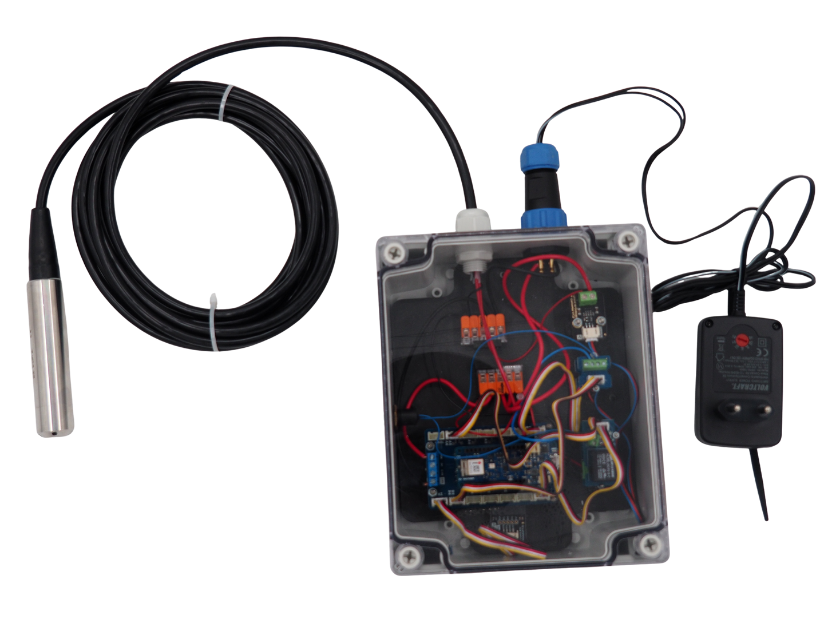
Nous vous invitons à vous réferer à ce document pour assembler la Centrale Setier Pression. Le coût du matériel nécessaire au montage est, au 09/02/2026, de 371,93 Euros (pour une centrale avec 1 Capteurs). Le temps nécessaire au montage et à la programmation de cette centrale est de 6 heures. Pour cet assemblage, il est conseillé de vous placer dans une salle éclairé et calme, certaines étapes pouvant-être minutieuse. Assurez d’avoir l’ensemble du matériel et des outils nécessaires avant de débuter l’assemblage. Les listes d’outils et de matériels sont fourni dans la suite de la présente documentation.
Informations
SETIER is an open participatory project; however, assembling the associated dataloggers requires strict compliance with safety rules for electronic board usage. SETIER dataloggers must be assembled in a professional environment by personnel with electronics expertise. The SETIER team cannot be held liable for any material or personal damage that may occur during assembly or use of a SETIER datalogger. Moreover, the SETIER team is not responsible if the datalogger fails to operate after assembly. You may redistribute and modify this documentation and produce derivatives under the terms of the CERN‑OHL‑P v2 (https://cern.ch/cern-ohl). This documentation is provided WITHOUT ANY EXPRESS OR IMPLIED WARRANTY, INCLUDING MERCHANTABILITY, SATISFACTORY QUALITY, AND FITNESS FOR A PARTICULAR PURPOSE. Please consult the CERN‑OHL‑P v2 for the applicable conditions.
You may redistribute and modify this documentation and make products using it under the terms of the CERN-OHL-P v2 (https:/cern.ch/cern-ohl). This documentation is distributed WITHOUT ANY EXPRESS OR IMPLIED WARRANTY, INCLUDING OF MERCHANTABILITY, SATISFACTORY QUALITY AND FITNESS FOR A PARTICULAR PURPOSE. Please see the CERN-OHL-P v2 for applicable conditions.
Technical Data#
Data representing the various parameters associated with the operation of the pressure unit.
Parameters |
Specifications |
Units |
Input voltage (VCC) |
7 – 15 |
V |
Measurement range |
0 – 1, 2, 3, 4 or 5 |
m |
Measurement accuracy |
0.2 |
% |
Resolution |
? |
? |
Error percentage |
? |
? |
Resolution (°C) |
? |
? |
Temperature error |
? |
? |
Operating temperature |
-40 to 70 |
°C |
Measurement frequency |
? |
? |
Ultrasonic emission cone |
? |
? |
Sensor sealing |
IP68 |
|
Communication interface |
4–20 mA |
|
Data storage |
micro SD card |
Equipment and tools required#
To assemble the Setier Pressure Unit, the following equipment is required:
Bill of Materials:
Component |
Number |
Cost per unit € |
Total cost € |
Manufacturer |
Ref. manufacturer |
Web reference |
|---|---|---|---|---|---|---|
Arduino MKR Wifi 1010 |
1 |
33.61 |
33.61 |
Arduino |
782-ABX00023 |
https://www.mouser.fr/ProductDetail/Arduino/ABX00023?qs=%252BEew9%252B0nqrAwxv2YQYWyPw%3D%3D |
Arduino MEM Shield |
1 |
19.55 |
19.55 |
Arduino |
782-ASX00008 |
https://www.mouser.fr/ProductDetail/Arduino/ASX00008?qs=%252BEew9%252B0nqrB6JgKBlp7dtg%3D%3D |
Arduino MKR Connector Carrier |
1 |
19.4 |
19.4 |
Arduino |
782-ASX00007 |
https://www.mouser.fr/ProductDetail/Arduino/ASX00007?qs=%252BEew9%252B0nqrD3EEw%252BoCBXVA%3D%3D |
Gravity RTC |
1 |
7.4 |
7.4 |
DFRobot |
426-DFR0469 |
https://www.mouser.fr/ProductDetail/DFRobot/DFR0469?qs=EU6FO9ffTwe22wh0PfInCA%3D%3D |
Grove Voltage divider |
1 |
5.55 |
5.55 |
Seeed-Studio |
104020000 |
https://fr.farnell.com/seeed-studio/104020000/voltage-divider-board-arduino/dp/4007781?ost=104020000 |
Current to Voltage Converter |
1 |
4.21 |
4.21 |
DFRobot |
426-SEN0262 |
|
Spacer M3x2cm |
8 |
1.08 |
8.64 |
Wurth-Elektronik |
710-971200354 |
https://www.mouser.fr/ProductDetail/Wurth-Elektronik/971200354?qs=wr8lucFkNMXVQ0nS%2FAg5sw%3D%3D |
Nut M3 |
20 |
8.18 |
8.18 |
Wurth-Elektronik |
560-293 |
|
Screw M3x8mm |
8 |
4.28 |
4.28 |
RS-PRO |
908-7661 |
|
Spacer M2x2cm |
10 |
0.808 |
8.08 |
Wurth-Elektronik |
710-971200244 |
https://www.mouser.fr/ProductDetail/Wurth-Elektronik/971200244?qs=wr8lucFkNMW86Ww6MhRnZQ%3D%3D |
Nut M2 |
20 |
7.41 |
7.41 |
Wurth-Elektronik |
560-271 |
|
Screw M2x8mm |
5 |
4.48 |
4.48 |
RS-PRO |
908-7637 |
|
Box Polycarbonate 344x289x117mm IP65 |
1 |
40.36 |
40.36 |
RS-PRO |
197-2014 |
|
Pushbutton |
1 |
8.5 |
8.5 |
ITW Switches |
265-0635 |
|
Grove Screw Terminal |
2 |
1.9 |
3.8 |
Seeed-Studio |
713-103020007 |
https://www.mouser.fr/ProductDetail/Seeed-Studio/103020007?qs=1%252B9yuXKSi8B56dS97ffOlA%3D%3D |
Pressure Sensor |
1 |
95.59 |
95.59 |
Seeed-Studio |
314990619 |
|
Female panel connector IP68 21mm 2 contacts |
1 |
19.3 |
19.3 |
RS-PRO |
124-6674 |
https://fr.rs-online.com/web/p/connecteurs-circulaires-industriels/1246674?gb=a |
Male cable connector IP68 21mm 2 contacts |
1 |
21.89 |
21.89 |
RS-PRO |
124-6683 |
|
AC/DC 3V Adaptator |
1 |
12.75 |
12.75 |
RS-PRO |
206-4908 |
|
WAGO 221 5 levers |
2 |
9.57 |
9.57 |
WAGO |
221-415 |
|
PVC panel |
1 |
1 |
3D Print |
|||
Cable gland |
1 |
15.1 |
15.1 |
RS-PRO |
822-9653 |
|
Micro SD card |
1 |
12.09 |
12.09 |
SanDisk |
467-SDSDQAB-016G |
https://www.mouser.fr/ProductDetail/SanDisk/SDSDQAB-016G?qs=EgF7oUuTQmp8cNxoHCNycQ%3D%3D |
USB µUSB connector |
1 |
2.19 |
2.19 |
Qualtek |
562-3025033-01 |
https://www.mouser.fr/ProductDetail/Qualtek/3025033-01?qs=1mbolxNpo8c5JqM9YiGl1Q%3D%3D |
Pressure compensation |
1 |
18.50 |
18.5 |
Schneider Electric |
177-8973 |
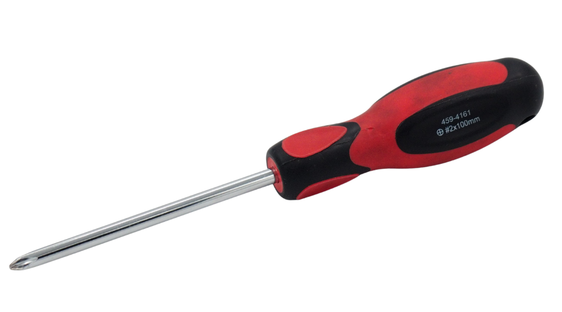
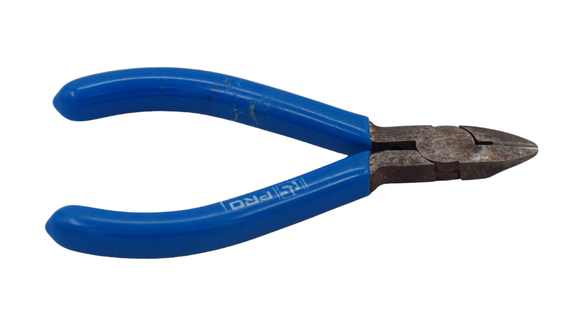
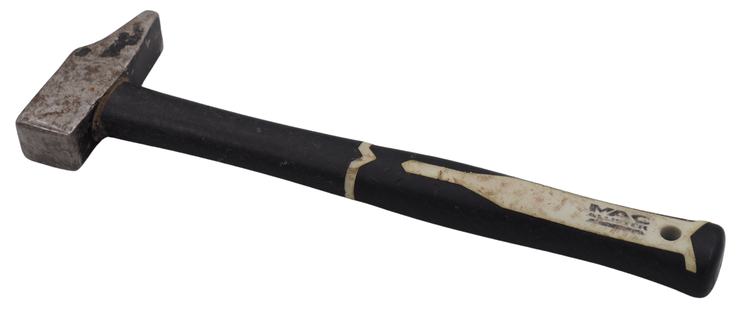
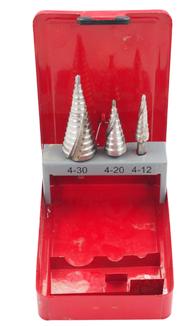
Il vous sera également utile d’avoir ces différents outils :
|
|


Step 1: Assemble the electronic part#
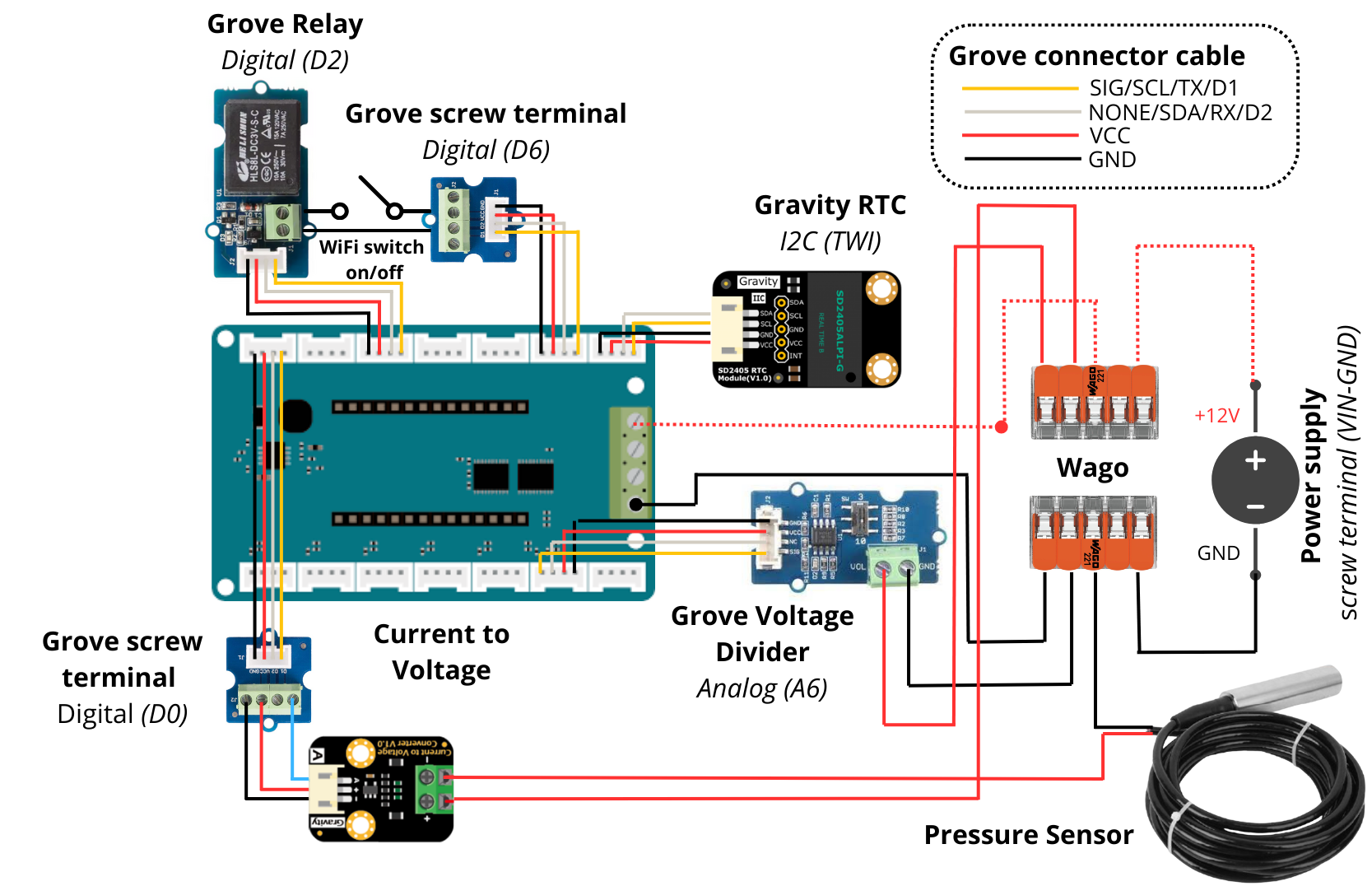
The first step involves assembling the various circuit boards that make up the Setier Control Unit, to achieve the wiring shown in the diagram below.
Electronic diagram#
1. Assembly of the Arduino MKR boards#
These boards control the various components connected to the datalogger (sensors, button, …) and record the associated data (measurements, timestamps, …).
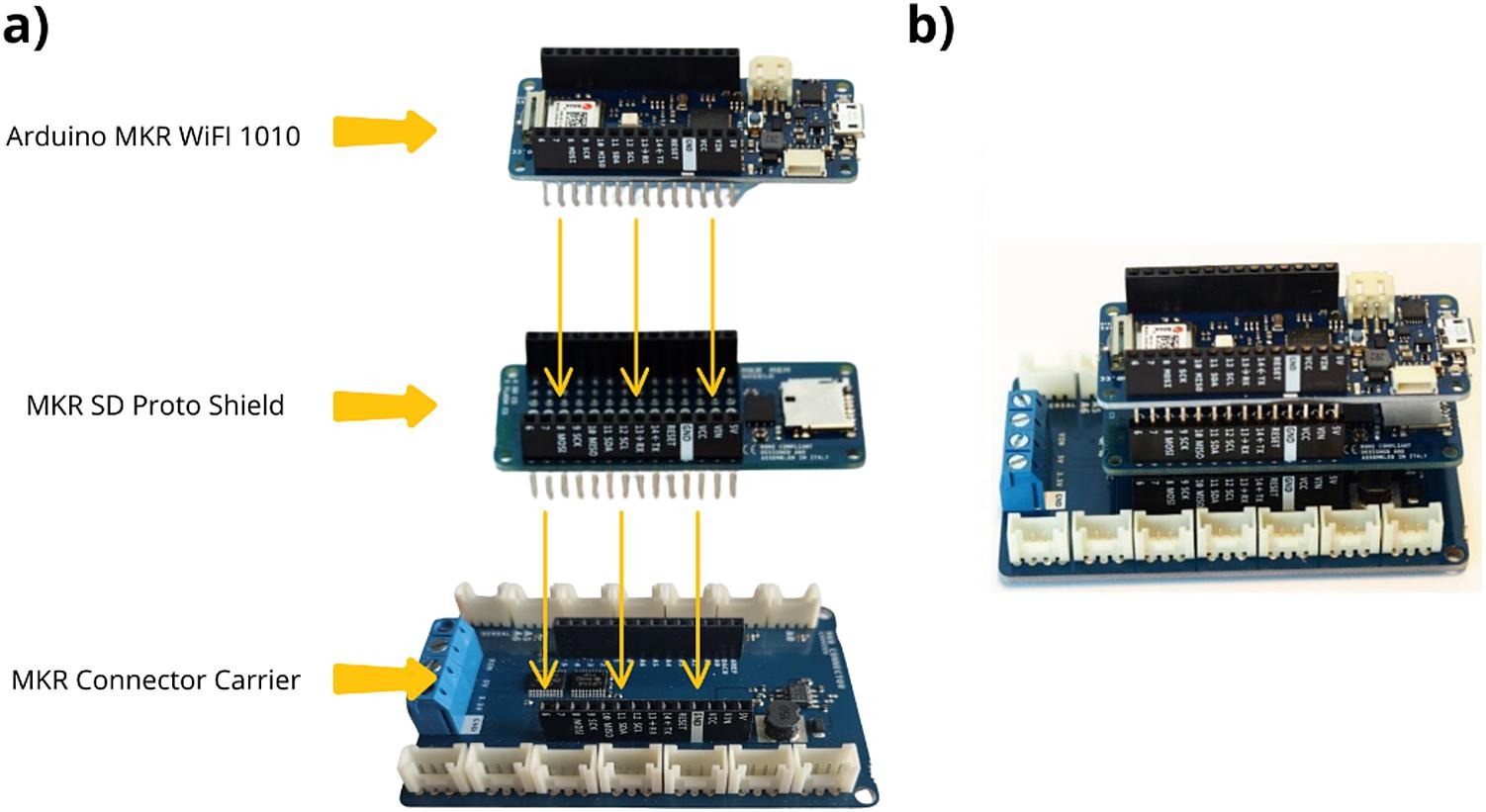
Stack the Arduino MKR MEM Shield board onto the Arduino MKR Connector Carrier board, then stack the Arduino MKR Wifi 1010 board onto the Arduino MKR MEM Shield board.
The resulting assembly is shown below.
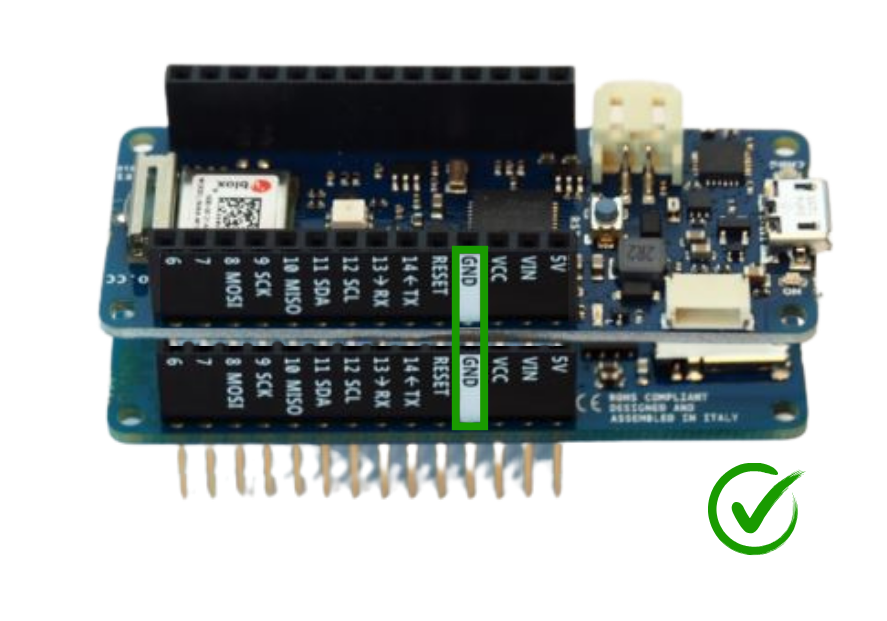
Attention
The three circuit boards must be stacked in the correct orientation (e.g. GND pin to GND pin).
2. Connecting the Gravity RTC Module#
This module provides real‑time clock functionality for timestamping recorded data (RTC = Real‑Time Clock).
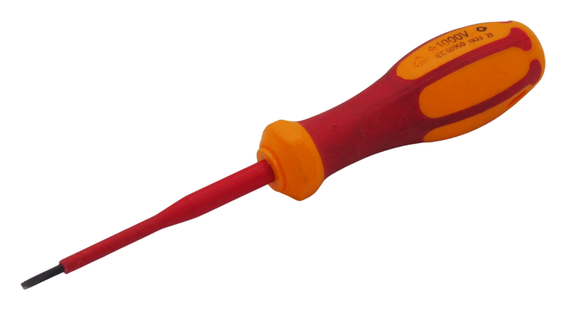
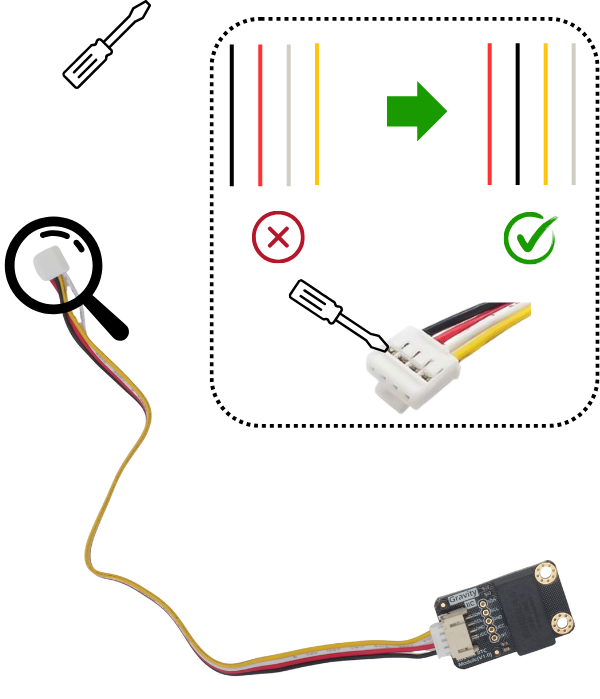
Take the Gravity RTC Module and a Grove connector cable. Connect it to the Gravity RTC Module. At the other end of the cable, use a thin flat-bladed screwdriver to swap the red and black wires, as well as the white and yellow wires.
See also
To better understand how to reverse these cables, watch the following video: https://www.youtube.com/watch?v=0G7iIwfuaJ8
3. Connecting the two:term:Grove Screw Terminal Module#
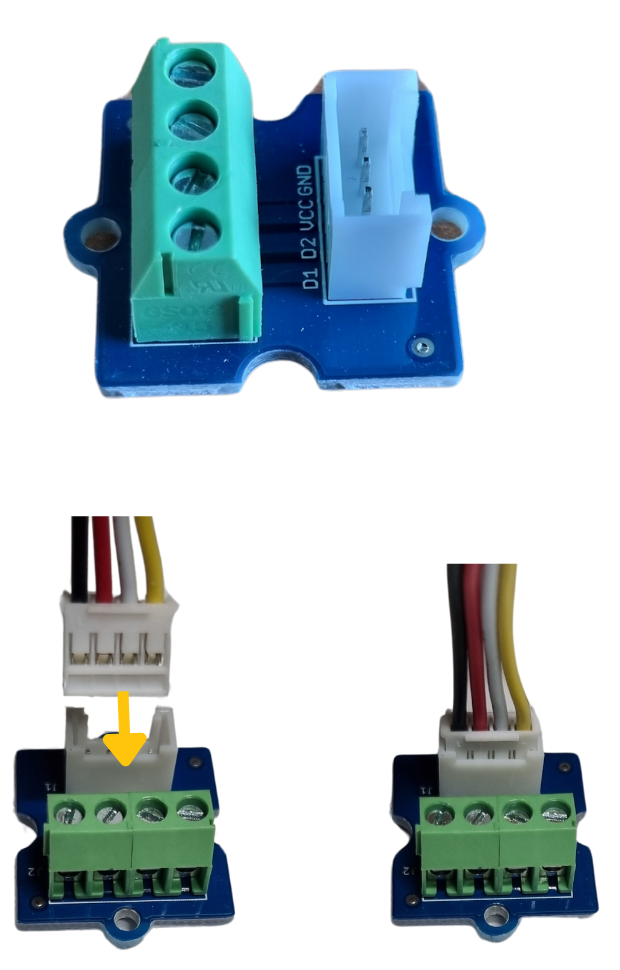
This type of module allows you to connect various components via cables, which are then controlled by the microcontroller. In this case, they are used to connect the push-button and the pressure sensor.
Take the Grove Screw Terminal Module and connect the Grove connector cables supplied with it.
4. Connecting the Grove Voltage Divider Module#
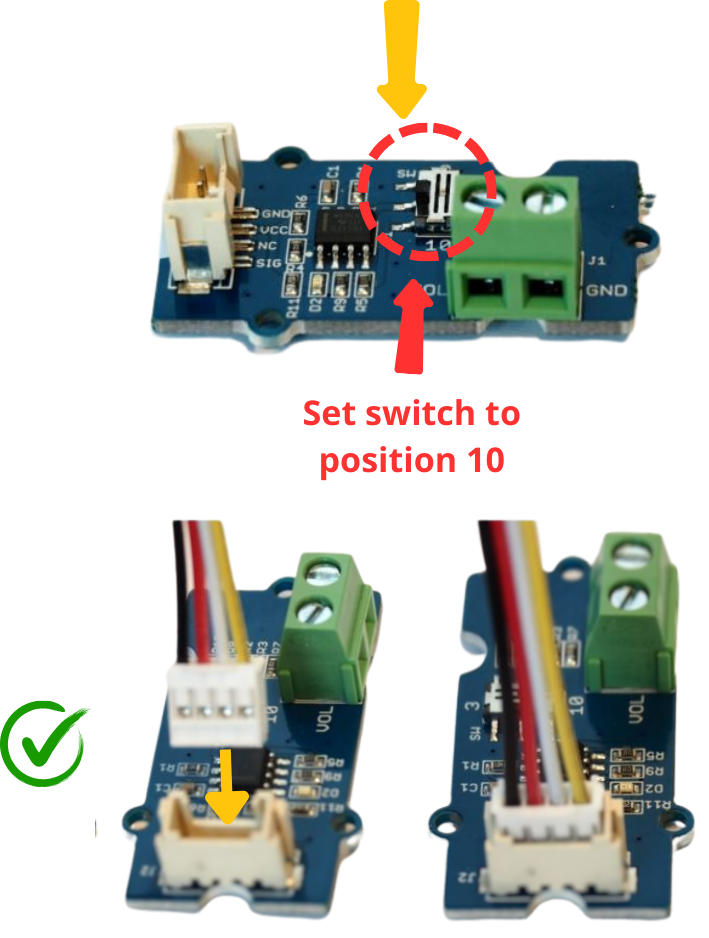
This module is used to measure the system’s battery voltage. As the system is powered by 12 V, it is important to change the position of the switch. Take the Grove Voltage Divider Module and connect the Grove Connector cable supplied with it. Change the position of the switch to 10.
5. Connecting the Grove Relay Module#
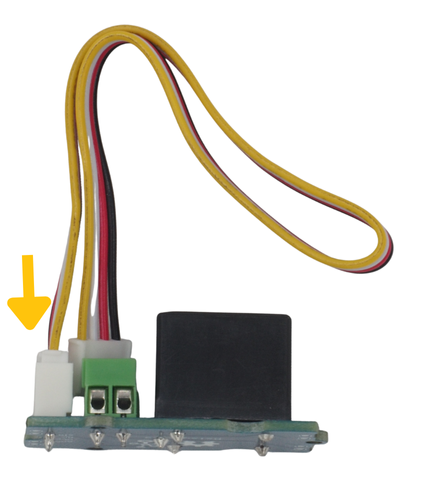
Ce module permet de piloter l’alimentation électrique d’un composant, comme un interrupteur. Il sert ici à piloter le bouton poussoir, qui permet d’activer et d’éteindre le wifi. Ce réseau permettra de récupérer les données de la centrale, ainsi que de reparamétrer celle-ci. Si vous monter une centrale SETIER en utilisant une version du code postérieur à la V3.0.0, les étapes relatives à ce relay sont inutiles.
Take the Grove Relay Module and connect the Grove Connector cable supplied with it.
6. Connecting the Current‑to‑Voltage module#
This module converts the sensor signal (an electrical current) into a voltage (volts).
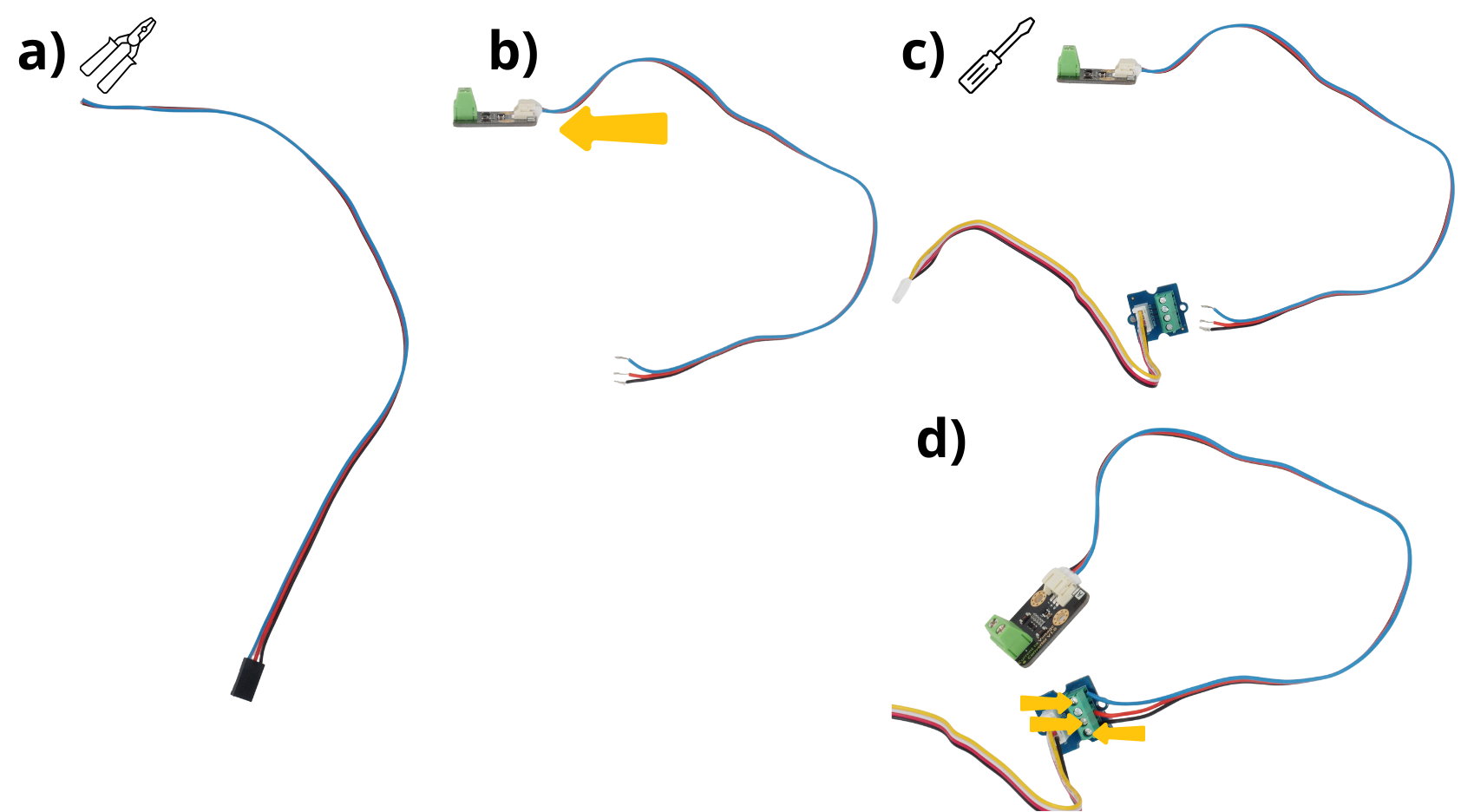
Take the cable (blue, red and black) and cut off the black connector at one end, then strip the insulation from each of the wires.
Connect the other end of the cable to the Current to Voltage module.
Take one of the modules: Grove Screw Terminal Module.
Insert the blue cable into the screw terminal ‘D1’, the red cable into the screw terminal “VCC” and the black cable into the screw terminal ‘GND’. Tighten the screws.
7. Wiring the various elements to the Arduino Carrier board#
Connecting the previously mentioned modules to the microcontroller will enable their control.
Take the stack of Arduino boards assembled in Step 1.
Connect the Gravity RTC Module to the ‘TWI’ port.
Connect the Grove Screw Terminal Module on its own to
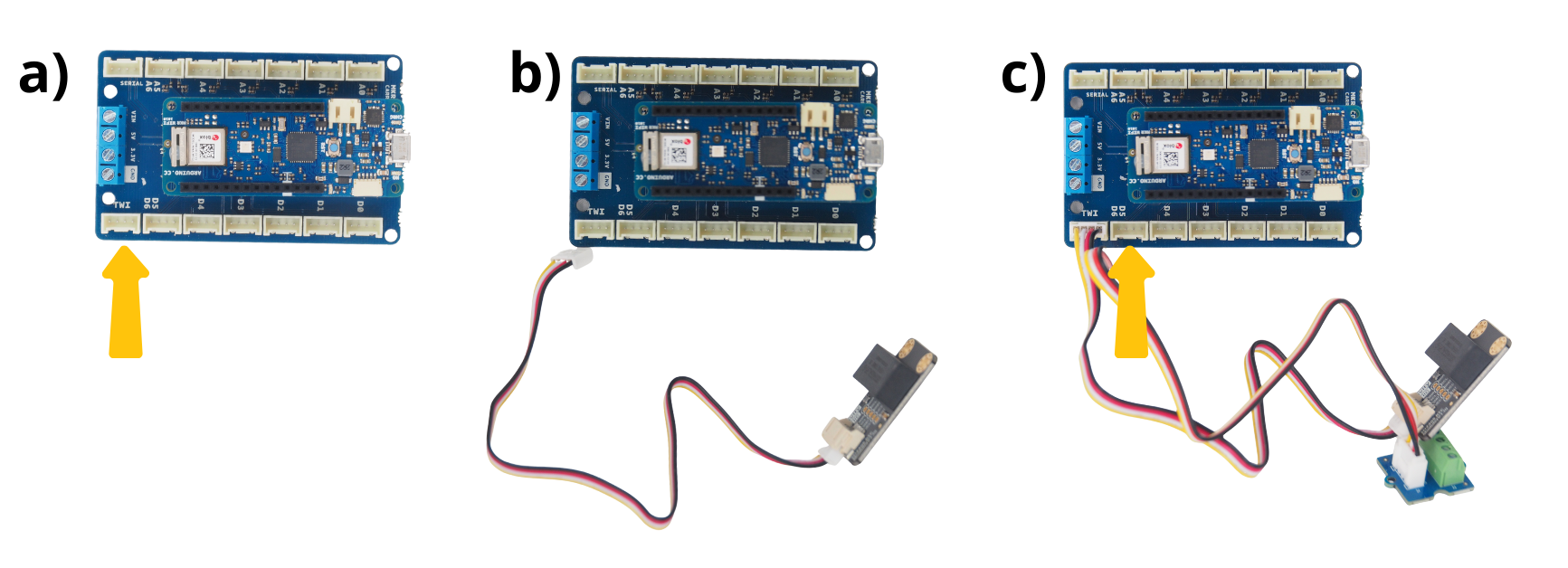
Connect the Grove Relay Module to port ‘D0’.
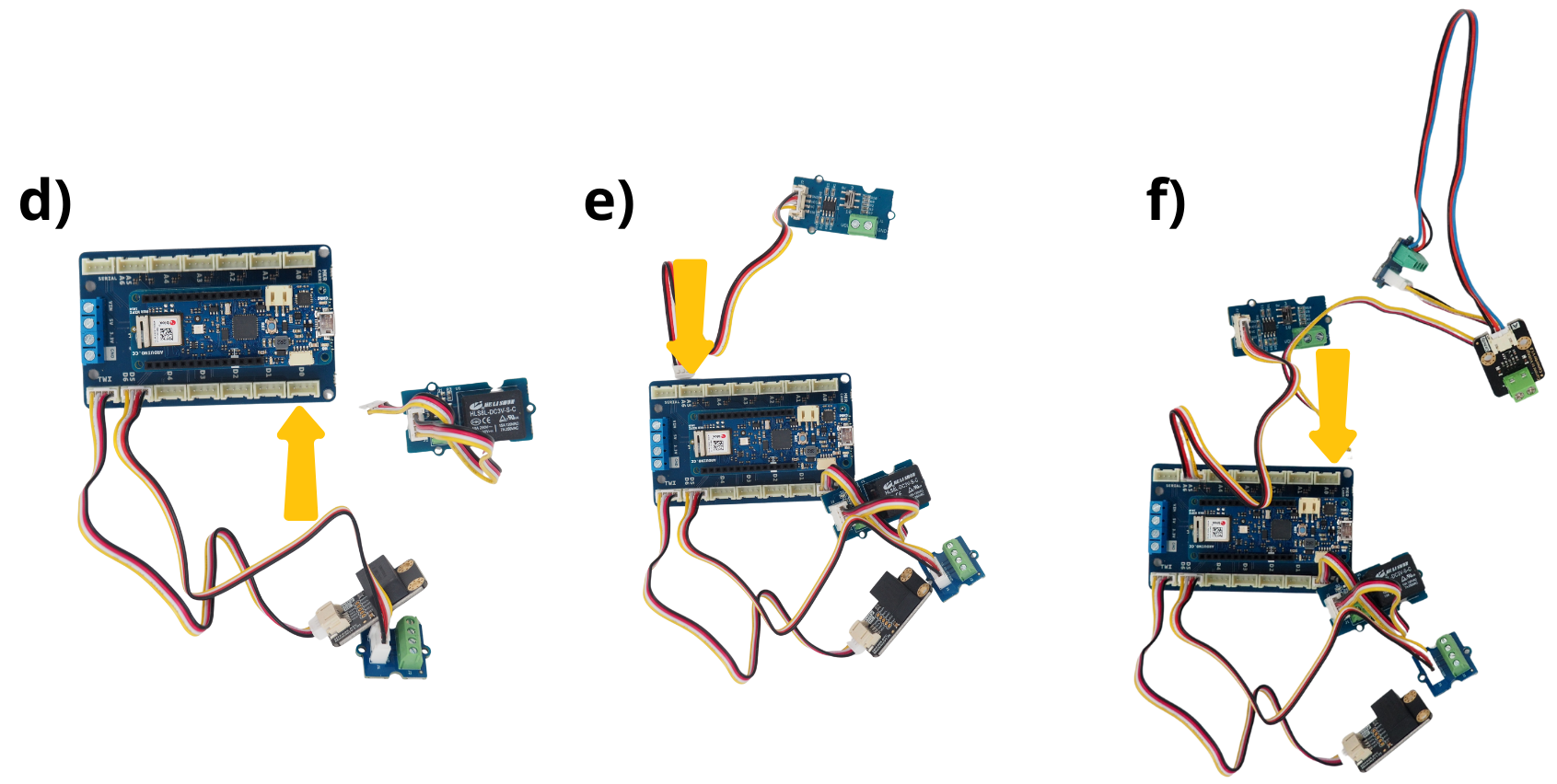
Connect the Grove Voltage Divider Module to the
Connect the Grove Screw Terminal Module, which is connected to the Current to Voltage module, to port ‘A0’.
Step 2: Assembling the mechanical components#
Preparation of the PVC or wood support
The use of a printed plate is described here. If you do not have a 3‑D printer, you can consult a nearby Fab‑lab.
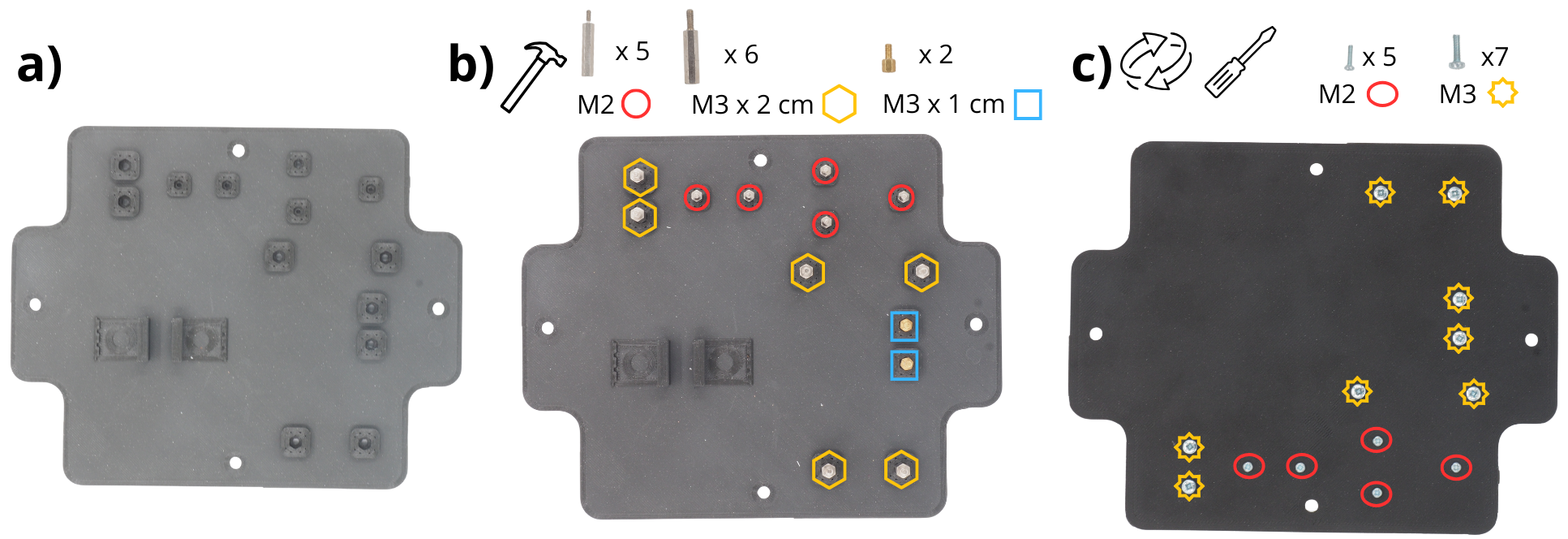
Take the plate.
Insert the spacer M2 (1.5 cm), spacer M3 (2 cm), and spacer M3 (1 cm) into the holes provided. They can be inserted either way round, as you prefer. You can use a hammer to drive them in more firmly.
Turn the plate over and insert the M2 screws and M3 screws into the holes provided to secure the spacer.
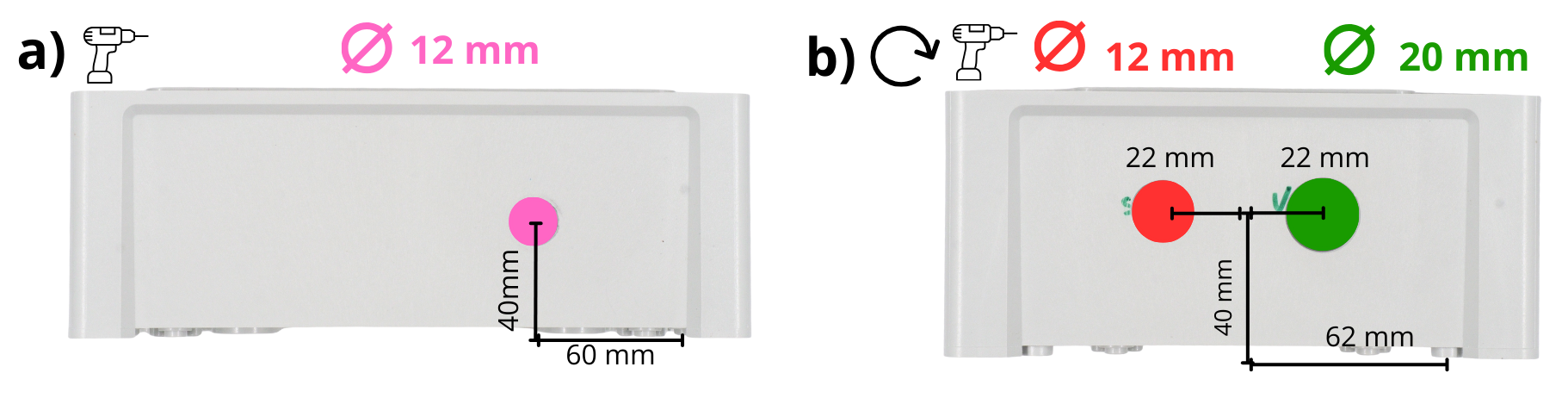
Take the housing and drill a 12 mm diameter hole in the longest side (see diagram below).
Take the housing and drill a 20 mm diameter hole in the shorter side, as well as a 12 mm diameter hole (see diagram below).
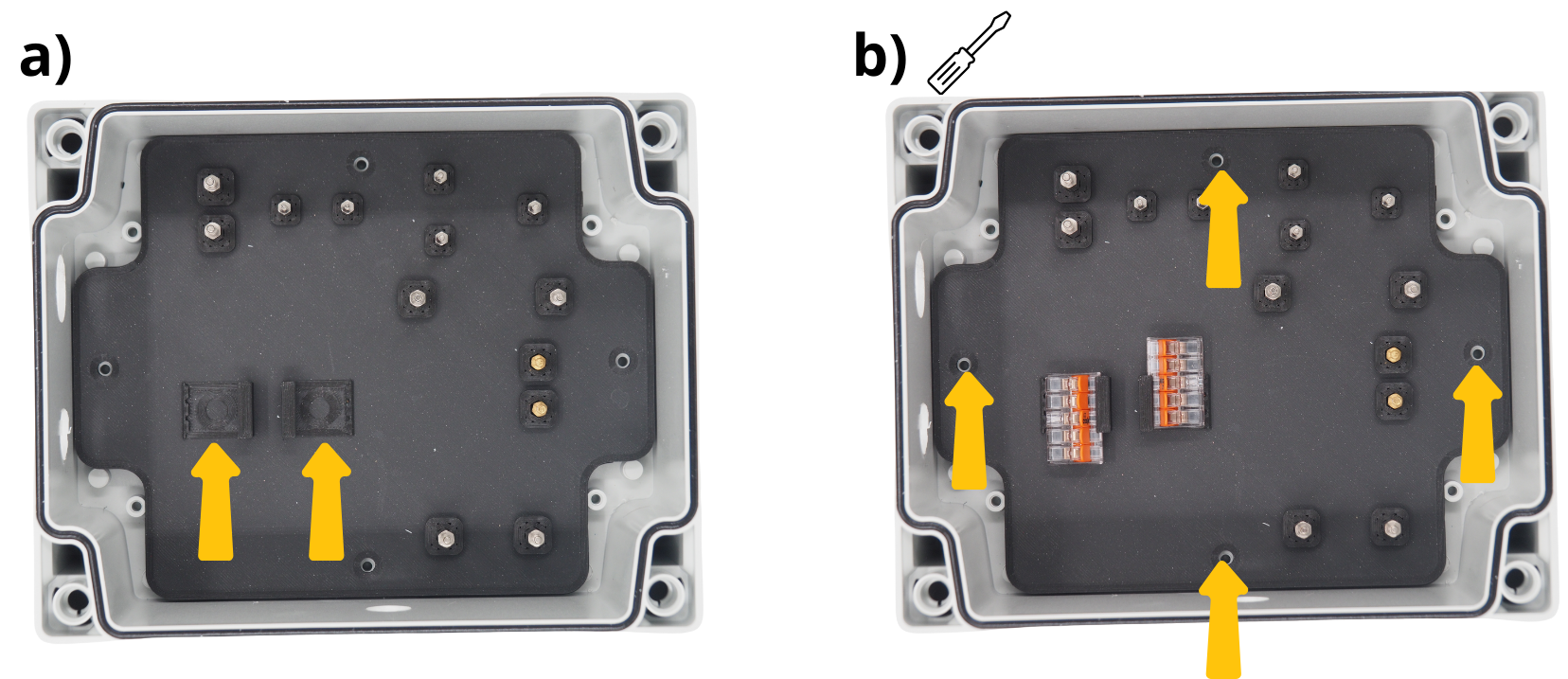
Place the plate inside the box, and insert the 2 WAGO terminal blocks into the designated holders.
Secure the plate to the enclosure using the four screws supplied with the box.
2. Placement and fastening of the Arduino and Grove boards#
Note
In the following steps, you will regularly be asked to secure the various components by screwing them in place. Do not use excessive force when tightening the screws.
Secure the Gravity RTC Module to the spacers provided for this purpose using M3 nuts.
Secure the Arduino board stack using M3 nuts to the spacers provided for this purpose (above the Gravity RTC Module).
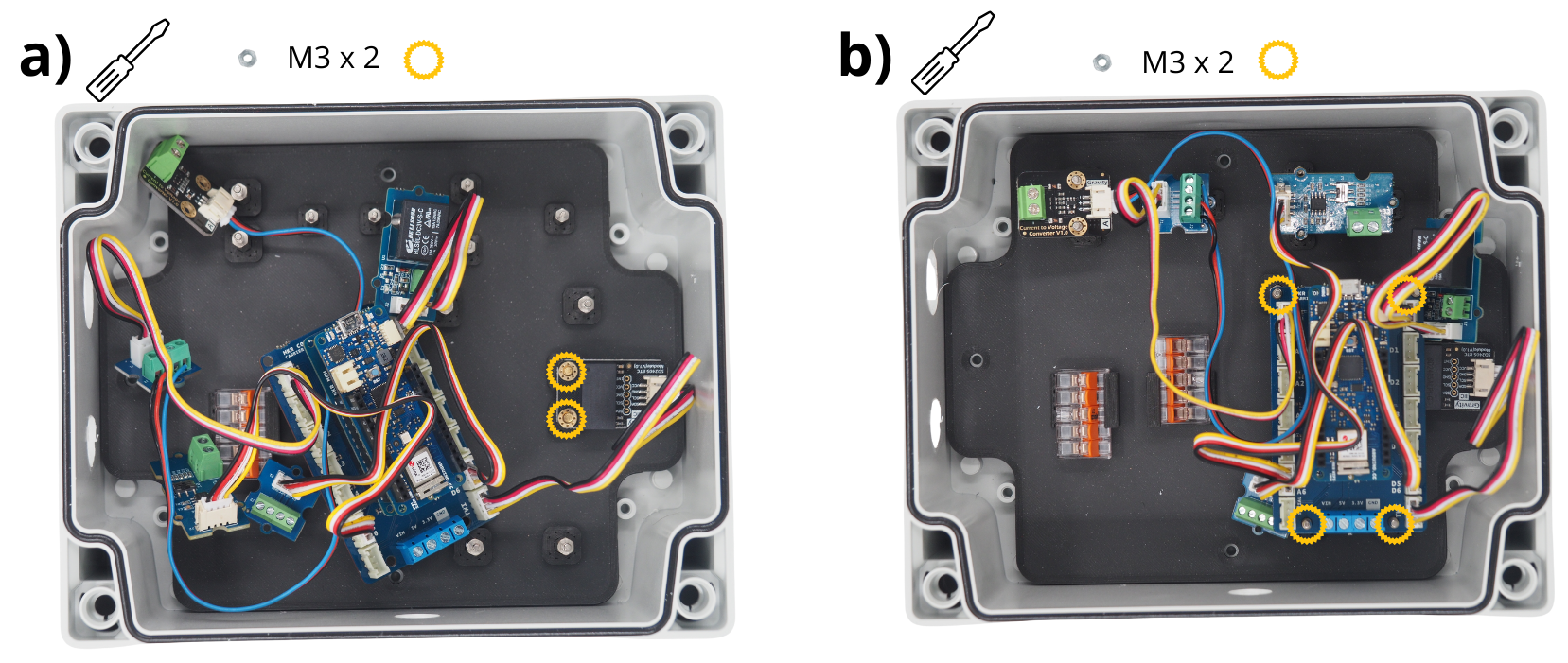
Secure the Arduino board stack using M3 nuts to the spacers provided for this purpose (above the Gravity RTC Module).
Place the Grove Voltage Divider Module on the spacers provided for this purpose.
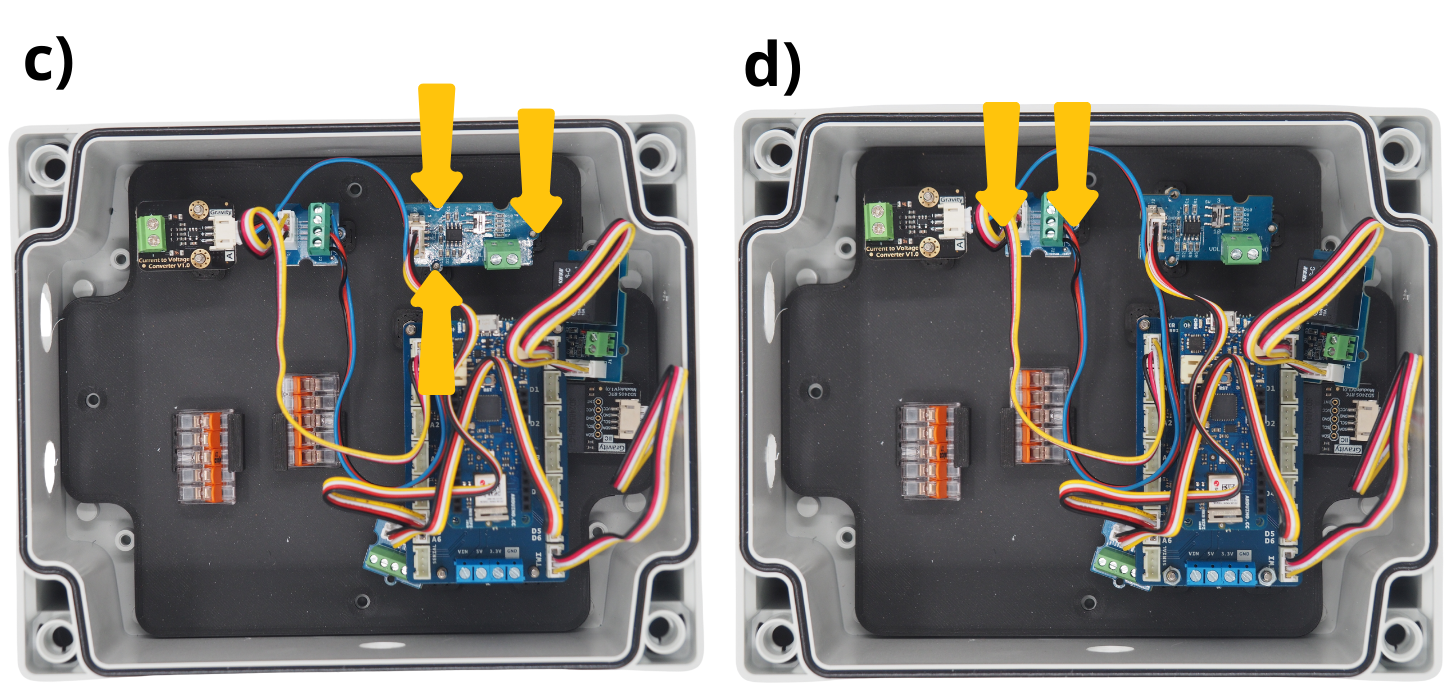
Place the Grove Screw Terminal Module, connected to the Current to Voltage module, onto the spacers provided for this purpose.
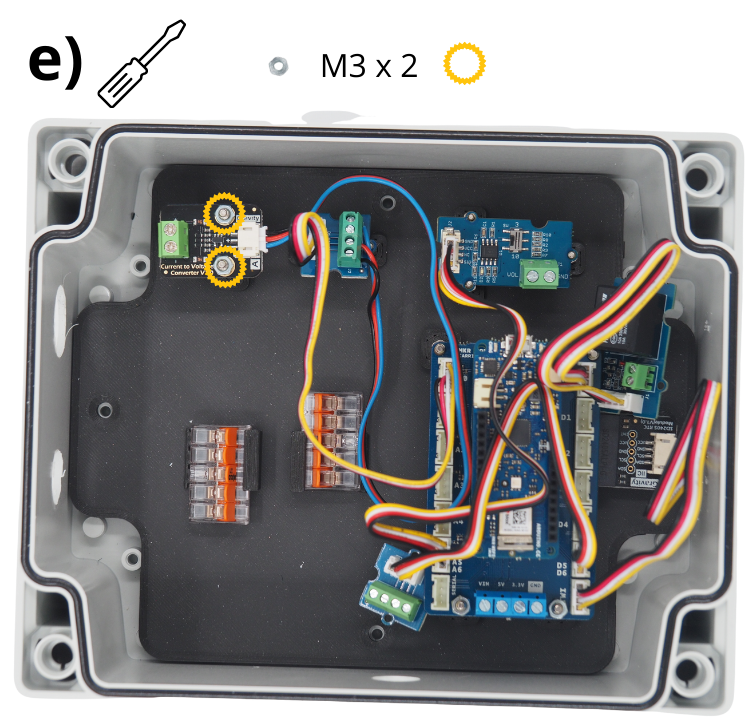
3. Connecting the Grove Voltage Divider Module and the result.#
Note
In the following steps, you will regularly be asked to insert cables into various screw terminals, and then tighten them. To do this, you must first unscrew the screw terminal block (see image) to open it, allowing you to insert a cable before screwing it back down to close the terminal block around the cable.
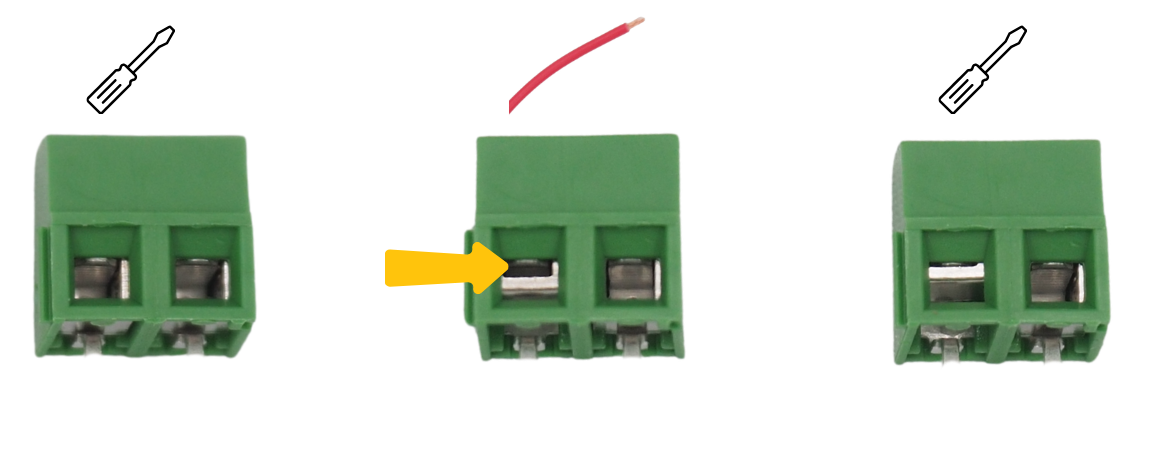
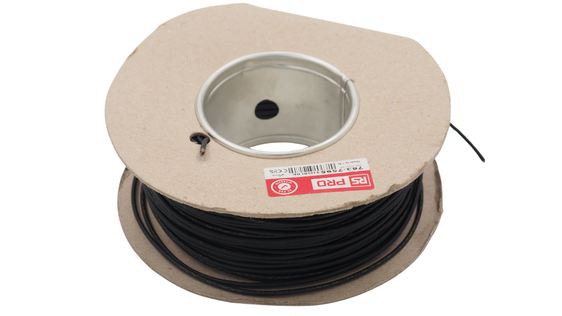
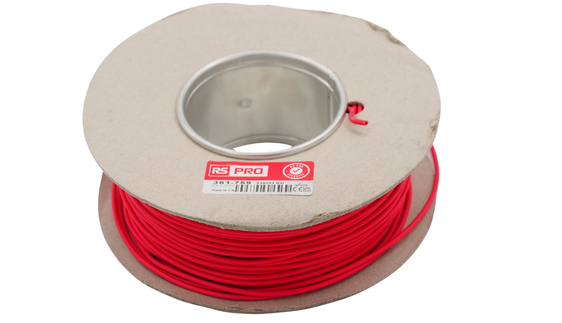
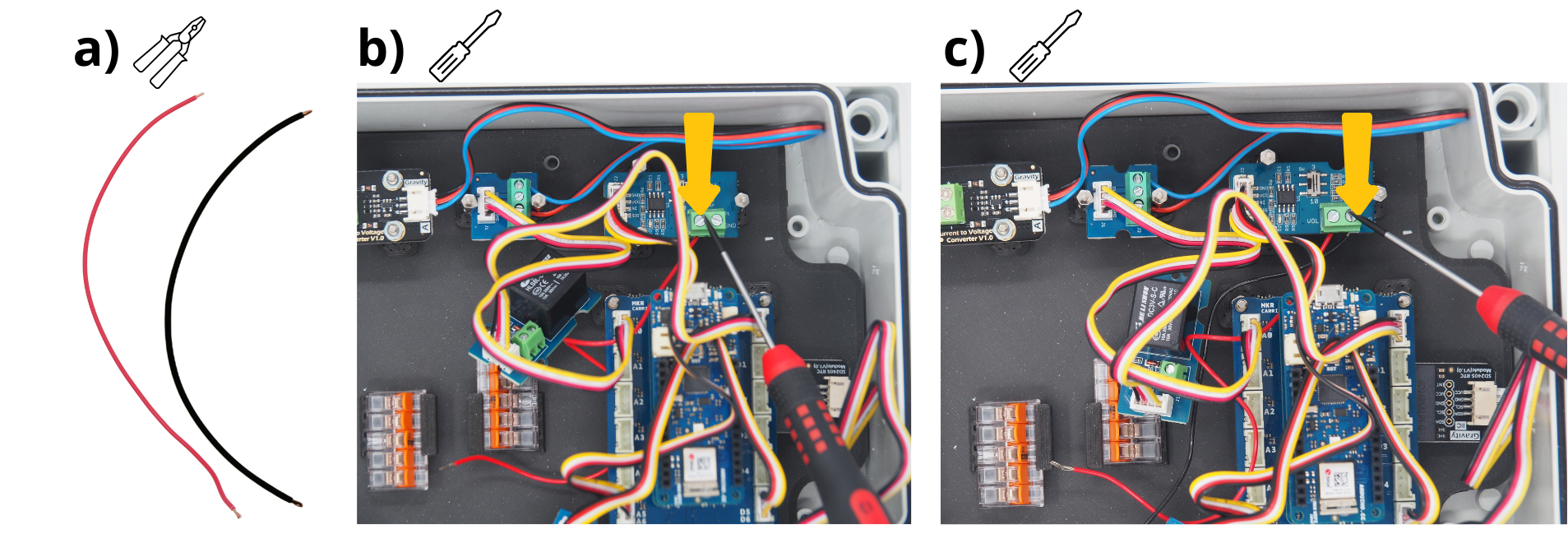
Cut a 20-centimetre length of red wire and a 20-centimetre length of black wire, then strip the ends using wire strippers.
Insert the red cable into the screw terminal block ‘VOL’ on the Grove Voltage Divider Module and tighten the screw.
Insert the black cable into the screw terminal block ‘GND’ on the Grove Voltage Divider Module and tighten the screw.
4. Positioning and securing the final Grove modules#
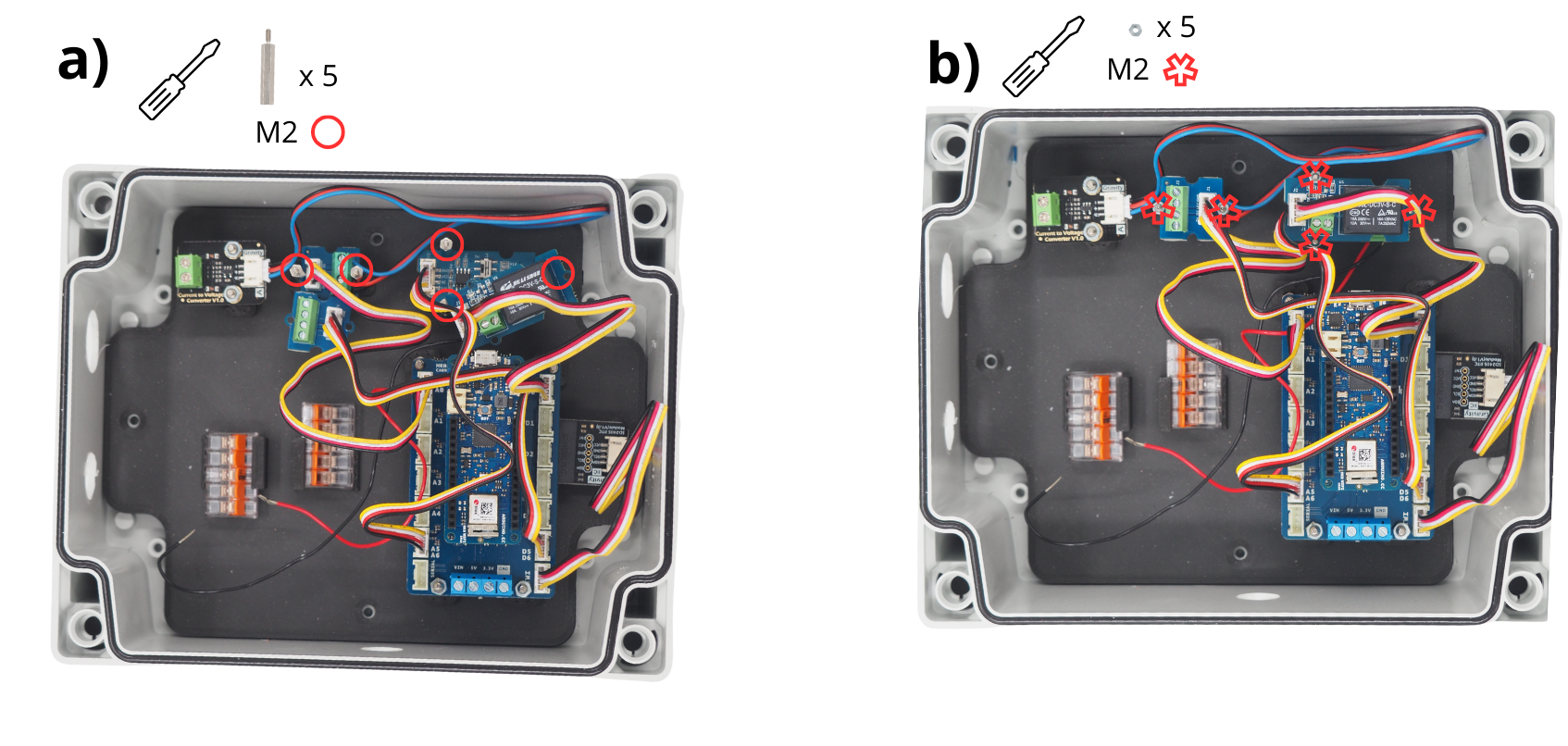
Secure the Grove Voltage Divider Module and the Grove Screw Terminal Module using an M2 spacer.
Place the Grove Relay Module onto the spacers of the Grove Voltage Divider Module, and the second Grove Screw Terminal Module onto the spacers of the Grove Screw Terminal Module. Secure them using M2 nuts.
5. Wiring and mounting the push‑button#
Cut a 20-centimetre blue cable, then strip the ends using wire strippers. The colour of the cable doesn’t matter.
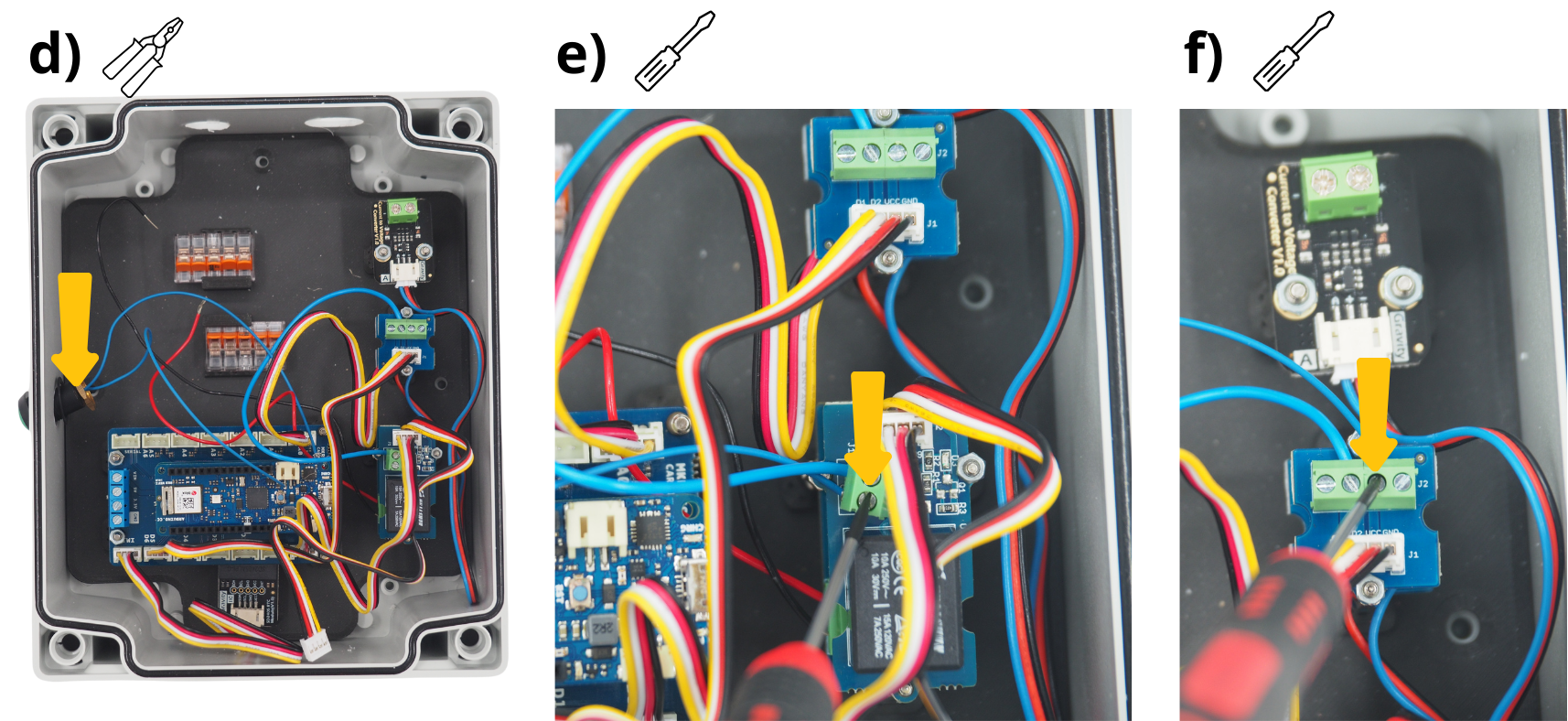
Insert one end of this cable into any of the terminal blocks on the Grove Relay Module, then screw it in.
Insert the other end of this cable into the screw terminal ‘D2’ on the Grove Screw Terminal Module, then tighten the screw.
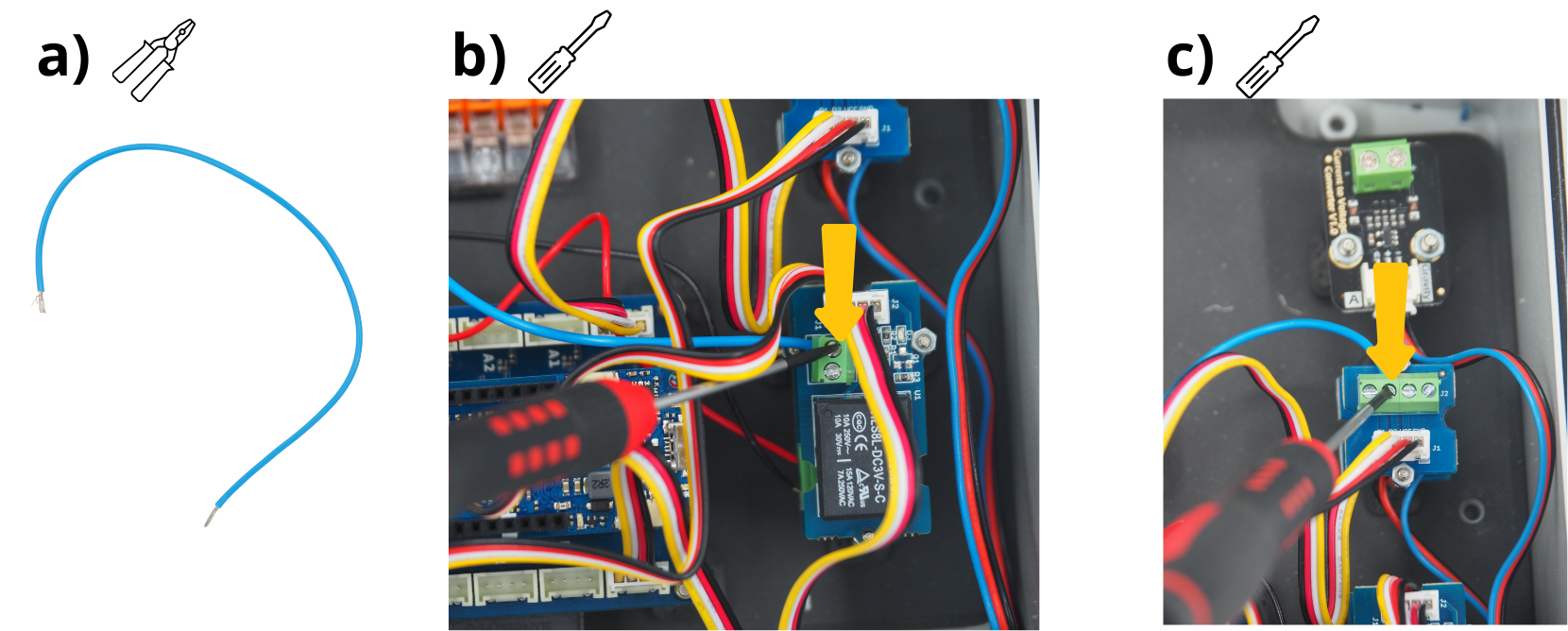
Take the push button, strip the ends of its two wires, then insert the push button into the hole provided. Secure it using the screw and washer supplied.
Attention
The push-button seal must be positioned on the outside of the box.
Insert one of the cables (your choice) from the push button into the screw terminal block on the remaining Grove Relay Module, then tighten the screw.
Insert the other cable from the push button into the screw terminal ‘VCC’ on the Grove Screw Terminal Module, then tighten the screw.
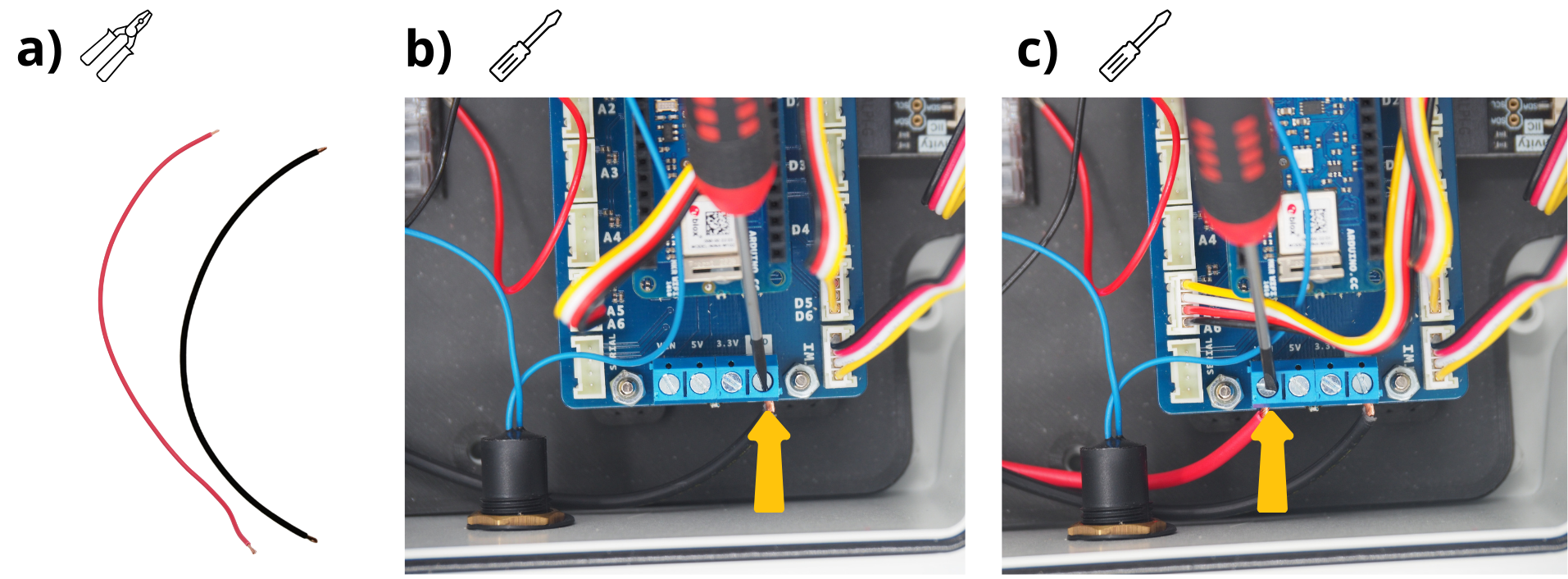
6. Power connection for the Arduino boards#
Cut and strip a 20 cm red cable and a 20 cm black cable.
Insert the black cable into the ‘GND’ screw terminal on the Arduino MKR Connector Carrier, then tighten the screw.
Insert the red cable into the screw terminal ‘VIN’ on the Arduino MKR Connector Carrier, then tighten the screw.
7. Power supply for the Pressure central unit#
The next step involves wiring the power supply unit for the control unit. This unit must be plugged into a 220 V socket when using the Setier Control Unit.
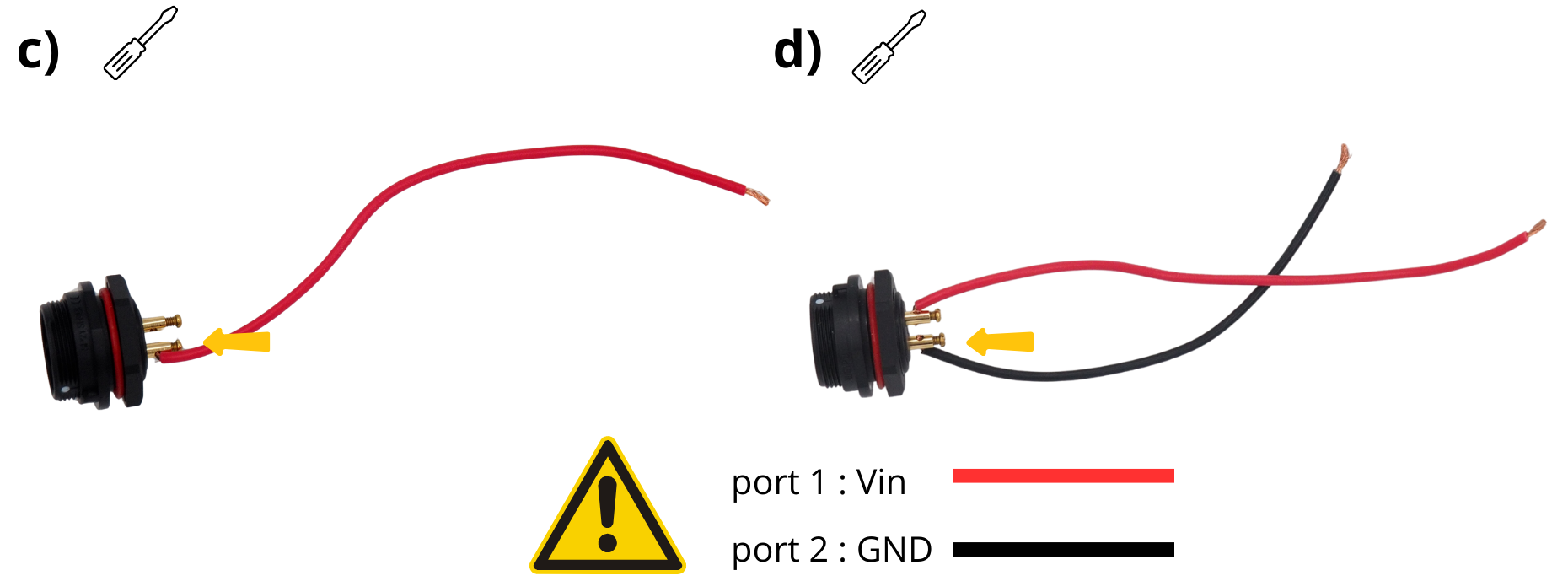
Cut and strip a 20 cm red cable and a 20 cm black cable.
Take the panel feed-through connector.
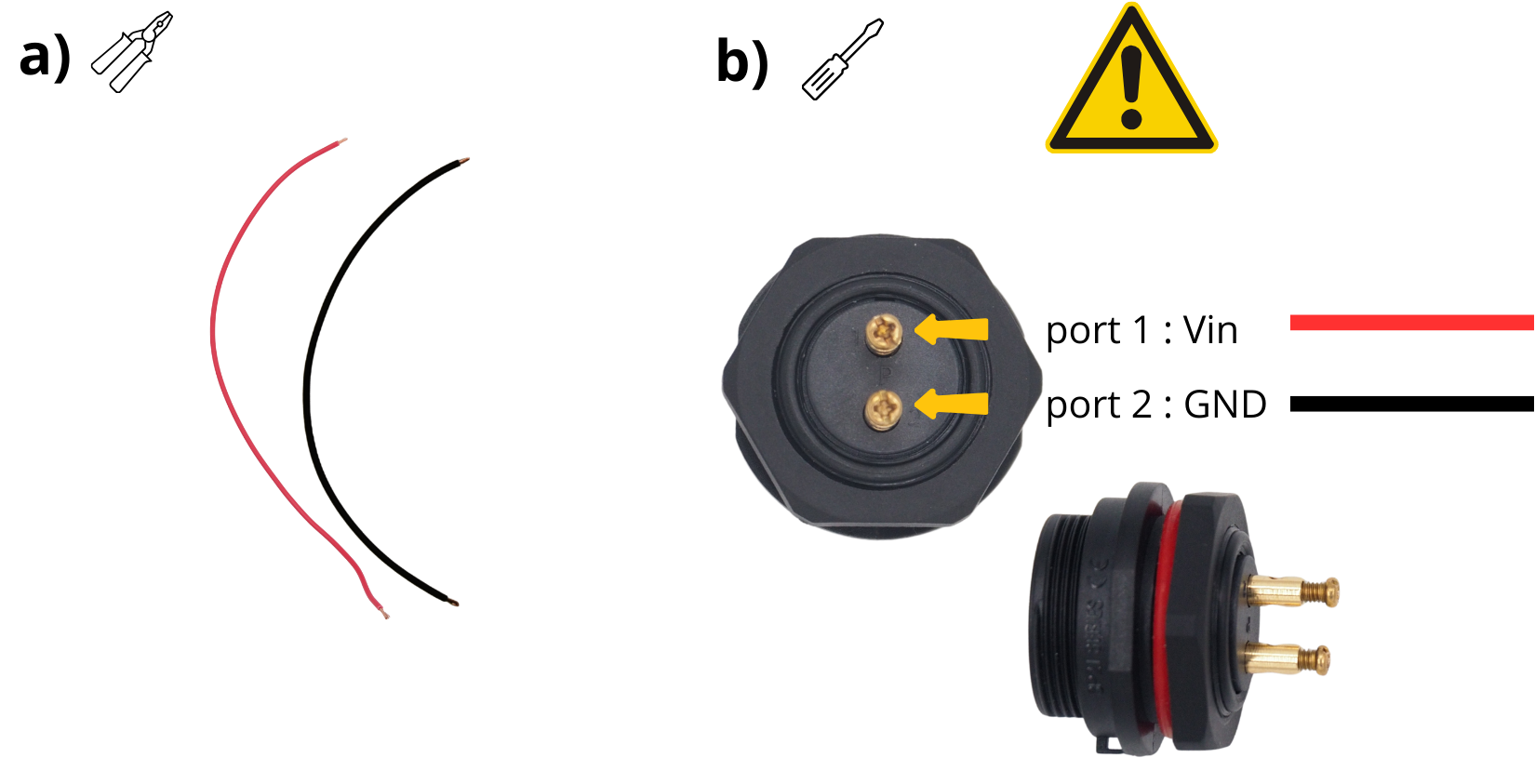
Insert one end of the red cable into the screw terminal ‘1’ on the panel power connector, then tighten the screw.
Insert one end of the black cable into the screw terminal ‘2’ on the panel power connector, then tighten the screw.
Attention
To prevent a short circuit between the GND cable (black) and the VIN cable (red), add a heat-shrink sleeve.
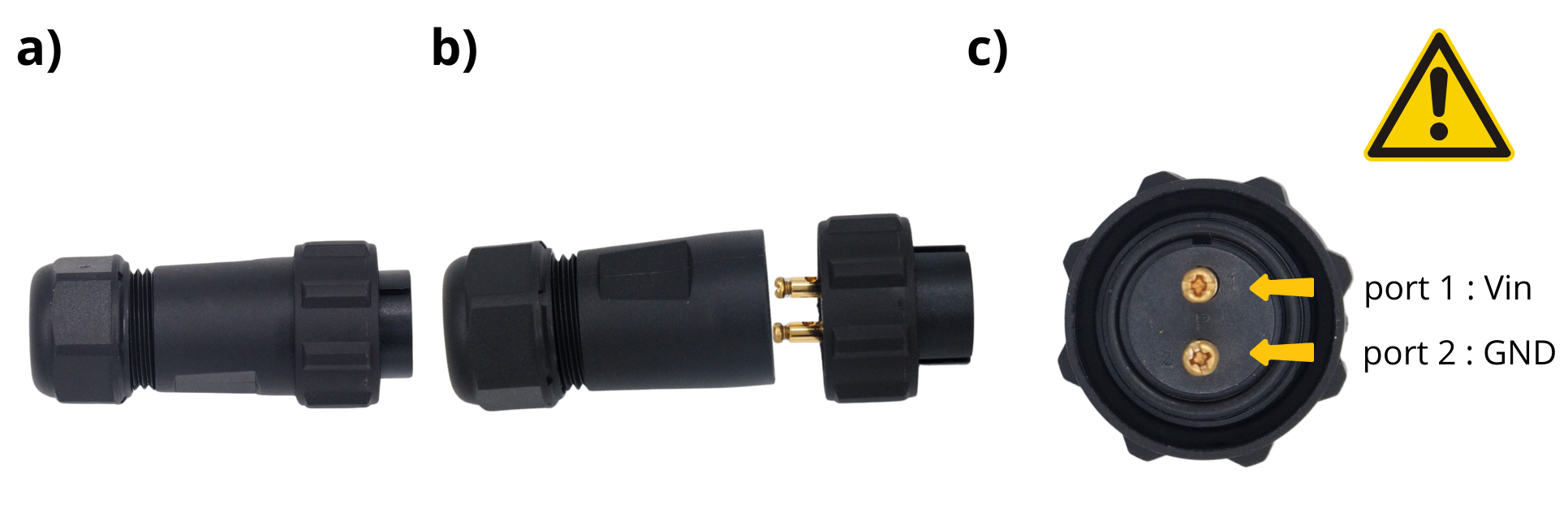
Take the through‑panel power connector.
Unscrew it to access the connection screws.
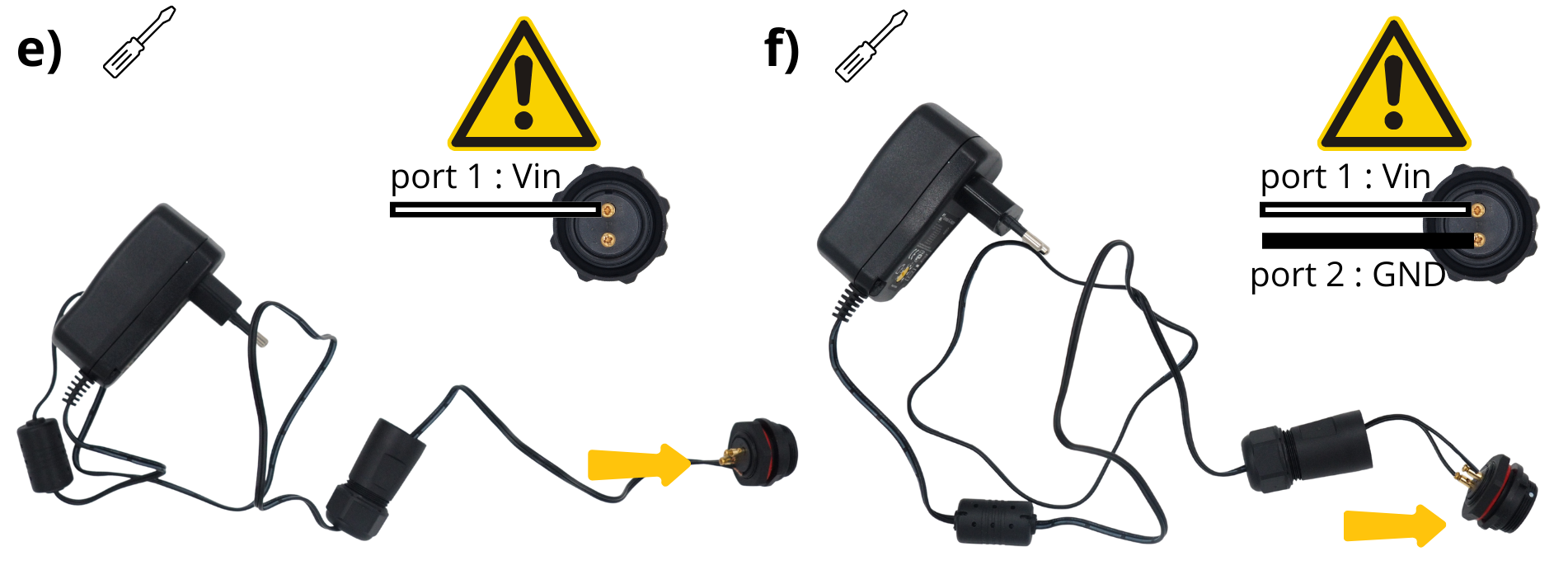
Follow the instructions marked around it (screw terminal block ‘1’ and screw terminal block ‘2’).
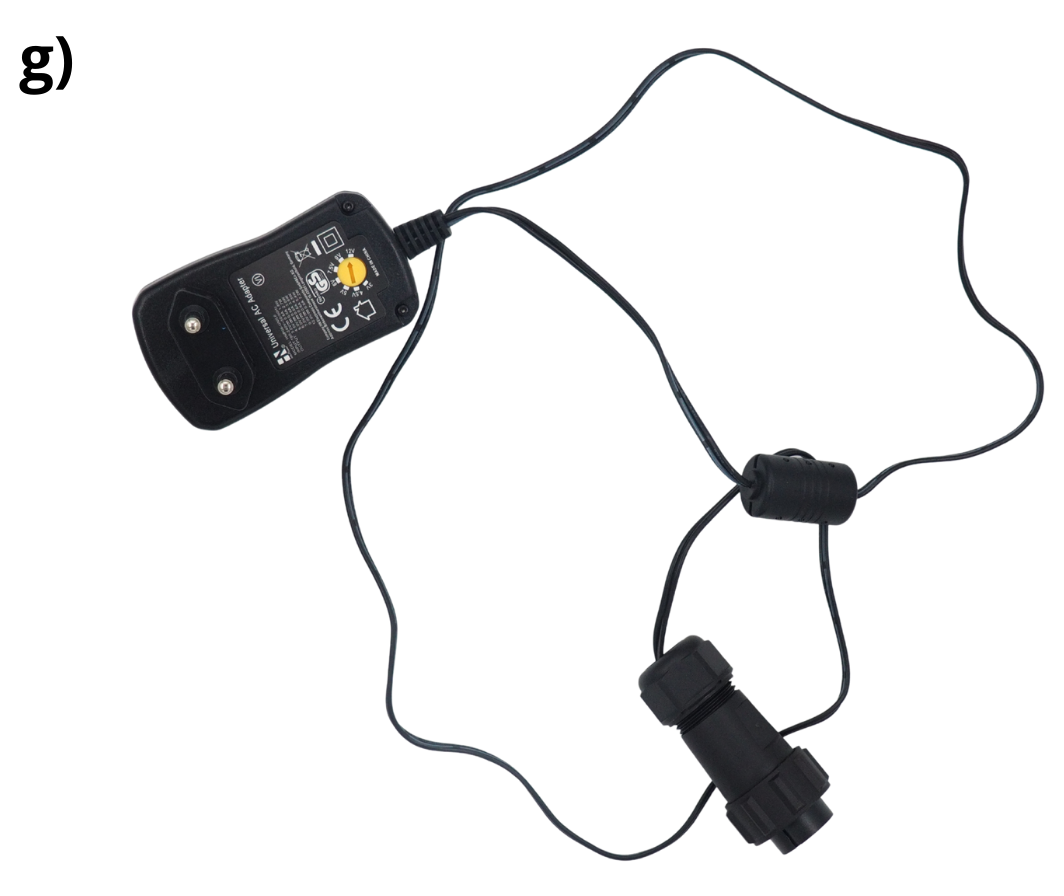
Take the 220 V – 12 V power plug, flip it, and use a screwdriver to set its output to 12 V.
Trim the end of this power plug.
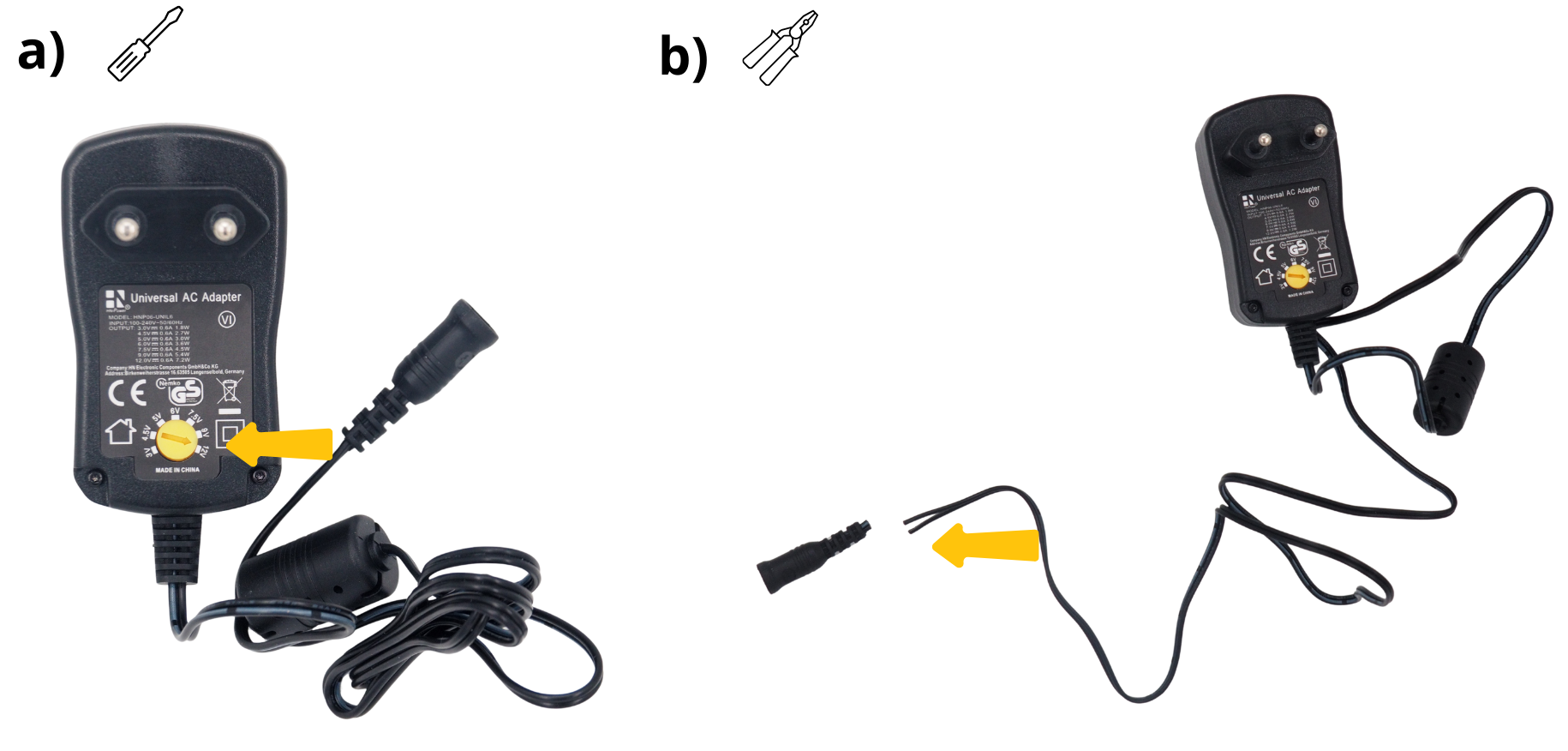
Strip the two wires at this same end.
Skip the section: cable gland of the external power connector.
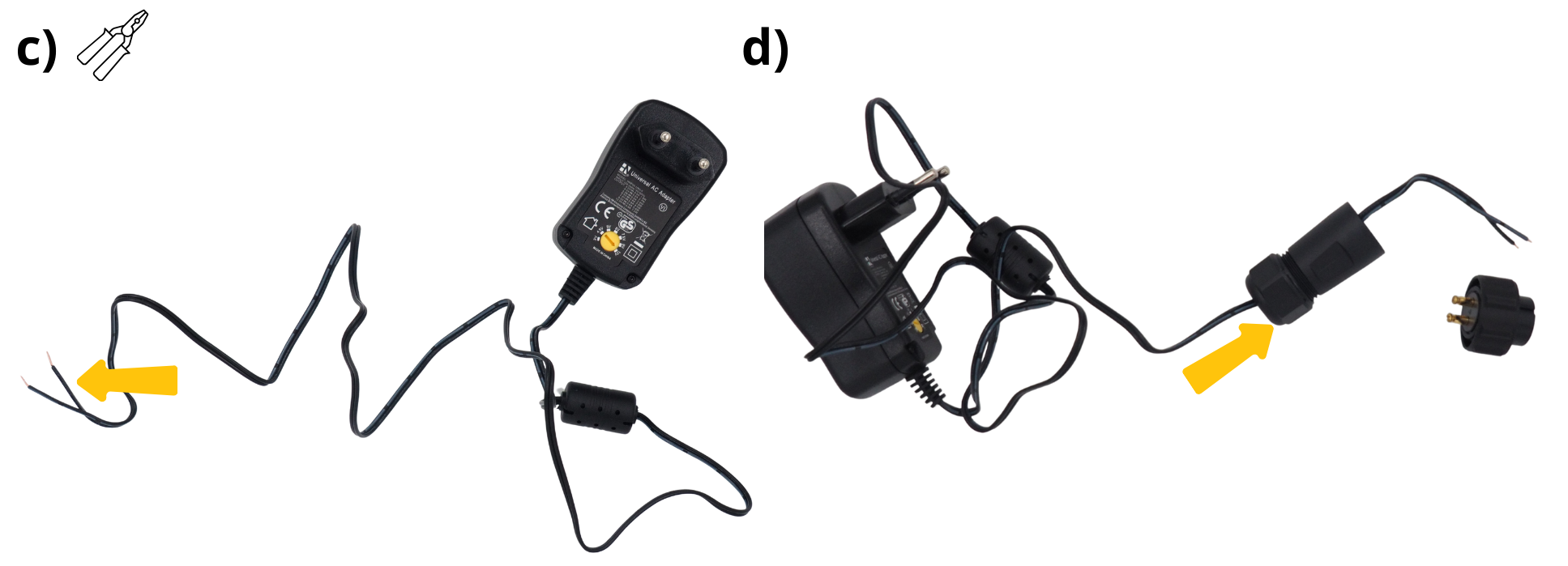
Insert the white cable into the screw terminal block ‘1’ on the panel power connector. Make sure you connect the correct cable to the correct terminal block.
Insert the black cable into terminal ‘2’ of the panel power connector. Make sure you connect the correct cable to the correct terminal.
Screw the cable gland onto the connector you connected earlier.
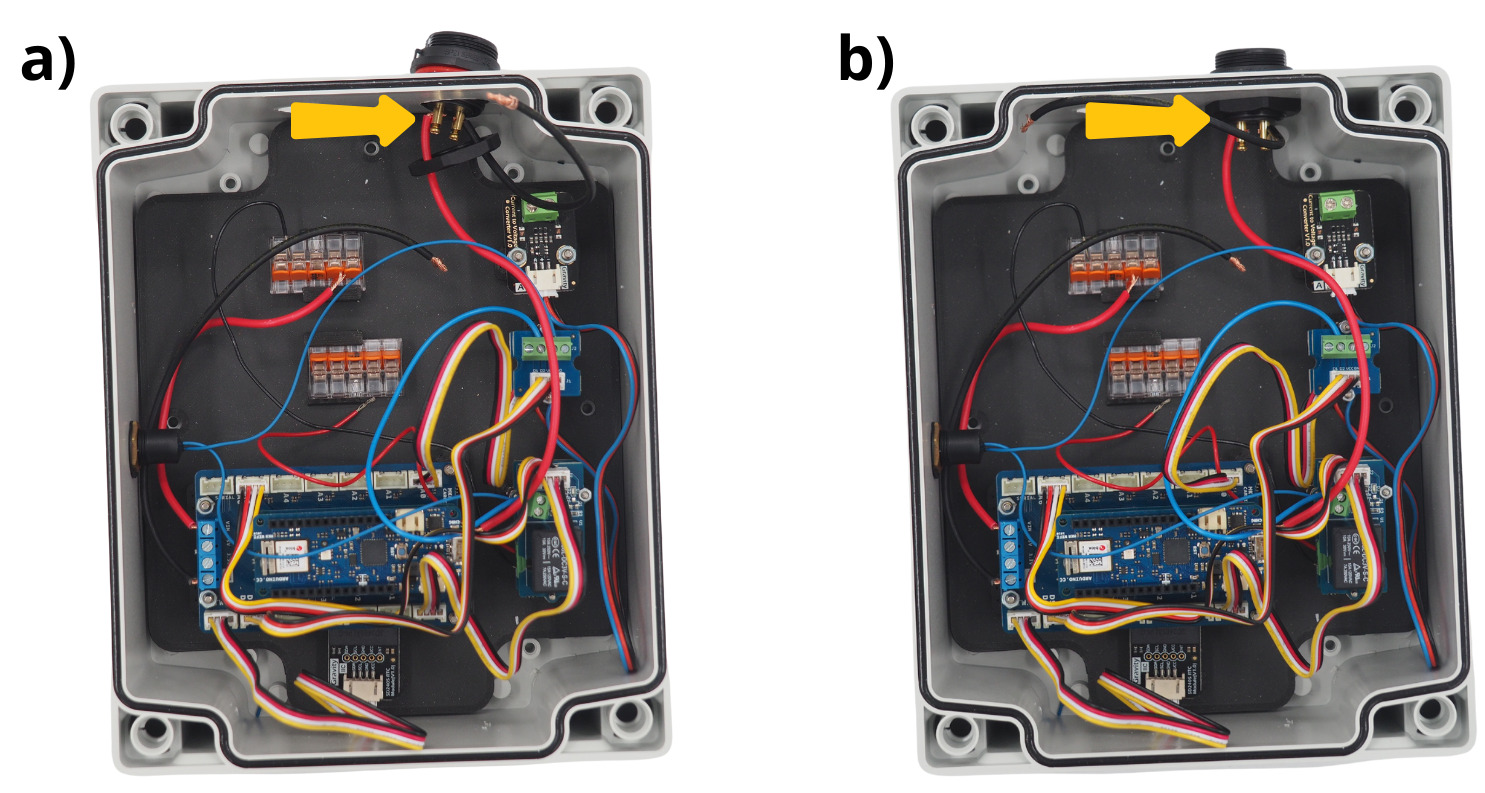
The power‑supply block is now ready. a) Insert the central power‑supply block into the designated hole; b) Secure it with the supplied nut.
8. Installation of the Pressure sensor#
Take the pressure sensor and the gland, then feed them through the hole provided for this purpose.
Tighten the cable gland to secure the sensor cable and ensure the housing is watertight.
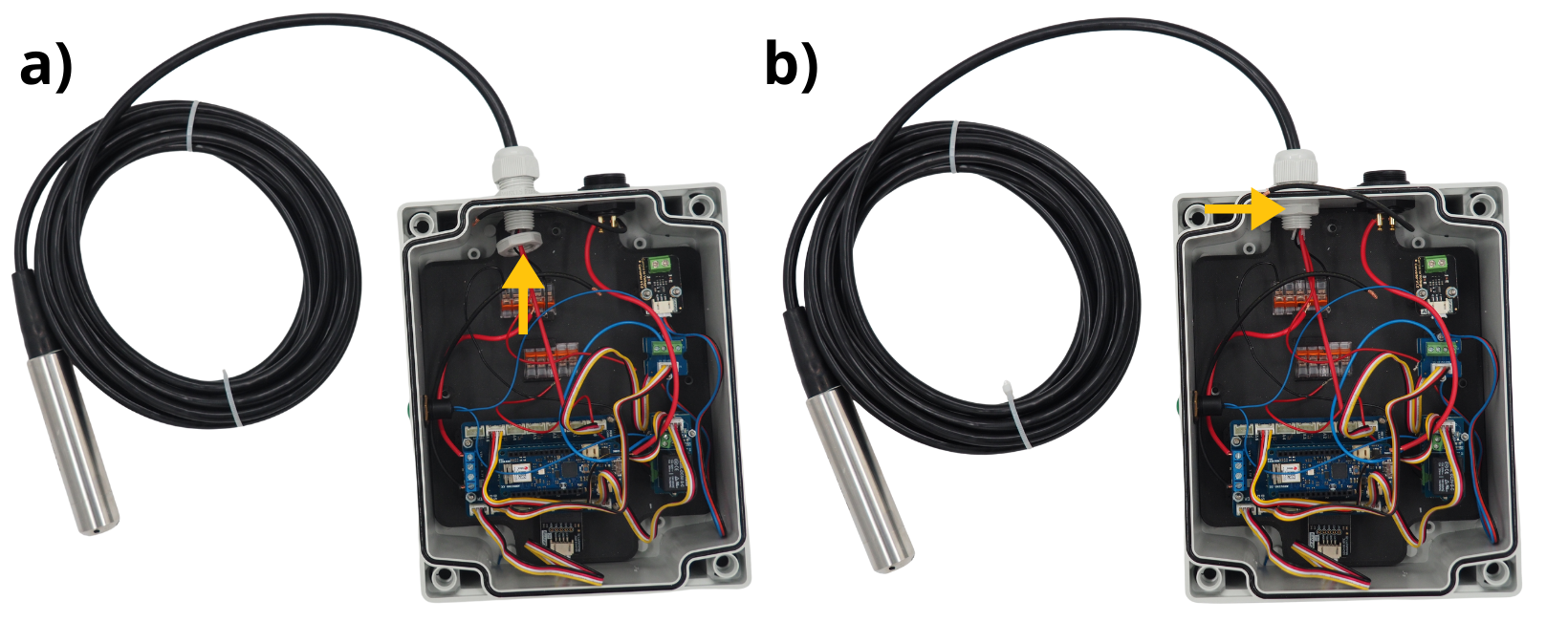
Cut a 20-centimetre red cable, then strip the ends using wire strippers.
Insert the red cable into the ‘+’ screw terminal on the Current to Voltage module and tighten it.
Insert the end of the red sensor cable into the ‘-’ screw terminal on the Current to Voltage module and tighten it.
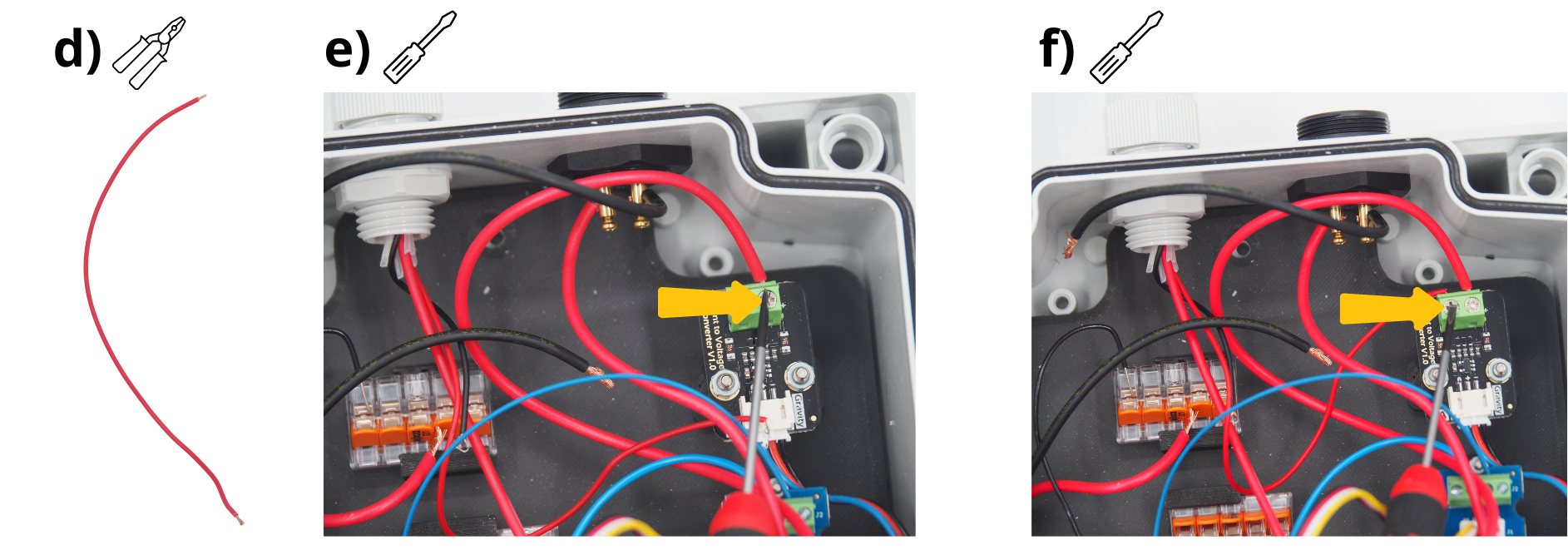
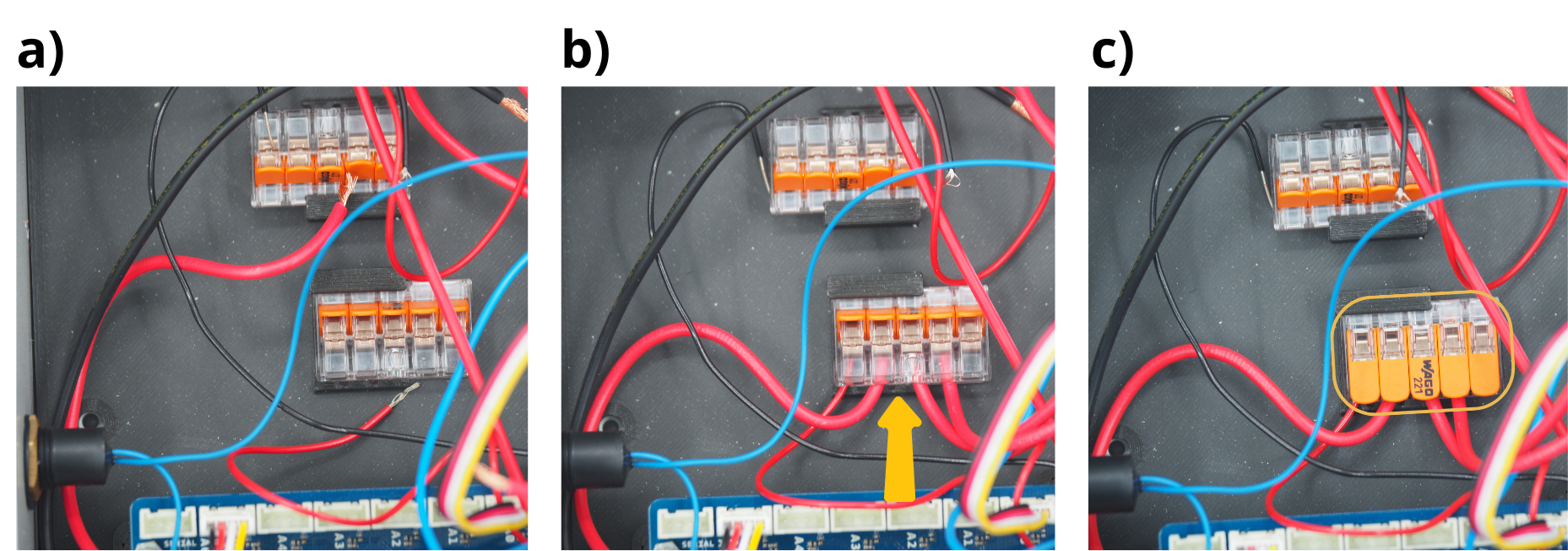
9. Connecting the 12 V power supply for the various components to a WAGO terminal block#
Open the four levers on the first WAGO terminal block.
Insert the remaining ends of the following red cables into each of these terminals: from the Current to Voltage module, from the Grove Voltage Divider module, from the power supply and from the Arduino MKR Connector Carrier board.
Close the 4 connected levers on the WAGO terminal block.
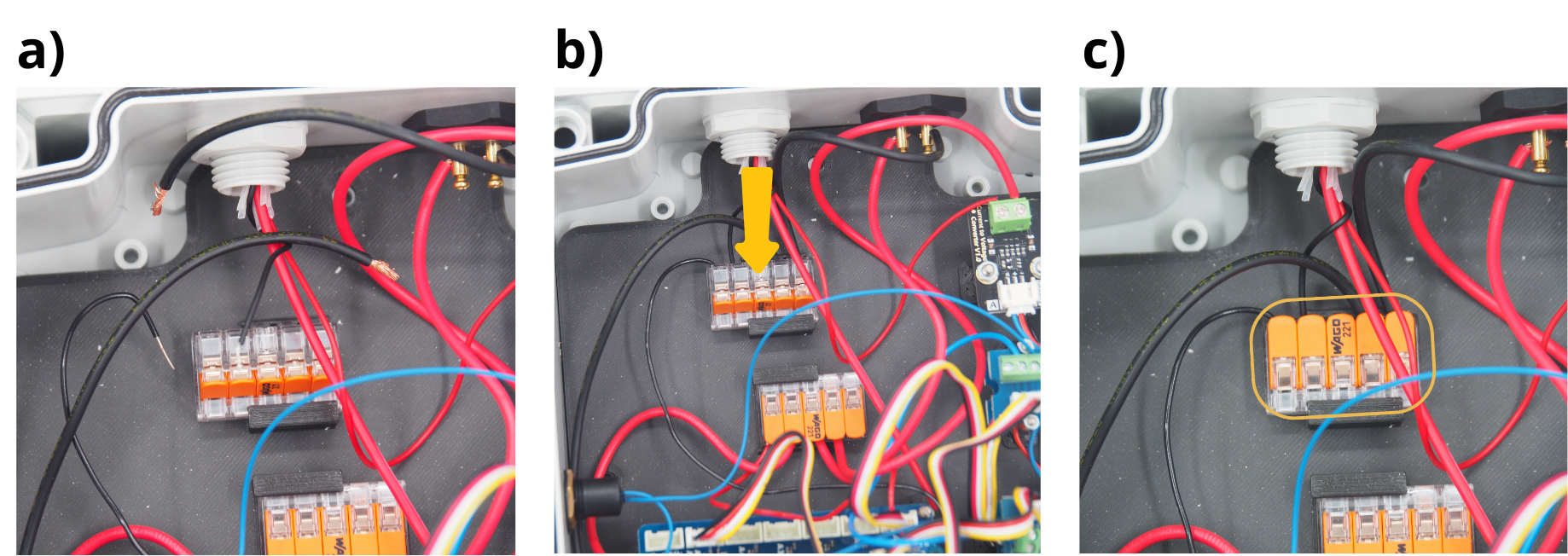
10. Connecting the GND ground terminals of the various components to a WAGO terminal block#
Open the four levers on the second WAGO terminal block.
Insert the remaining ends of the following black cables into each of these terminals: from the pressure sensor, from the Grove Voltage Divider Module, from the power supply and from the Arduino MKR Connector Carrier board.
Close the 4 connected levers on the WAGO terminal block.
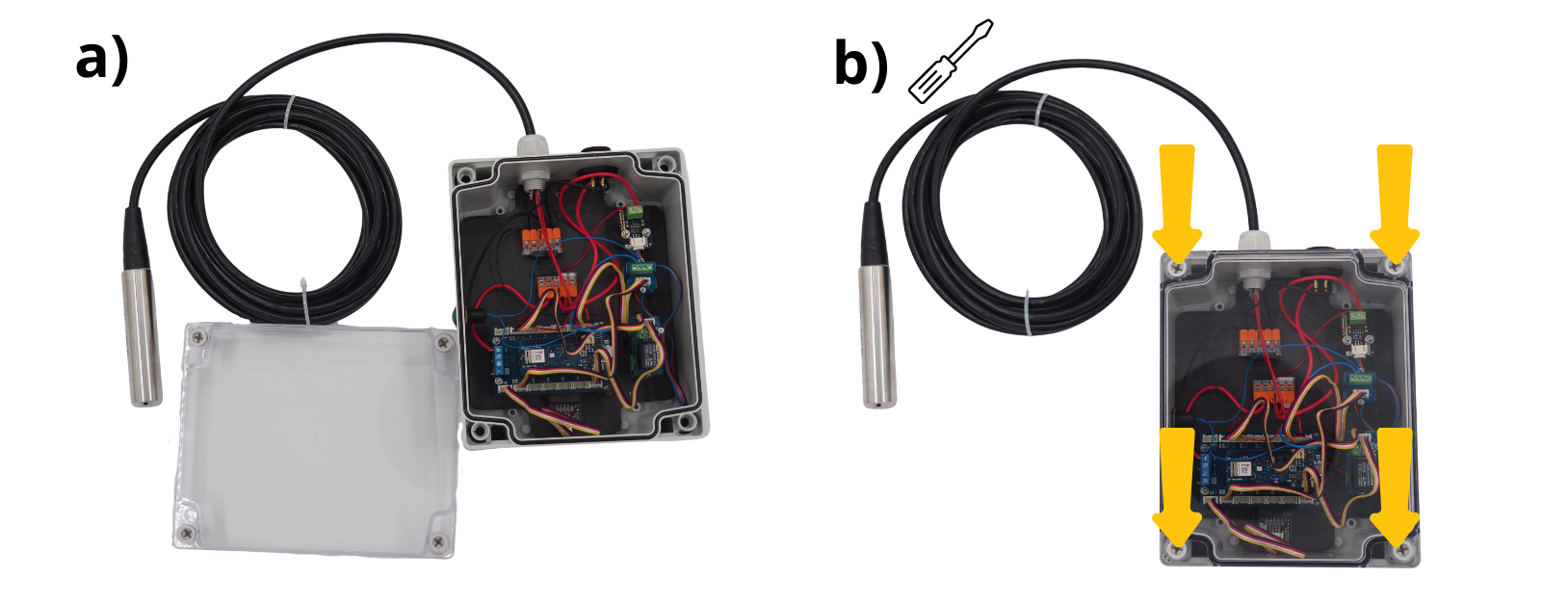
11. Closing the Enclosure#
Take the enclosure and place its lid on top.
Close the enclosure by screwing the lid with the four supplied screws.
12. Powering the central unit#
Take the 12 V plug for the central power supply and connect it to the power‑supply block.
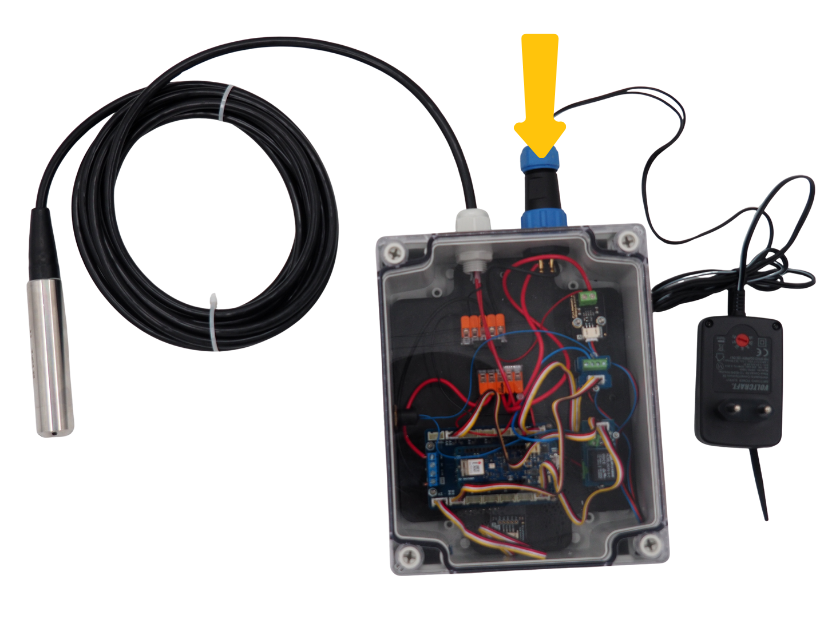
The Setier pressure unit is ready to be programmed and then used.