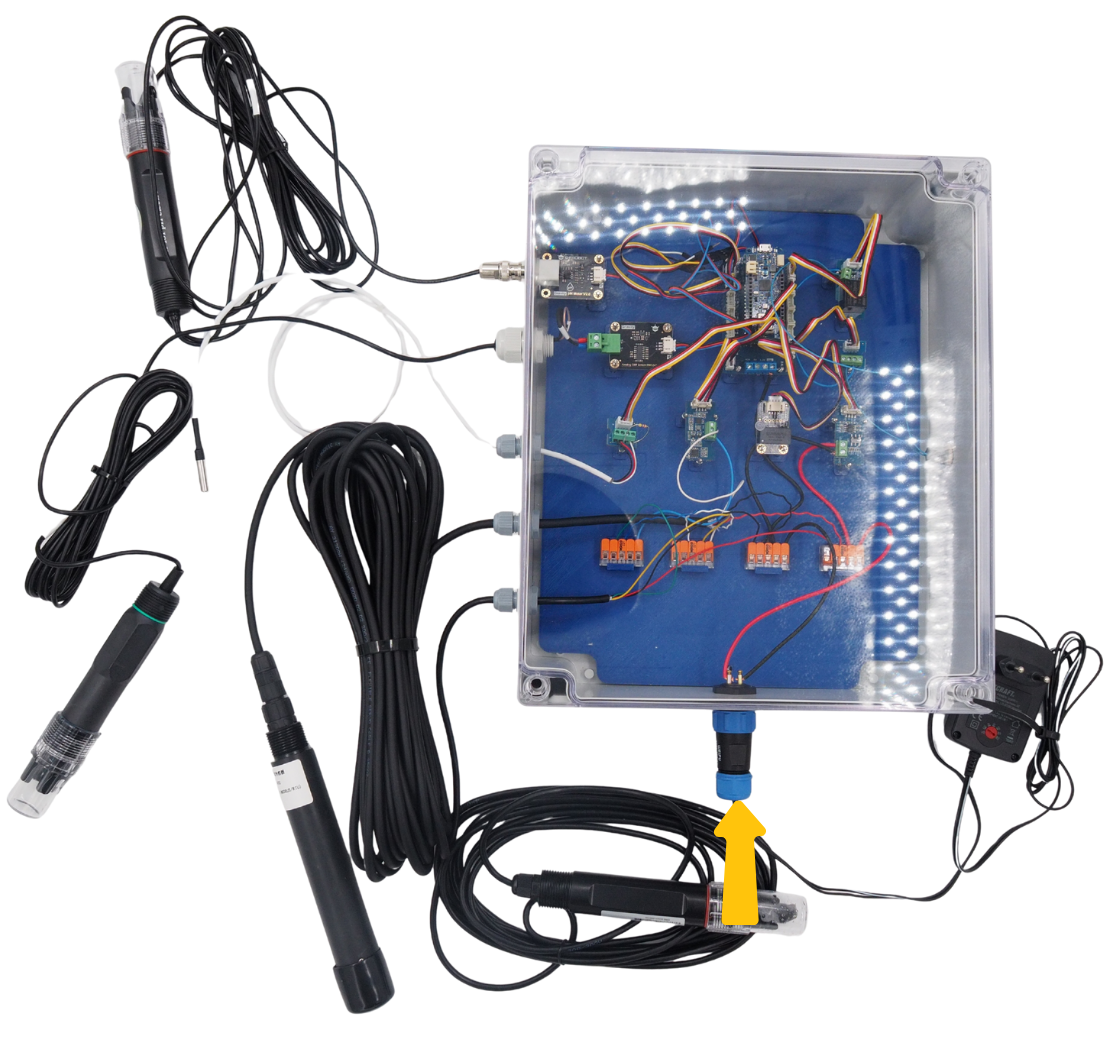

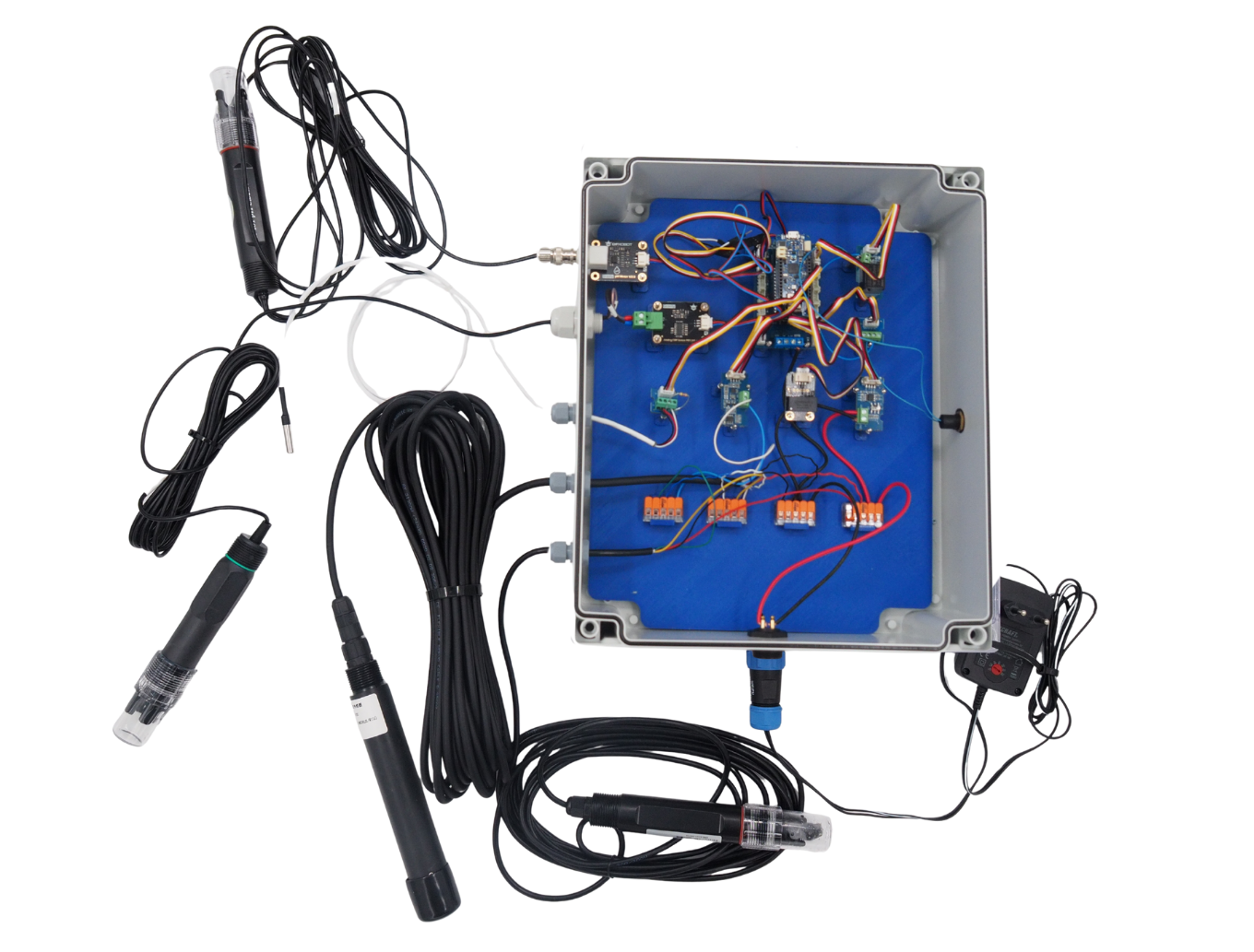
Physicochemical#
Attention
Cette centrale est en cours de développement, il n’est donc pas encore possible de l’utiliser avec le nouveau capteur Oxygène dissous.
Installation instructions
Please refer to this document for instructions on how to assemble the SETIER Physics and Chemistry Centre. As of 9 February 2026, the cost of the materials required for assembly is €939.17 (for a SETIER Centre with 4 sensors). The time required to assemble and programme this SETIER Unit is 6 hours. For this assembly, we recommend that you work in a well-lit, quiet room, as some steps may require precision. Ensure you have all the necessary materials and tools before beginning the assembly. The lists of tools and materials are provided later in this documentation.
Informations
SETIER is an open‑participation project, but assembling the associated dataloggers requires strict compliance with electronic‑hardware safety rules. SETIER dataloggers must be assembled in a professional environment by personnel with electronics expertise. The SETIER team cannot be held liable for any material or personal injury that may occur during assembly or use, nor for a non‑functioning unit after assembly. You may redistribute and modify this documentation and produce derived products under the CERN‑OHL‑P v2 (https://cern.ch/cern-ohl). This documentation is provided WITHOUT ANY EXPRESS OR IMPLIED WARRANTY, INCLUDING MERCHANTABILITY, SATISFACTORY QUALITY, OR FITNESS FOR A PARTICULAR PURPOSE. See the CERN‑OHL‑P v2 for full terms.
You may redistribute and modify this documentation and make products using it under the terms of the CERN-OHL-P v2 (https:/cern.ch/cern-ohl). This documentation is distributed WITHOUT ANY EXPRESS OR IMPLIED WARRANTY, INCLUDING OF MERCHANTABILITY, SATISFACTORY QUALITY AND FITNESS FOR A PARTICULAR PURPOSE. Please see the CERN-OHL-P v2 for applicable conditions.
Technical Data#
Technical specifications of the sensors |
Specifications |
Units |
Sensors |
Associated quantity |
Supply voltage (VCC) |
3.3 to 5.5 |
V |
SEN0169‑V2 sensor |
pH |
Measurement range |
0 to 14 |
pH unit |
SEN0169‑V2 sensor |
pH |
Operating temperature |
0 to 60 |
°C |
SEN0169‑V2 sensor |
pH |
Resolution |
0.1 |
pH unit |
SEN0169‑V2 sensor |
pH |
Response time |
< 1 |
min |
SEN0169‑V2 sensor |
pH |
Probe lifetime |
6 |
months |
SEN0169‑V2 sensor |
pH |
Cable length |
5 |
m |
SEN0169‑V2 sensor |
pH |
Supply voltage (VCC) |
3 to 5 |
V |
DFR0300 sensor |
Conductivity |
Measurement range |
0 to 20 |
mS/cm |
DFR0300 sensor |
Conductivity |
Operating temperature |
0 to 40 |
°C |
DFR0300 sensor |
Conductivity |
Probe lifetime |
6 |
months |
DFR0300 sensor |
Conductivity |
Cable length |
1 |
m |
DFR0300 sensor |
Conductivity |
Supply voltage (VCC) |
5 |
V |
SEN0464 sensor |
Redox potential |
Measurement range |
-2000 to 2000 |
mV |
SEN0464 sensor |
Redox potential |
Operating temperature |
5 to 70 |
°C |
SEN0464 sensor |
Redox potential |
Precision (at 25 °C) |
10 |
mV |
SEN0464 sensor |
Redox potential |
Supply voltage (VCC) |
3.3 to 5 V |
V |
SEN0237 sensor |
Dissolved Oxygen |
Measurement range |
0 to 20 |
mg L⁻¹ |
SEN0237 sensor |
Dissolved Oxygen |
Probe lifetime |
12 V |
months |
SEN0237 sensor |
Dissolved Oxygen |
Membrane lifespan |
1–2 years |
months |
SEN0237 sensor |
Dissolved Oxygen |
NaOH solution lifespan |
1 |
months |
SEN0237 sensor |
Dissolved Oxygen |
Cable length |
2 years |
m |
SEN0237 sensor |
Dissolved Oxygen |
Equipment and tools required#
To assemble the Setier Central Unit, the following equipment is required:
Materials list:
Component |
Number |
Cost per unit € |
Total cost € |
Manufacturer |
Ref. manufacturer |
Web reference |
|---|---|---|---|---|---|---|
Arduino MKR Wifi 1010 |
1 |
33.61 |
33.61 |
Arduino |
782-ABX00023 |
https://www.mouser.fr/ProductDetail/Arduino/ABX00023?qs=%252BEew9%252B0nqrAwxv2YQYWyPw%3D%3D |
Arduino MEM Shield |
1 |
19.55 |
19.55 |
Arduino |
782-ASX00008 |
https://www.mouser.fr/ProductDetail/Arduino/ASX00008?qs=%252BEew9%252B0nqrB6JgKBlp7dtg%3D%3D |
Arduino MKR Connector Carrier |
1 |
19.4 |
19.4 |
Arduino |
782-ASX00007 |
https://www.mouser.fr/ProductDetail/Arduino/ASX00007?qs=%252BEew9%252B0nqrD3EEw%252BoCBXVA%3D%3D |
Grove RS 485 |
1 |
4.69 |
4.69 |
Seeed-Studio |
713-103020193 |
https://www.mouser.fr/ProductDetail/Seeed-Studio/103020193?qs=vLWxofP3U2x0rKlJJj8lVg%3D%3D |
Gravity RTC |
1 |
7.4 |
7.4 |
DFRobot |
426-DFR0469 |
https://www.mouser.fr/ProductDetail/DFRobot/DFR0469?qs=EU6FO9ffTwe22wh0PfInCA%3D%3D |
Grove Voltage divider |
1 |
5.55 |
5.55 |
Seeed-Studio |
104020000 |
https://fr.farnell.com/seeed-studio/104020000/voltage-divider-board-arduino/dp/4007781?ost=104020000 |
Grove 4 pin Conversion cable |
5 |
2.88 |
2.88 |
Seeed-Studio |
110990210 |
https://www.mouser.fr/ProductDetail/Seeed-Studio/110990210?qs=1%252B9yuXKSi8A2O44lPDM%252BLw%3D%3D |
Jumper Wire |
50 |
13.46 |
13.46 |
OSEPP-Electronic |
LS-MMPJ-6 |
https://www.mouser.fr/ProductDetail/OSEPP-Electronics/LS-MMPJ-6?qs=wNBL%252BABd93OjwYkdMfv4tA%3D%3D |
Spacer M3x2cm |
8 |
1.08 |
8.64 |
Wurth-Elektronik |
710-971200354 |
https://www.mouser.fr/ProductDetail/Wurth-Elektronik/971200354?qs=wr8lucFkNMXVQ0nS%2FAg5sw%3D%3D |
Nut M3 |
20 |
8.18 |
8.18 |
Wurth-Elektronik |
560-293 |
|
Screw M3x8mm |
8 |
4.28 |
4.28 |
RS-PRO |
908-7661 |
|
Spacer M2x2cm |
10 |
0.808 |
8.08 |
Wurth-Elektronik |
710-971200244 |
https://www.mouser.fr/ProductDetail/Wurth-Elektronik/971200244?qs=wr8lucFkNMW86Ww6MhRnZQ%3D%3D |
Nut M2 |
20 |
7.41 |
7.41 |
Wurth-Elektronik |
560-271 |
|
Screw M2x8mm |
5 |
4.48 |
4.48 |
RS-PRO |
908-7637 |
|
Box Polycarbonate 344x289x117mm IP65 |
1 |
93.68 |
93.68 |
RS-PRO |
197-2020 |
https://fr.rs-online.com/web/p/boitiers-pour-usage-general/1972020?gb=a |
Pushbutton |
1 |
8.5 |
8.5 |
ITW Switches |
265-0635 |
|
Grove Screw Terminal |
2 years |
1.9 |
3.8 |
Seeed-Studio |
713-103020007 |
https://www.mouser.fr/ProductDetail/Seeed-Studio/103020007?qs=1%252B9yuXKSi8B56dS97ffOlA%3D%3D |
SEN0169-V2 pH Sensor |
1 |
55.81 |
55.81 |
DF-ROBOT |
426-SEN0169-V2 |
https://www.mouser.fr/ProductDetail/DFRobot/SEN0169-V2?qs=yqaQSyyJnNi6FEZd1levOw%3D%3D |
SEN0464 ORP sensor |
1 |
110.94 |
110.94 |
DF-ROBOT |
426-SEN0464 |
https://www.mouser.fr/ProductDetail/DFRobot/SEN0464?qs=Rp5uXu7WBW%252BKn9v3EChM%2Fw%3D%3D |
RS485 Modbus O2 Sensor |
1 |
289.19 |
289.19 |
Seeed-Studio |
314990633 |
|
DR-ECK1.0 conductivity Sensor |
1 |
168.19 |
168.19 |
DRAGINO |
DR-ECK1.0 |
|
4.7 kOhm Resistance |
1 |
1.27 |
1.27 |
RS-PRO |
707-7727 |
https://fr.rs-online.com/web/p/resistances-traversantes/7077726?gb=a |
Temperature Sensor |
1 |
20.61 |
20.61 |
RS-PRO |
124-1081 |
|
Female panel connector IP68 21mm 2 contacts |
1 |
19.3 |
19.3 |
RS-PRO |
124-6674 |
https://fr.rs-online.com/web/p/connecteurs-circulaires-industriels/1246674?gb=a |
Male cable connector IP68 21mm 2 contacts |
1 |
21.89 |
21.89 |
RS-PRO |
124-6683 |
|
AC/DC 3V Adaptator |
1 |
12.75 |
12.75 |
RS-PRO |
206-4908 |
|
WAGO 221 5 levers |
4 |
9.57 |
9.57 |
WAGO |
221-415 |
|
PVC panel |
1 |
1 |
3D Print |
|||
Cable gland |
5 |
15.1 |
15.1 |
RS-PRO |
822-9653 |
|
Micro SD Card 16Go |
1 |
12.09 |
12.09 |
SanDisk |
467-SDSDQAB-016G |
https://www.mouser.fr/ProductDetail/SanDisk/SDSDQAB-016G?qs=EgF7oUuTQmp8cNxoHCNycQ%3D%3D |
USB µUSB connector |
1 |
2.19 |
2.19 |
Qualtek |
562-3025033-01 |
https://www.mouser.fr/ProductDetail/Qualtek/3025033-01?qs=1mbolxNpo8c5JqM9YiGl1Q%3D%3D |
Pressure compensation |
1 |
18.50 |
18.5 |
Schneider Electric |
177-8973 |
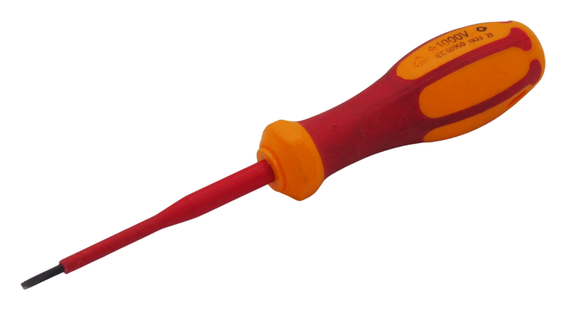
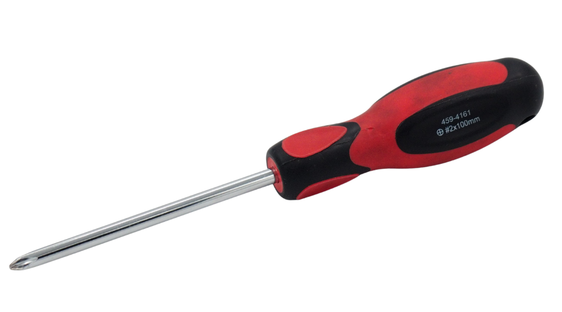
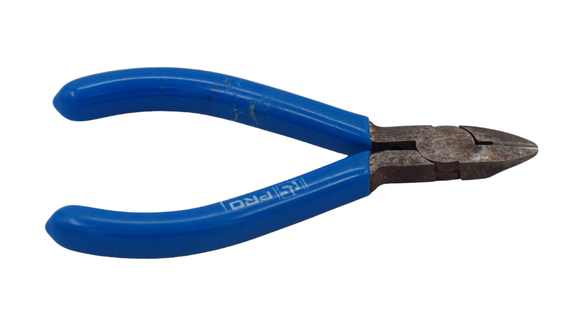
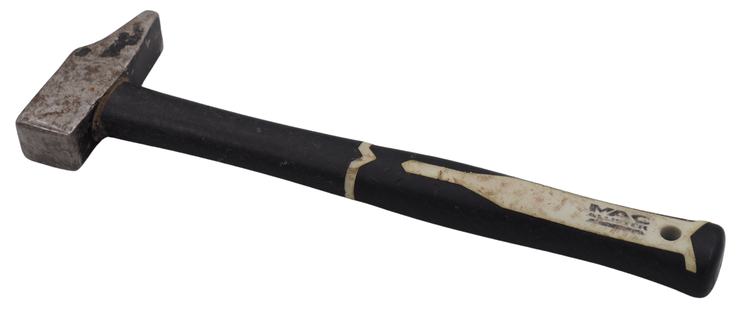
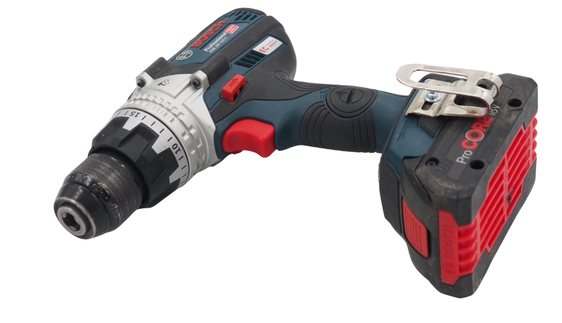
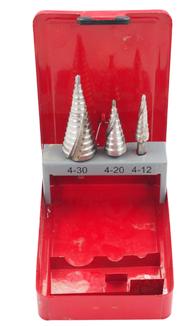
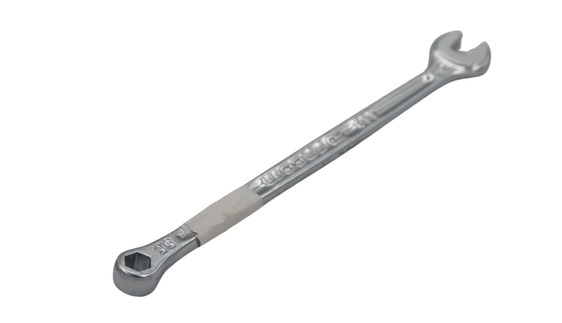
You will also find it useful to have the following tools:
|
|

Step 1: Assemble the electronic part#
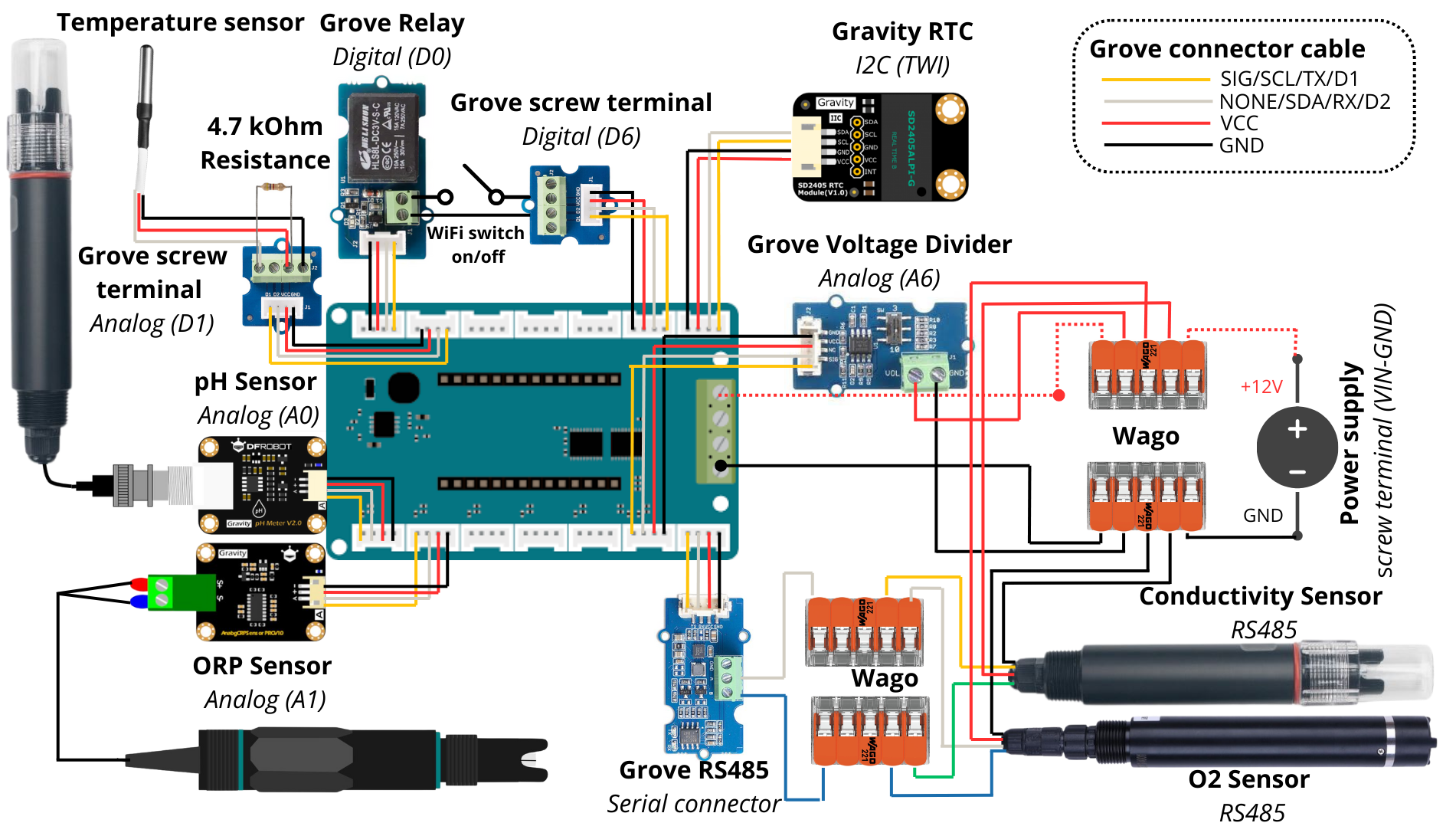
The first step involves assembling the various circuit boards that make up the Setier Control Unit, to achieve the wiring shown in the diagram below.
Electrical diagram#
1. Assembly of Arduino MKR boards#
These boards control the various components attached to the datalogger (sensor, button…) and record the associated data (measurement, timestamp).
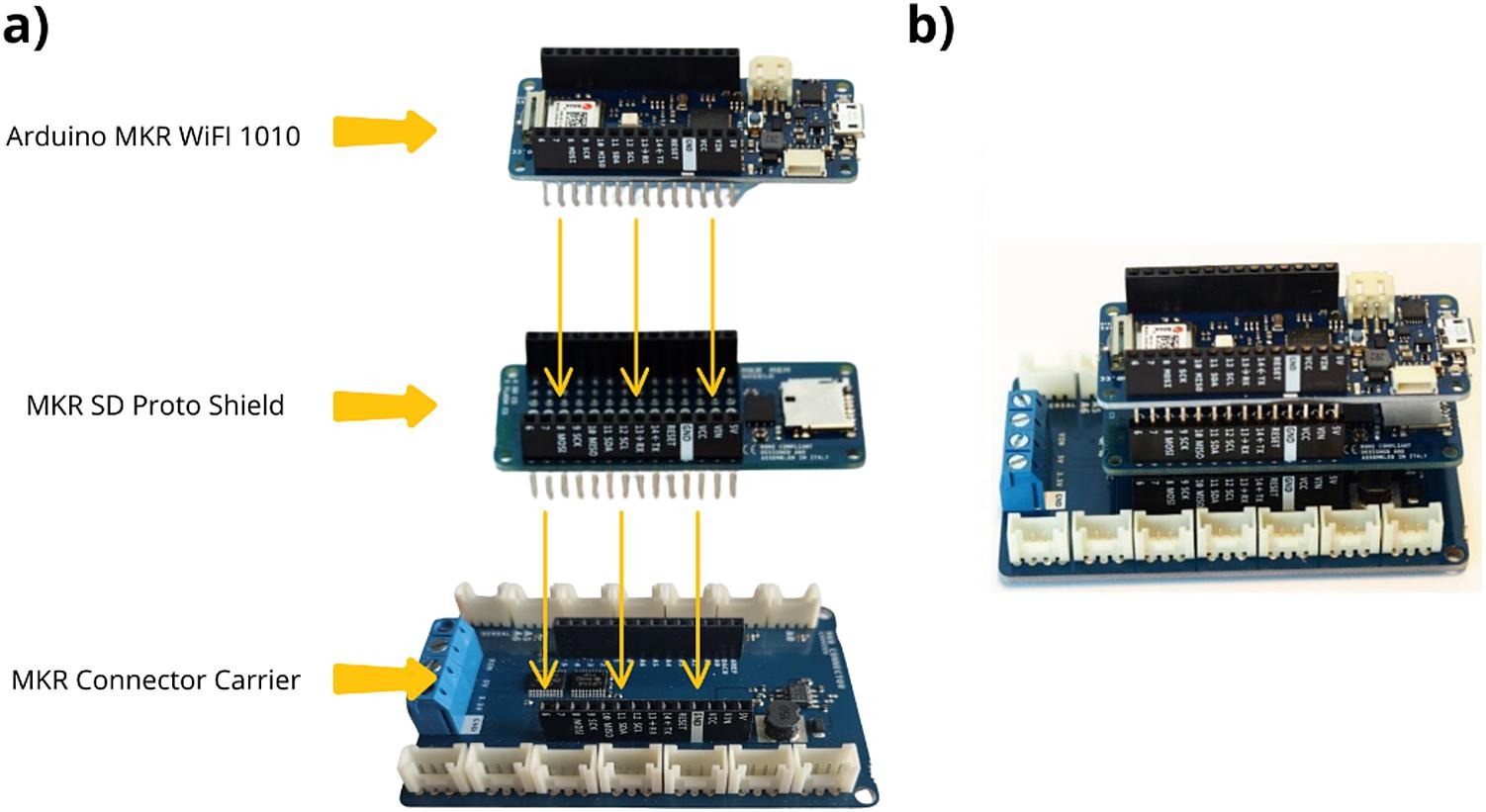
Insert the Arduino MKR MEM Shield onto the Arduino MKR Connector Carrier, then insert the Arduino MKR Wifi 1010 onto the Arduino MKR MEM Shield.
The resulting configuration is shown below.
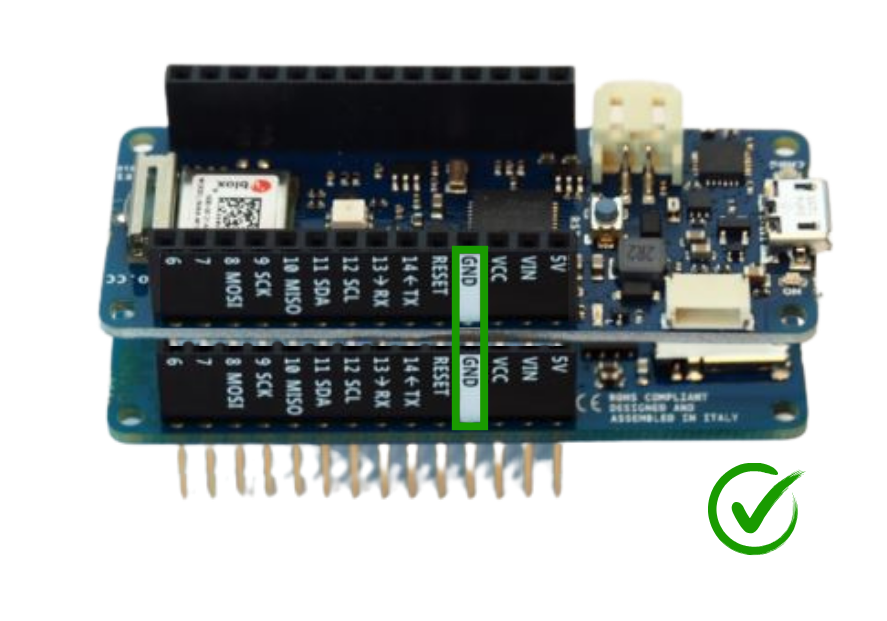
Attention
The three circuit boards must be stacked in the correct orientation (e.g. GND pin to GND pin).
2. Connecting the pH sensor acquisition board#
This data acquisition card handles the measurement from the pH sensor, which will be connected to the BNC socket at a later stage.
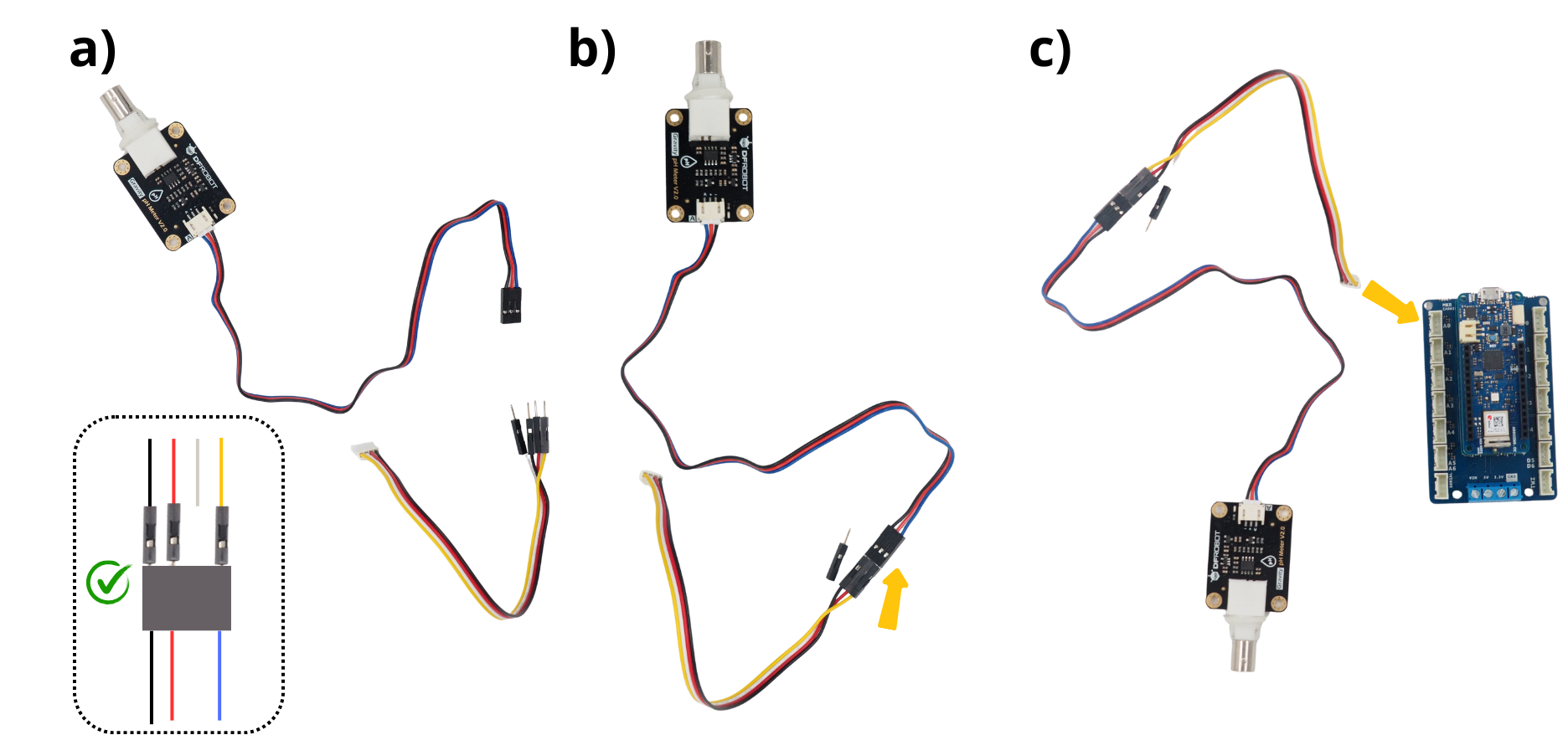
Take the pH sensor board and a Grove Picot cable.
Connect the wires of the Grove Picot cable to the data acquisition board as follows: red wire to red wire, black wire to black wire and yellow wire to blue wire. The white wire remains exposed; protect it with tape.
Connect the other end of the Grove Picot cable to the ‘A0’ port on the Arduino MKR Connector Carrier board.
3. Connecting the Redox (ORP) sensor acquisition board#
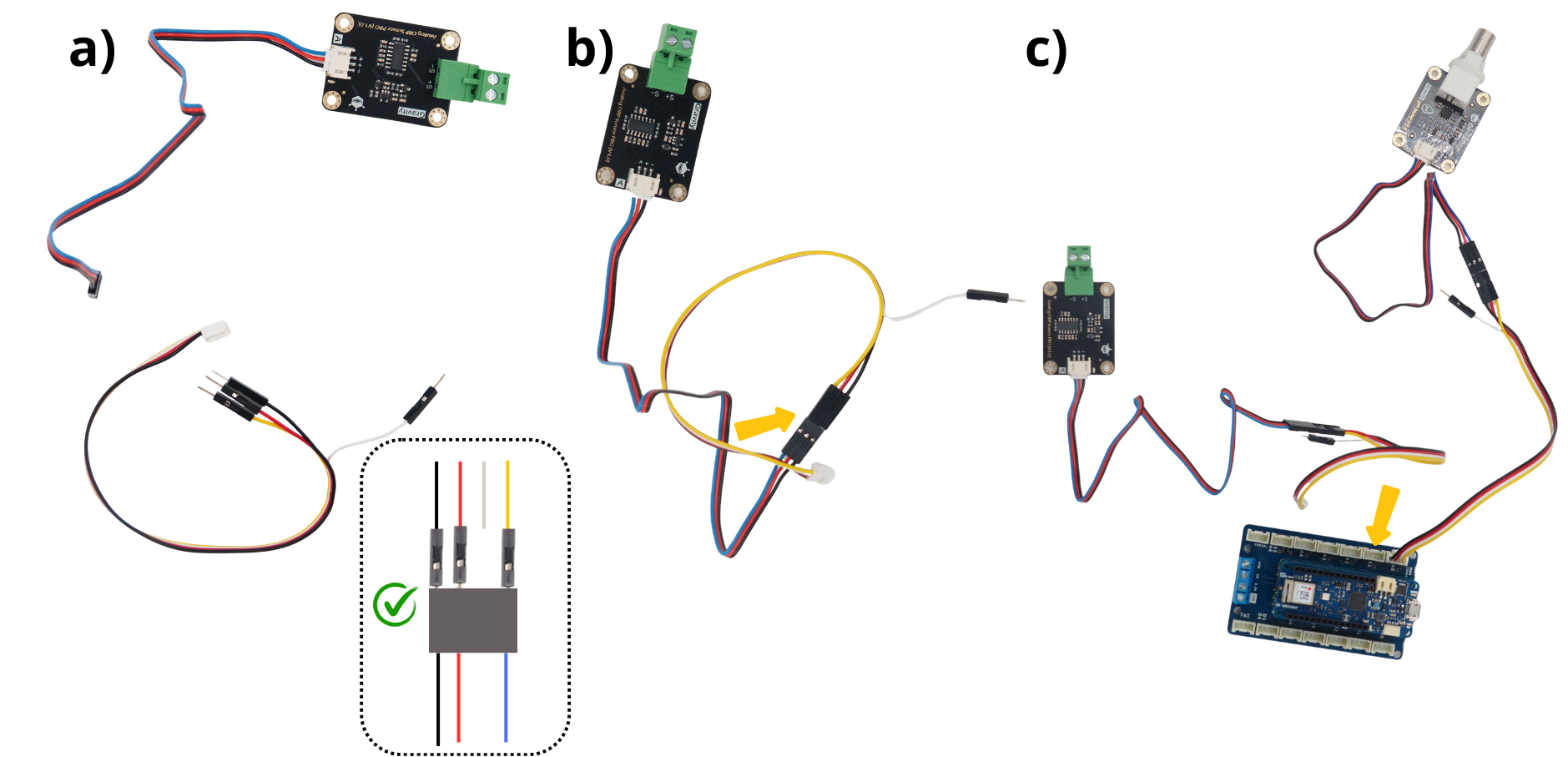
This acquisition card handles the ORP sensor measurement, which will be connected later to the screw terminal block.
This acquisition card handles the ORP sensor measurement, which will be connected later to the screw terminal block.
Connect the wires of the Grove Picot cable to the data acquisition board as follows: red wire to red wire, black wire to black wire and yellow wire to blue wire. The white wire remains unconnected.
Connect the other end of the Grove Picot cable to the ‘A1’ port on the Arduino MKR Connector Carrier board.
4. Connecting the Grove Voltage Divider Module#
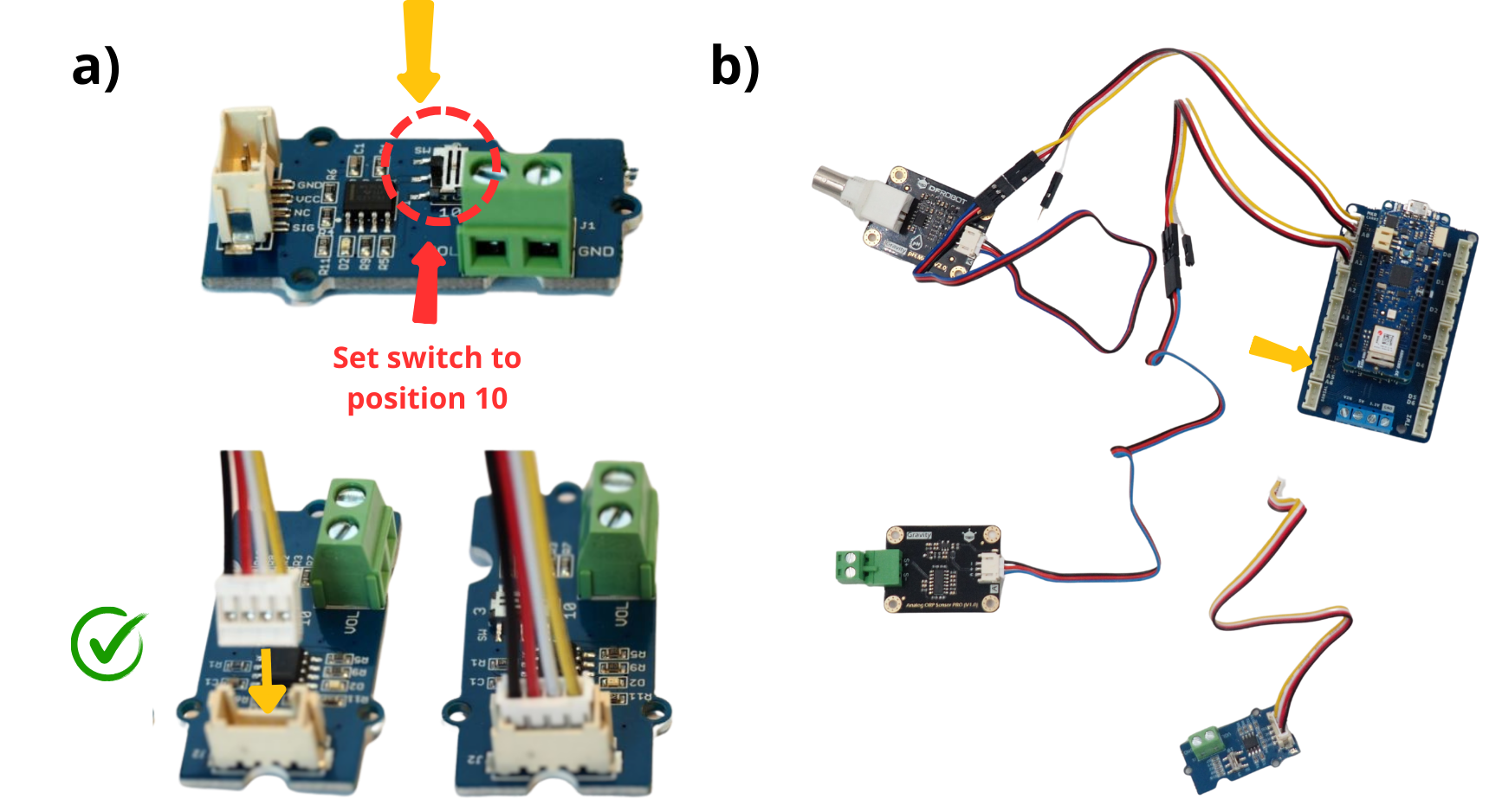
This module is used to measure the system’s battery voltage. As the system is powered by 12 V, it is important to change the position of the Switch. This module is used to measure the system’s battery voltage. As the system is powered by 12 V, it is important to change the position of the Switch.
Take the Grove Voltage Divider Module and connect the Grove Connector cable supplied with it. Move the switch to the 10 position.
Connect the other end of the cable:term:Grove Voltage Divider Module to the ‘A5-A6’ port on the Arduino MKR Connector Carrier board.
5. Connecting the Grove RS485 Module#
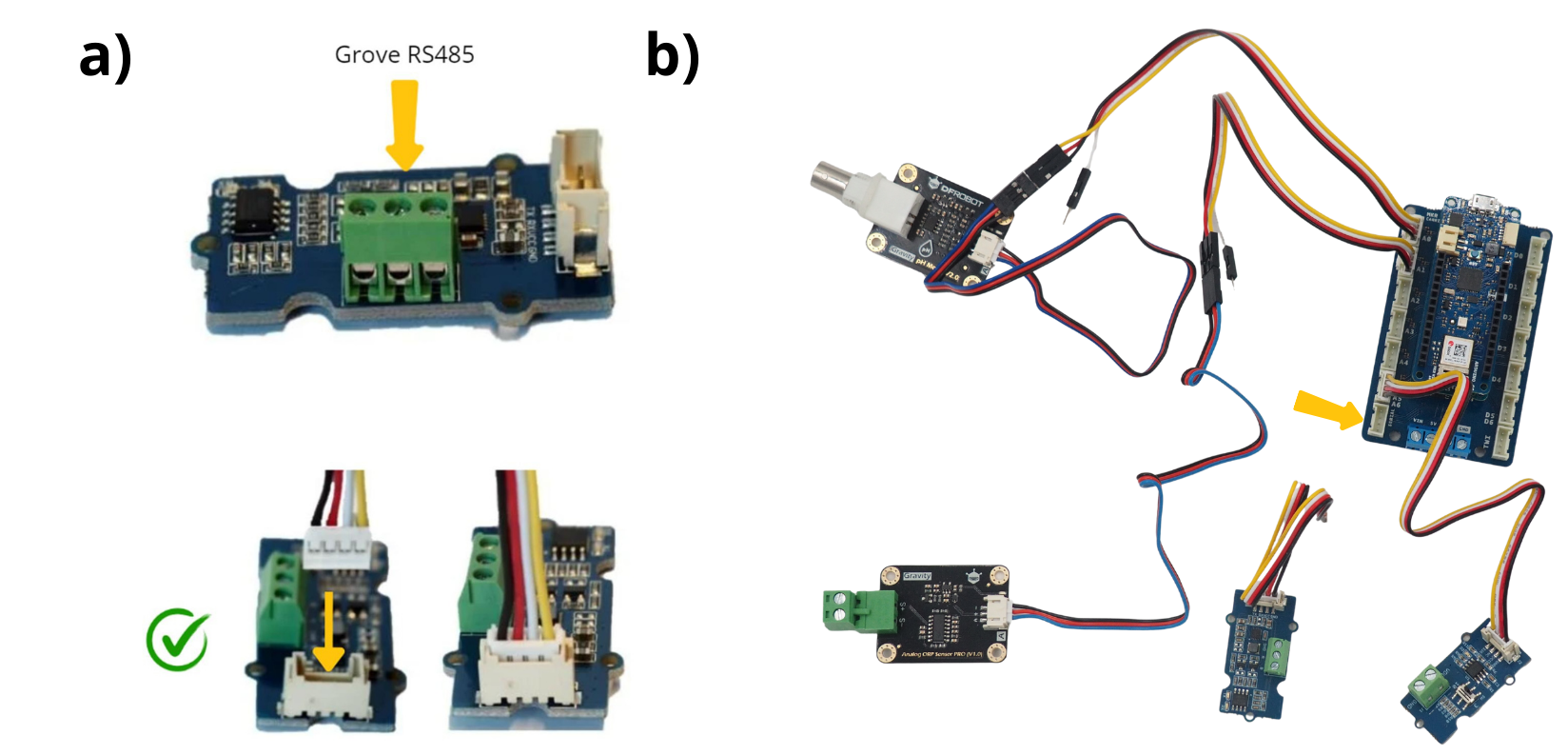
This module allows you to connect a measuring device that uses the RS485 communication protocol.
Take the Grove RS485 Module and connect the Grove Connector cable supplied with it.
Connect the other end of the cable from the Grove RS485 Module to the ‘SERIAL’ port on the Arduino MKR Connector Carrier.
6. Connecting the Grove Relay Module#
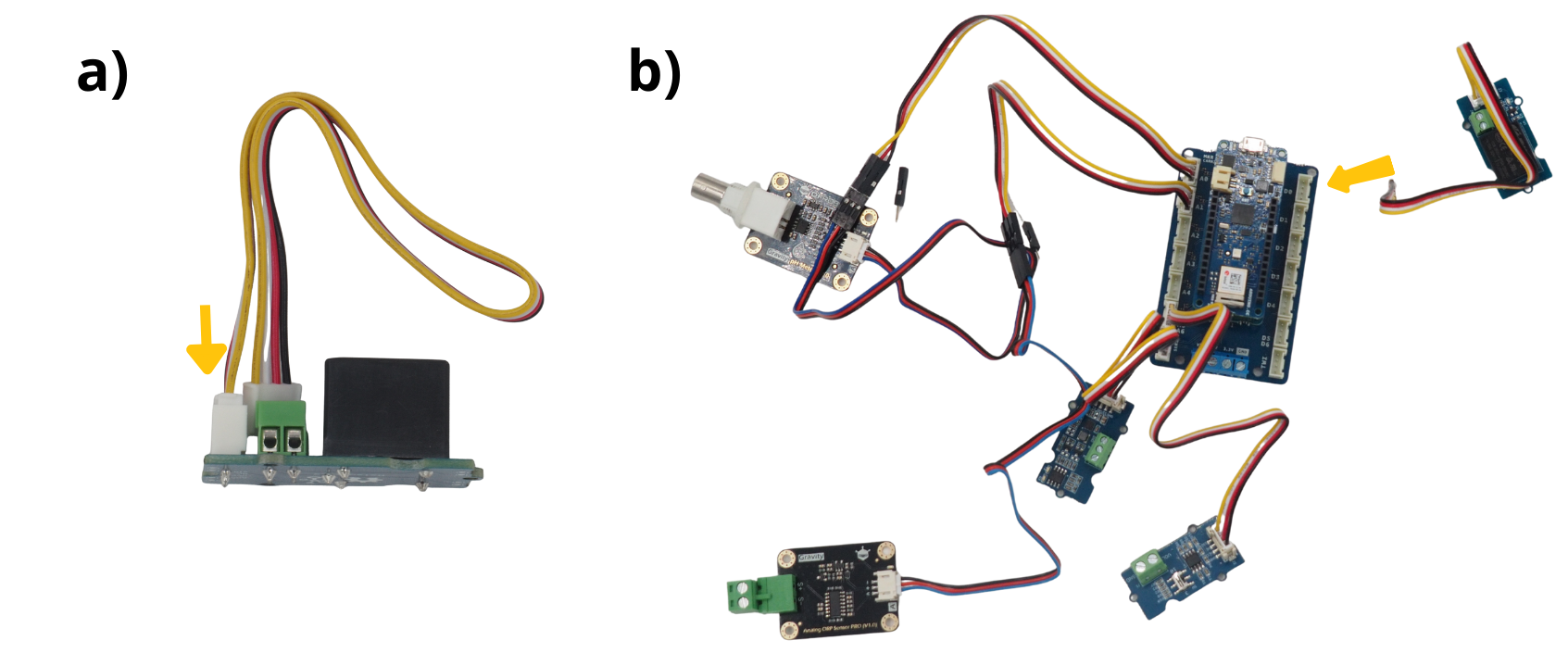
Le module Module Grove Relay permet de piloter l’alimentation électrique d’un composant, comme un interrupteur. Il sert ici à piloter le bouton poussoir. Si vous monter une centrale SETIER en utilisant une version du code postérieur à la V3.0.0, les étapes relatives à ce relay sont inutiles.
Take the Grove Relay Module and connect the Grove Connector cable supplied with it.
Connect the Grove Relay Module to port ‘D0’ on the Arduino MKR Connector Carrier board.
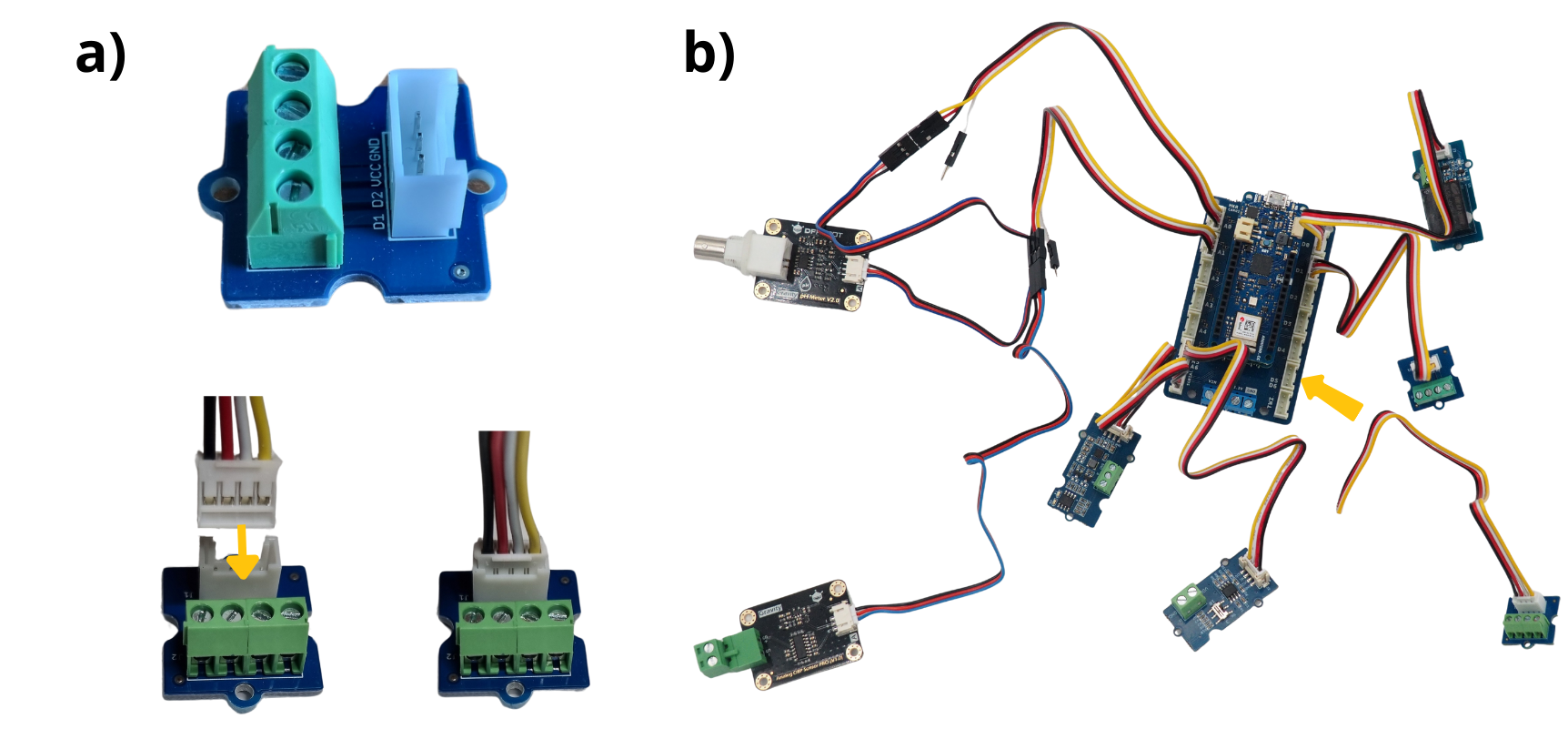
7. Connecting the first Grove Screw Terminal Module#
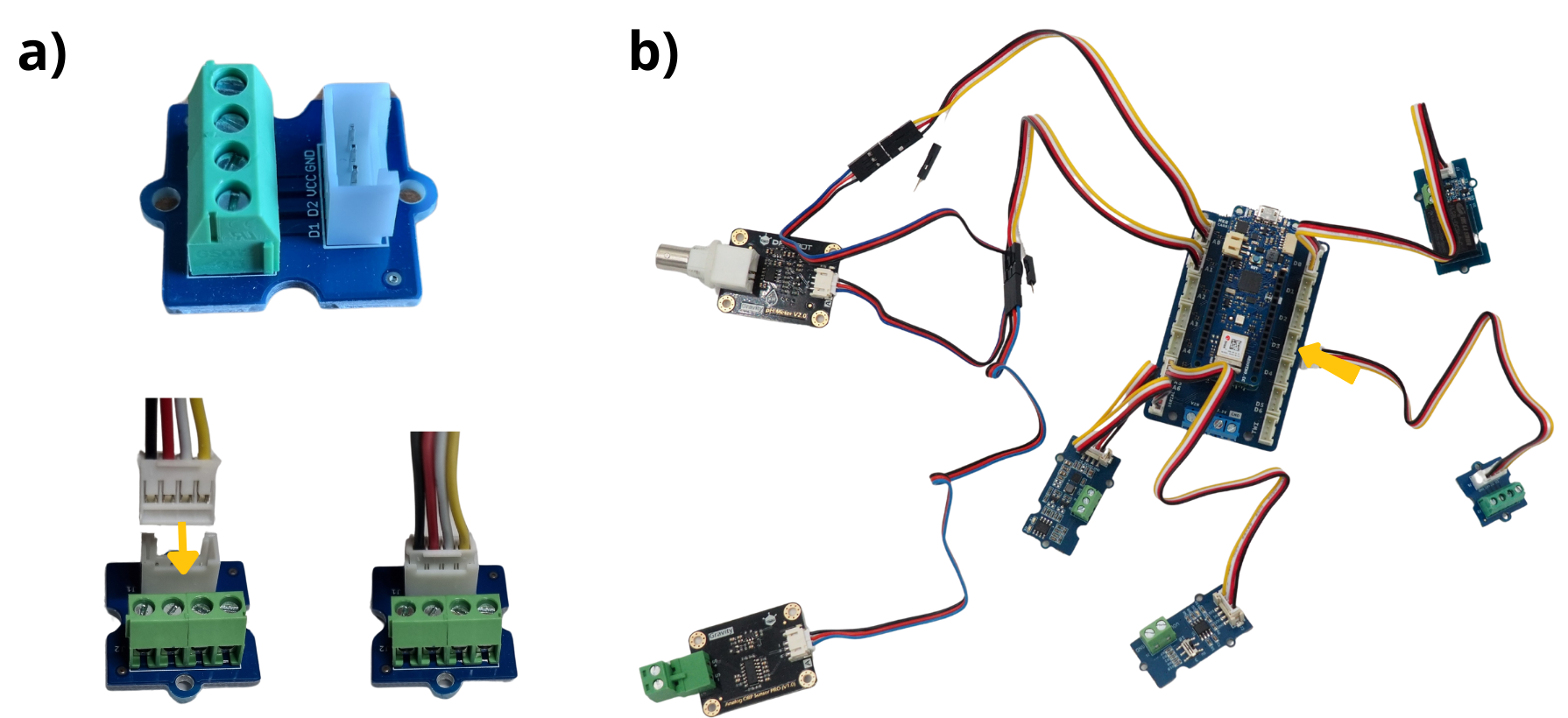
The Grove Screw Terminal Module allows you to connect various components via cables, which are then controlled by the microcontroller. In this case, it is used to connect the temperature sensor.
Take the Grove Screw Terminal Module and connect its cable to it.
Connect the Grove Screw Terminal Module to the ‘D1’ port on the Arduino MKR Connector Carrier board.
8. Connecting the second Grove Screw Terminal Module#
The Grove Screw Terminal Module allows you to connect various components via cables, which are then controlled by the microcontroller. In this case, it is used to connect the push-button.
Take the Grove Screw Terminal Module and connect its cable to it.
Connect the Grove Screw Terminal Module to the ‘D5-D6’ port on the Arduino MKR Connector Carrier board.
9. Connecting the Gravity RTC Module#
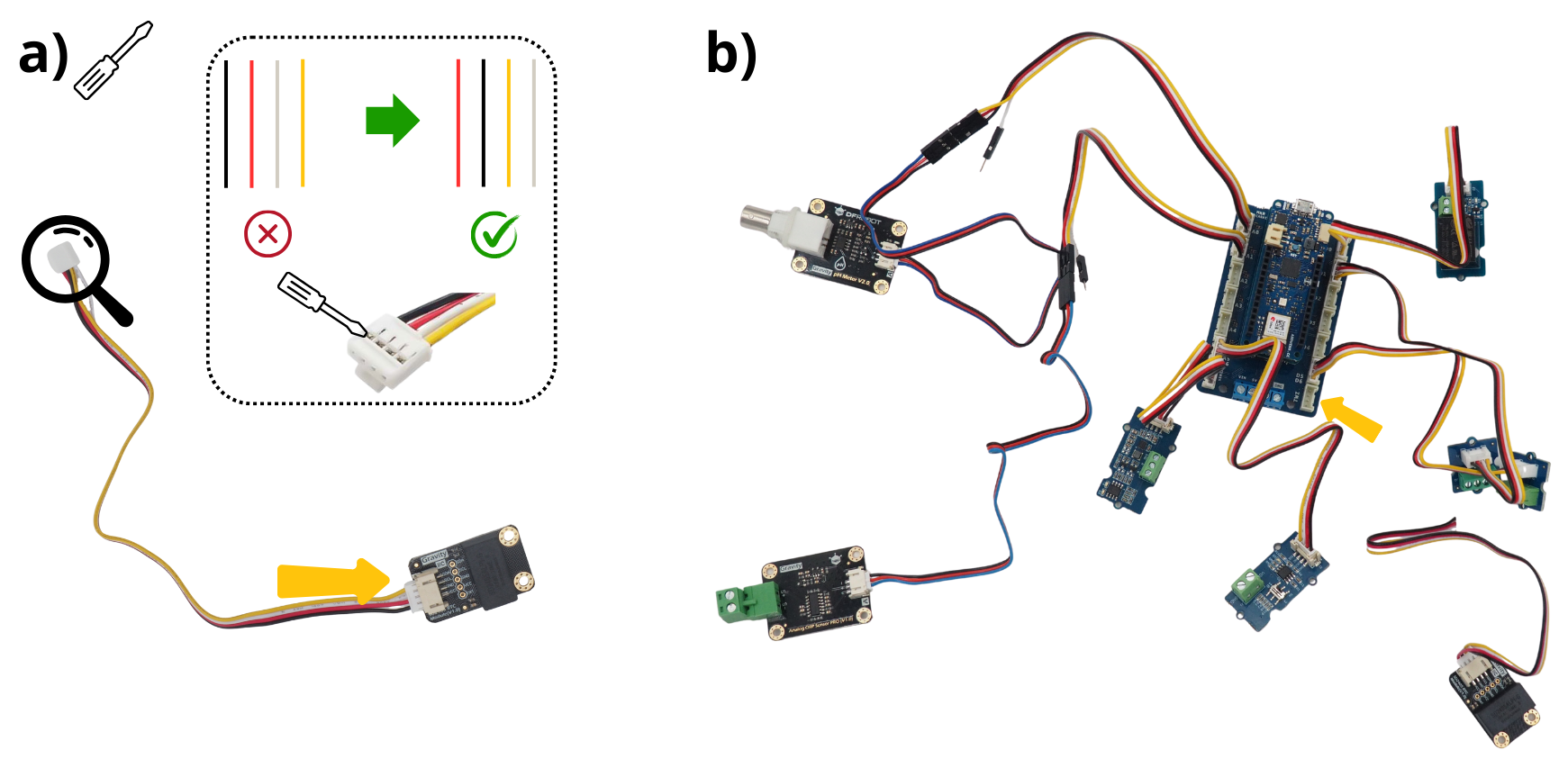
The Gravity RTC Module manages the timestamps of the recorded data (RTC = Real Time Clock).
Take the Gravity RTC Module and a Grove connector cable. Connect it to the Gravity RTC Module. At the other end of the cable, use a thin flat-bladed screwdriver to swap the red and black wires, as well as the white and yellow wires. The other items included in the Gravity RTC Module box are not required.
See also
To better understand how to reverse these cables, watch the following video: https://www.youtube.com/watch?v=0G7iIwfuaJ8
Connect the other end of the cable from the Gravity RTC Module to the ‘TWI’ port on the Arduino MKR Connector Carrier board.
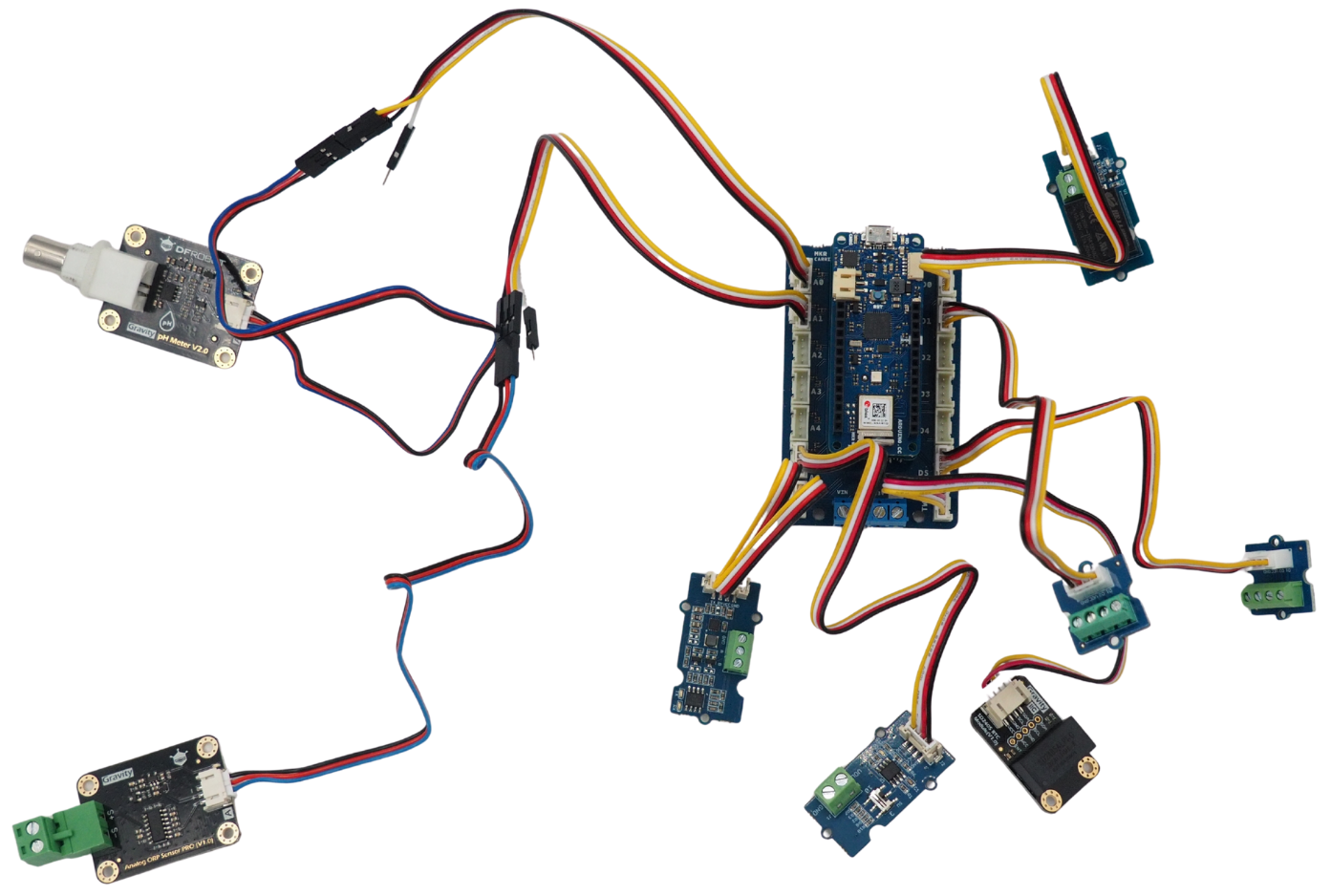
The assembly of the various circuit boards is now complete.
Step 2: Assembling the mechanical components#
1. Preparation of the PVC or wood support#
This section explains how to use a printed plate. If you don’t have a 3D printer, you can contact a Fablab near you.
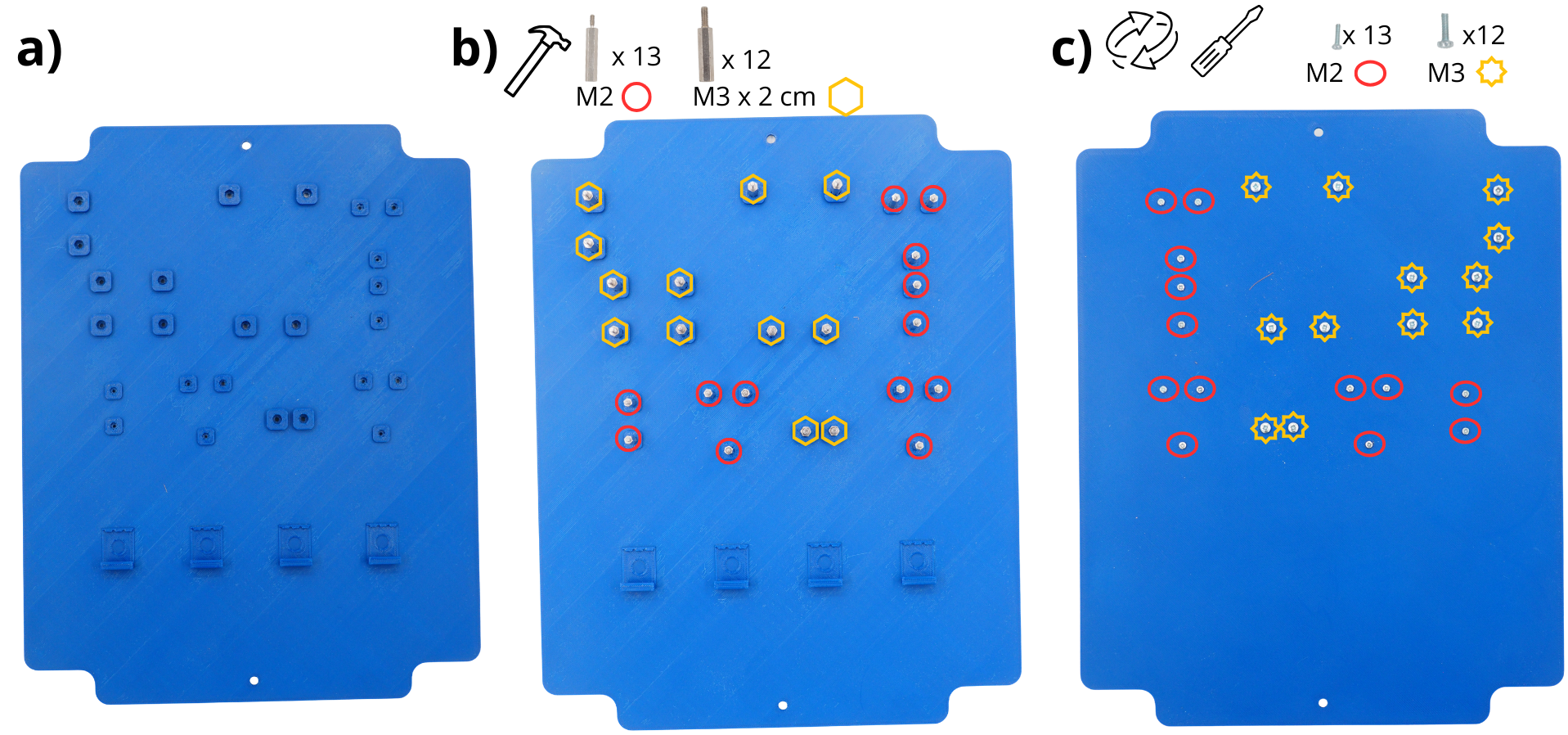
Take the plate.
Insérer les Entretoise M2 de 1.5 cm et Entretoise M3 de 2 cm dans les trous prévus à cet effet. Elles peuvent être insérées dans les deux sens, au choix. Pour faciliter les étapes suivantes, il est néammoins recommandé de pointer la vis de l’entretoise vers le bas. Vous pouvez utiliser un maillet pour les enfoncer plus profondément.
Turn the plate over and insert the M2 screws and M3 screws into the holes provided to secure the spacers.
Take the enclosure and drill a 20 mm diameter hole on the shortest side (see illustration below).
Rotate the enclosure 90° to face one of the longer sides, then drill a 12 mm hole, followed by an 18 mm hole, and then three more 12 mm holes (see illustration).
Rotate the enclosure 180° to the opposite long side and drill a 13 mm hole (see illustration).
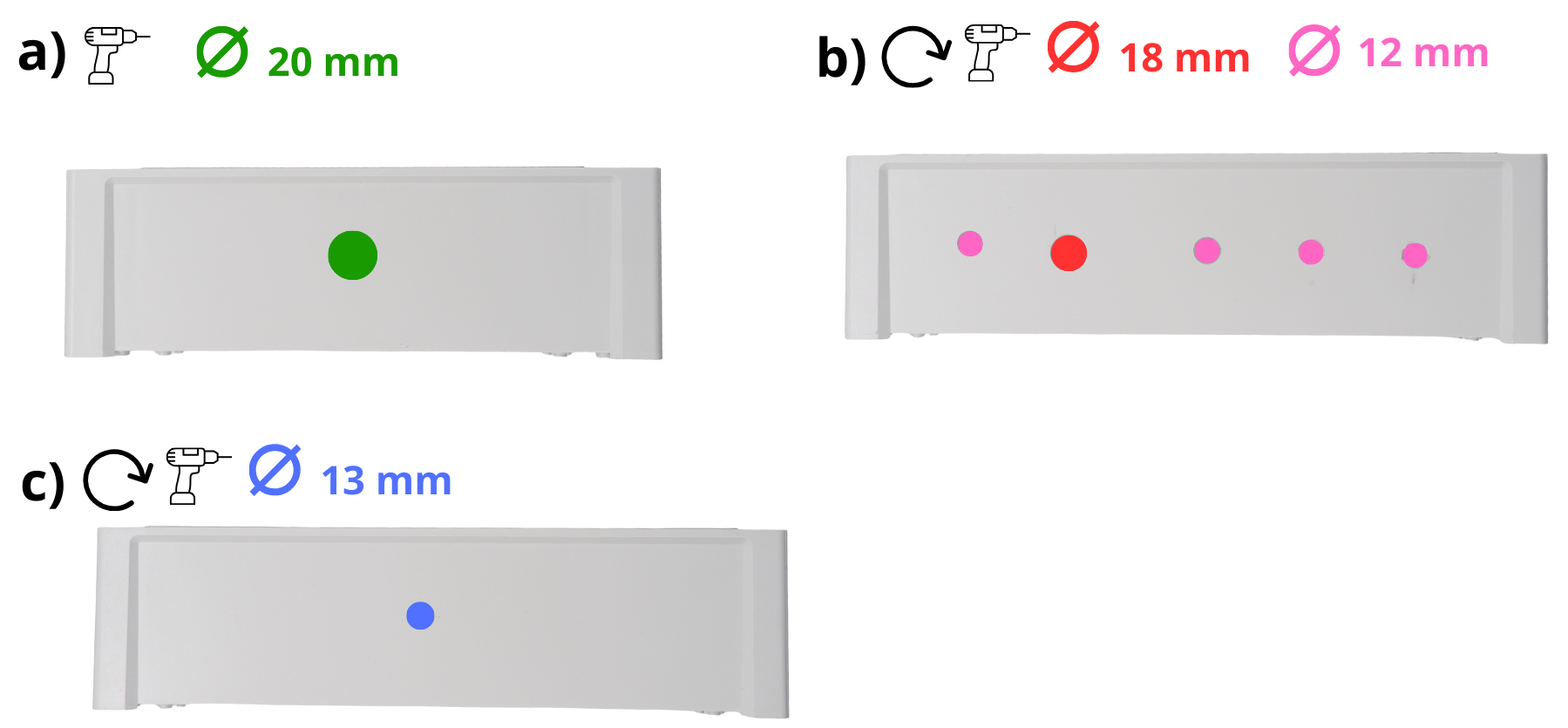
Insert the 4 WAGO terminal blocks into the designated holders.
Place the plate inside the box, then secure it using the 2 screws supplied with the box. You can also fit the cable glands into the corresponding holes in the box.

2. Positioning and securing the Arduino, sensor and Grove boards#
Note
In the following steps, you will regularly be asked to secure the various components by screwing them in place. Do not use excessive force when tightening the screws.
Place all the circuit boards that have been assembled onto the spacers provided for this purpose.
Secure the ORP sensor board, pH sensor board, Arduino and RTC using M3 nuts. Then secure the Grove RS485 Module, Grove Voltage Divider Module, Grove Screw Terminal Module and relay using M2 nuts.
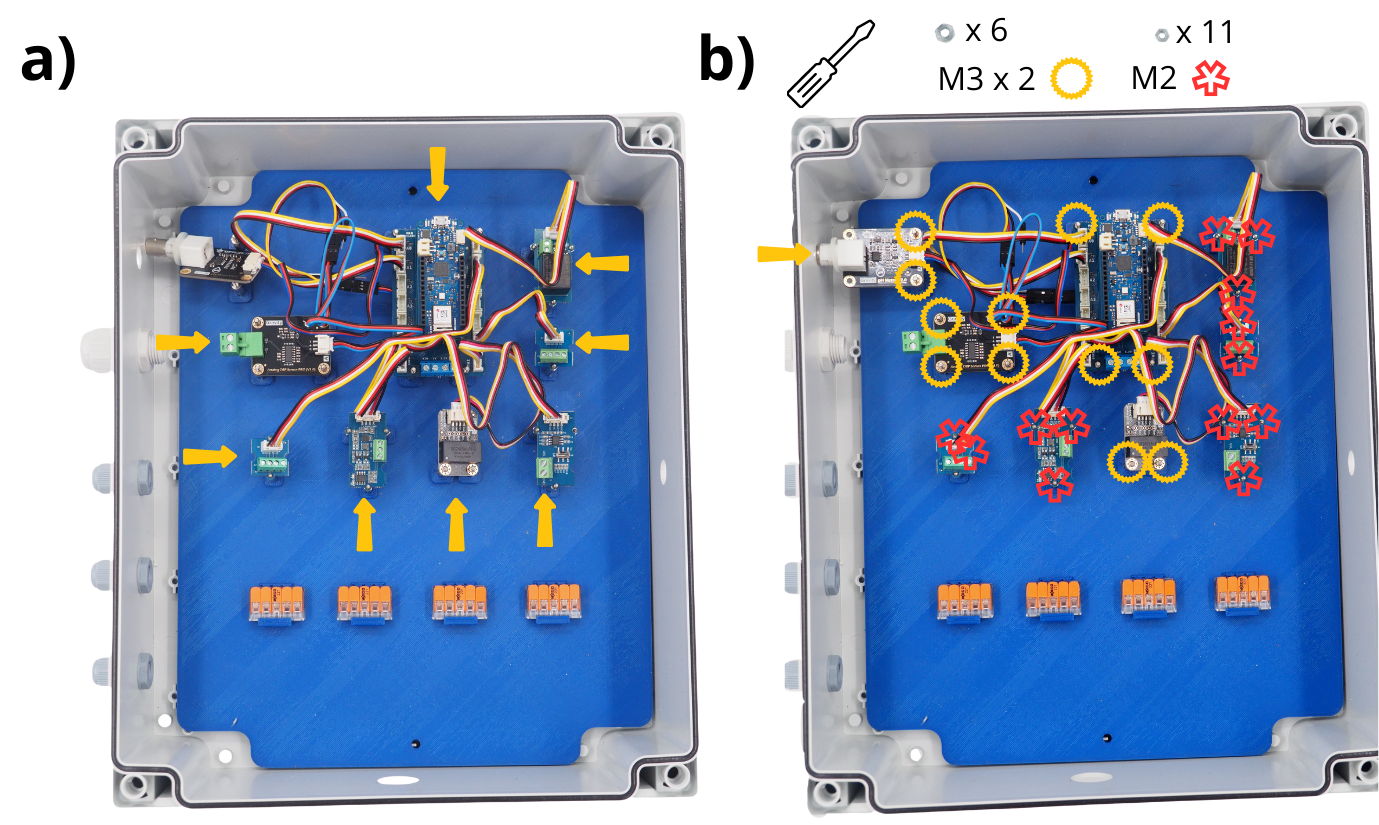
3. Connecting the Grove Voltage Divider Module#
Note
In the following steps, you will regularly be asked to insert cables into various screw terminals, and then tighten them. To do this, you must first unscrew the screw terminal block (see image) to open it, allowing you to insert a cable before screwing it back down to close the terminal block around the cable.
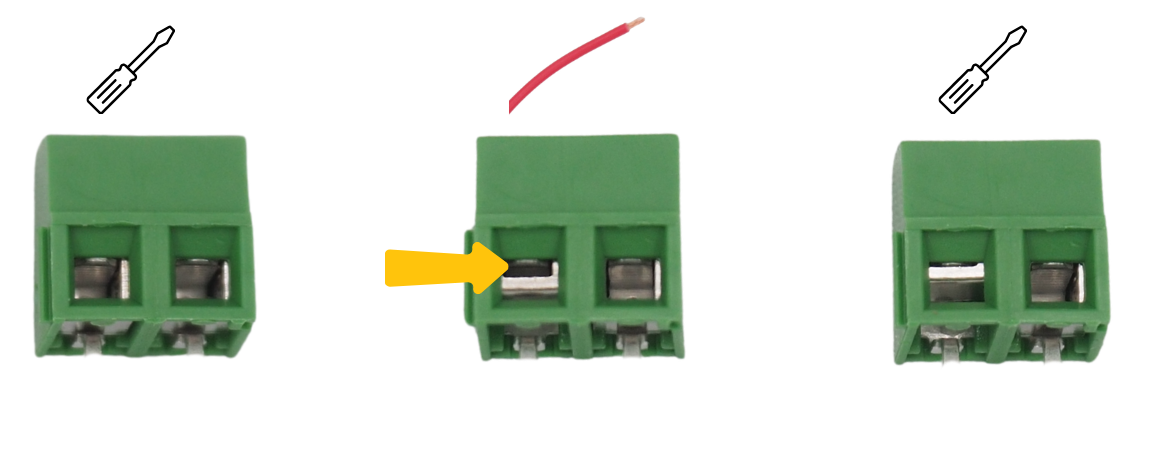
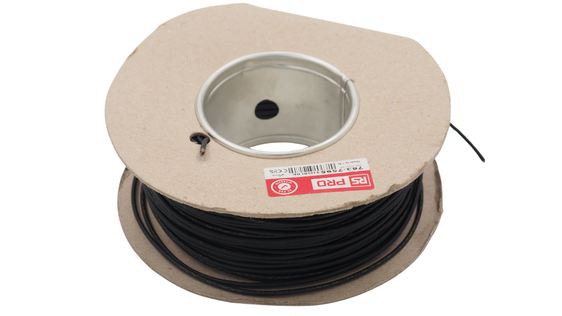
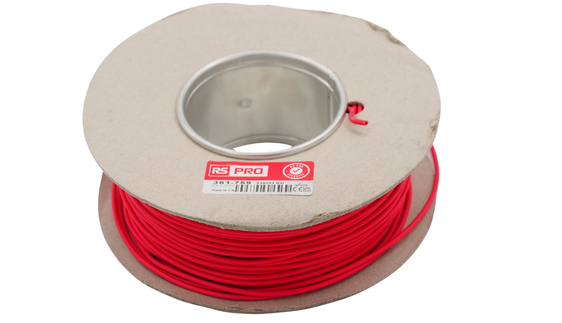
Cut a 20-centimetre length of red wire and a 20-centimetre length of black wire, then strip the ends using wire strippers.
Insert the red cable into the screw terminal VOL on the Grove Voltage Divider Module and tighten it.
Insert the black cable into the screw terminal GND on the Grove Voltage Divider Module and tighten the screw.
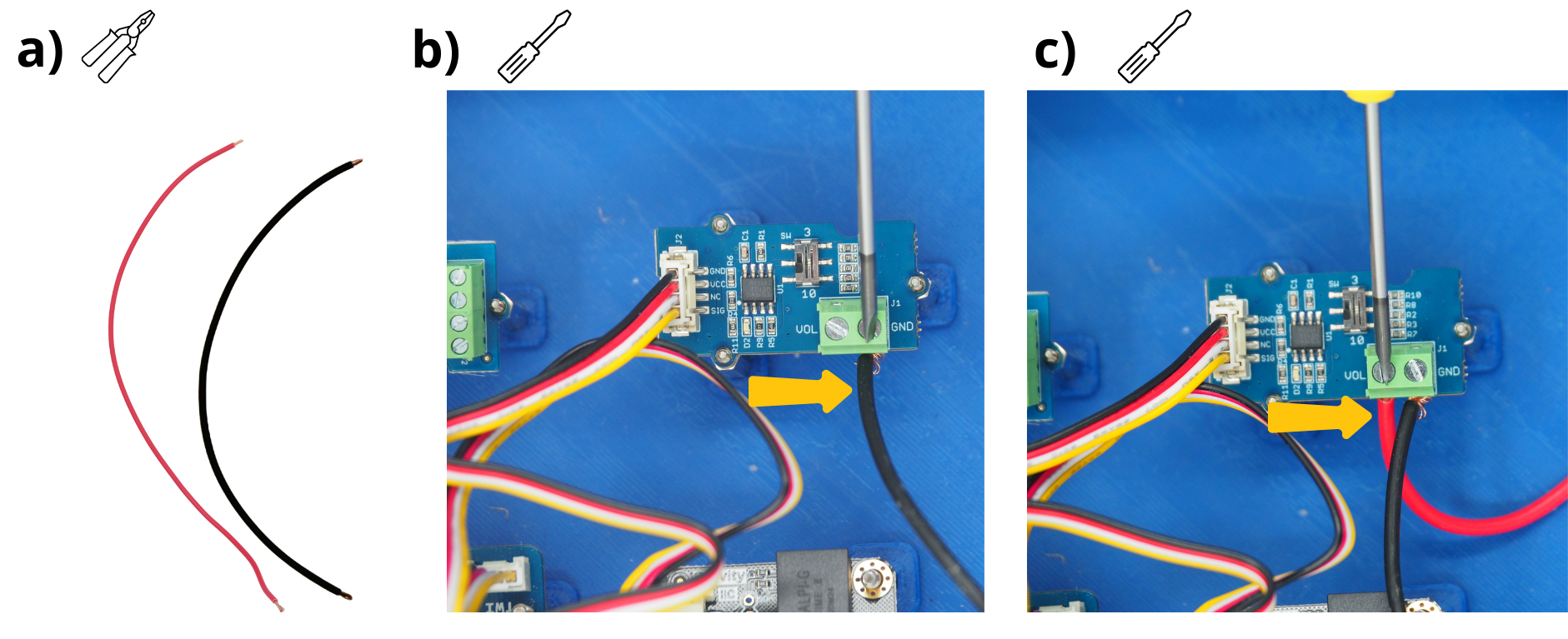
4. Power‑connection of the Arduino boards#
Cut and strip a 20 cm red cable and a 20 cm black cable.
Insert the black cable into the GND screw terminal on the Arduino MKR Connector Carrier, then tighten the screw.
Insert the red cable into the VIN screw terminal on the Arduino MKR Connector Carrier, then tighten the screw.
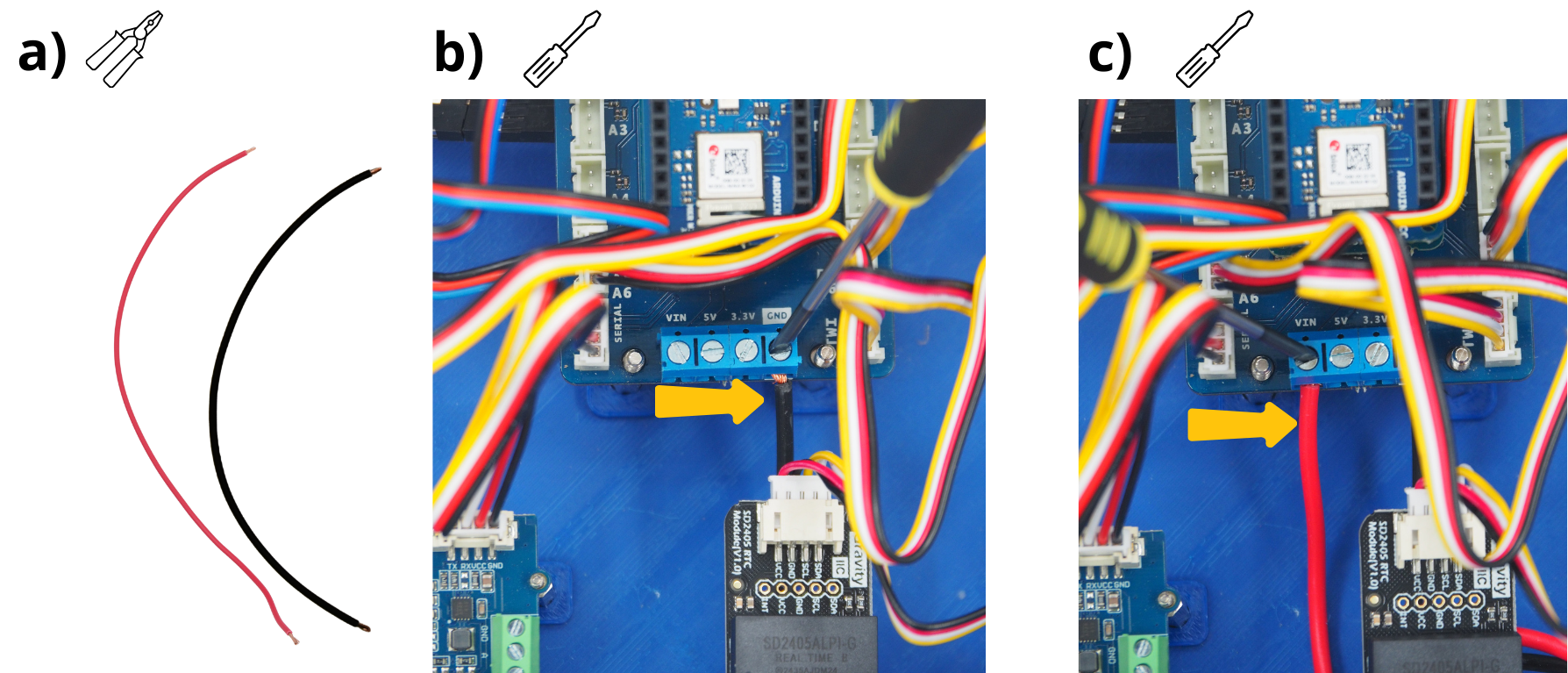
5. Wiring and mounting the push‑button#
Cut a 20-centimetre blue cable, then strip the ends using wire strippers. The colour of the cable doesn’t matter.
Take the push-button switch, strip the ends of its two wires, then insert it into the hole provided. Secure it with the screw and washer supplied.
After the push‑button is placed, tighten the screw.
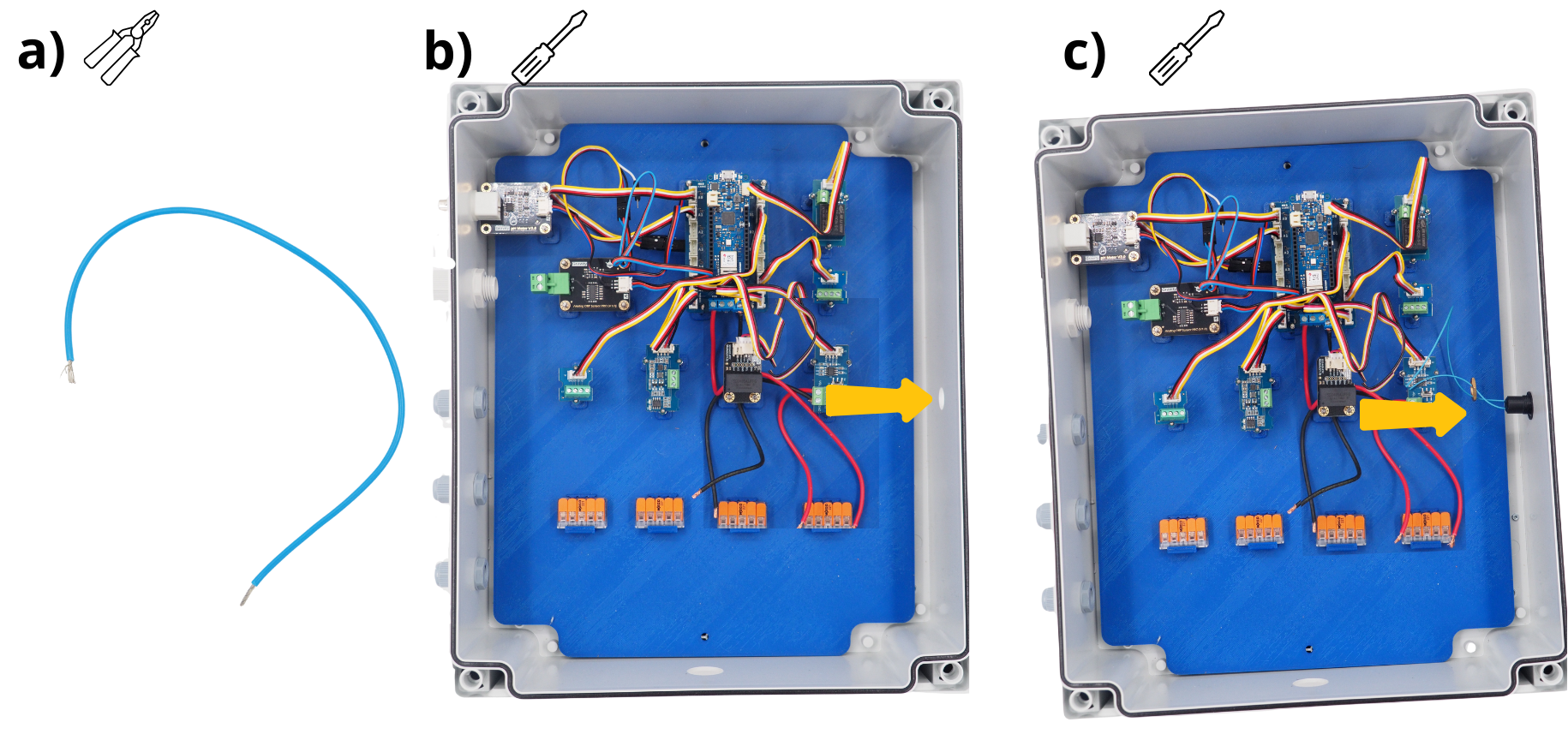
Attention
The push-button seal must be positioned on the outside of the box.
Tighten the push‑button firmly to ensure device sealing.
Take the blue cable you cut earlier and insert one end into one of the screw terminals on the Grove Relay Module, then tighten the screw.
Insert one of the cables (either one) from the push button into the screw terminal block on the remaining Grove Relay Module, then tighten the screw.
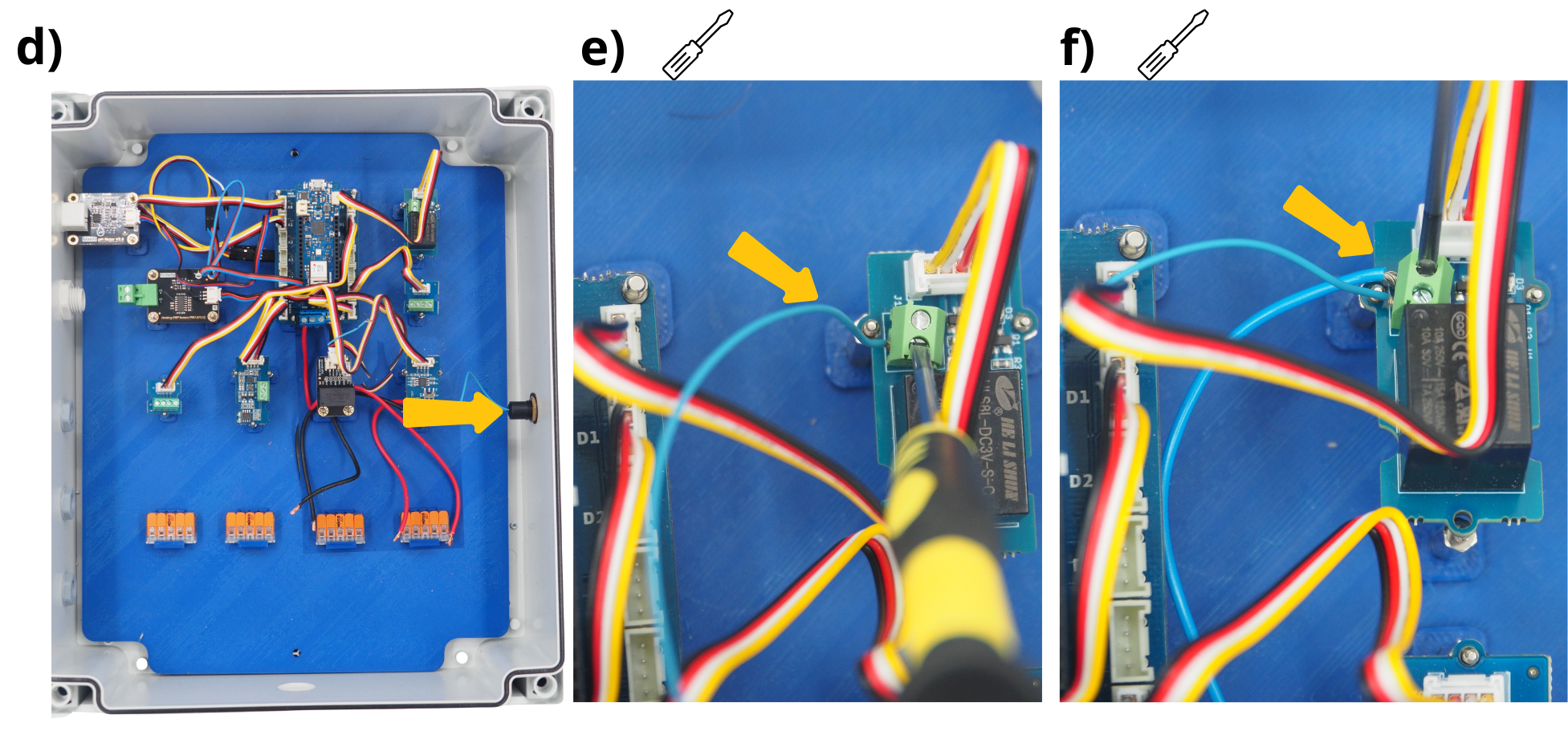
Insert the other end of the blue cable into the screw terminal ‘D2’ on the Grove Screw Terminal Module, then tighten the screw.
Insert the other cable from the push button into the screw terminal ‘VCC’ on the Grove Screw Terminal Module, then tighten the screw.
The push‑button is now installed.
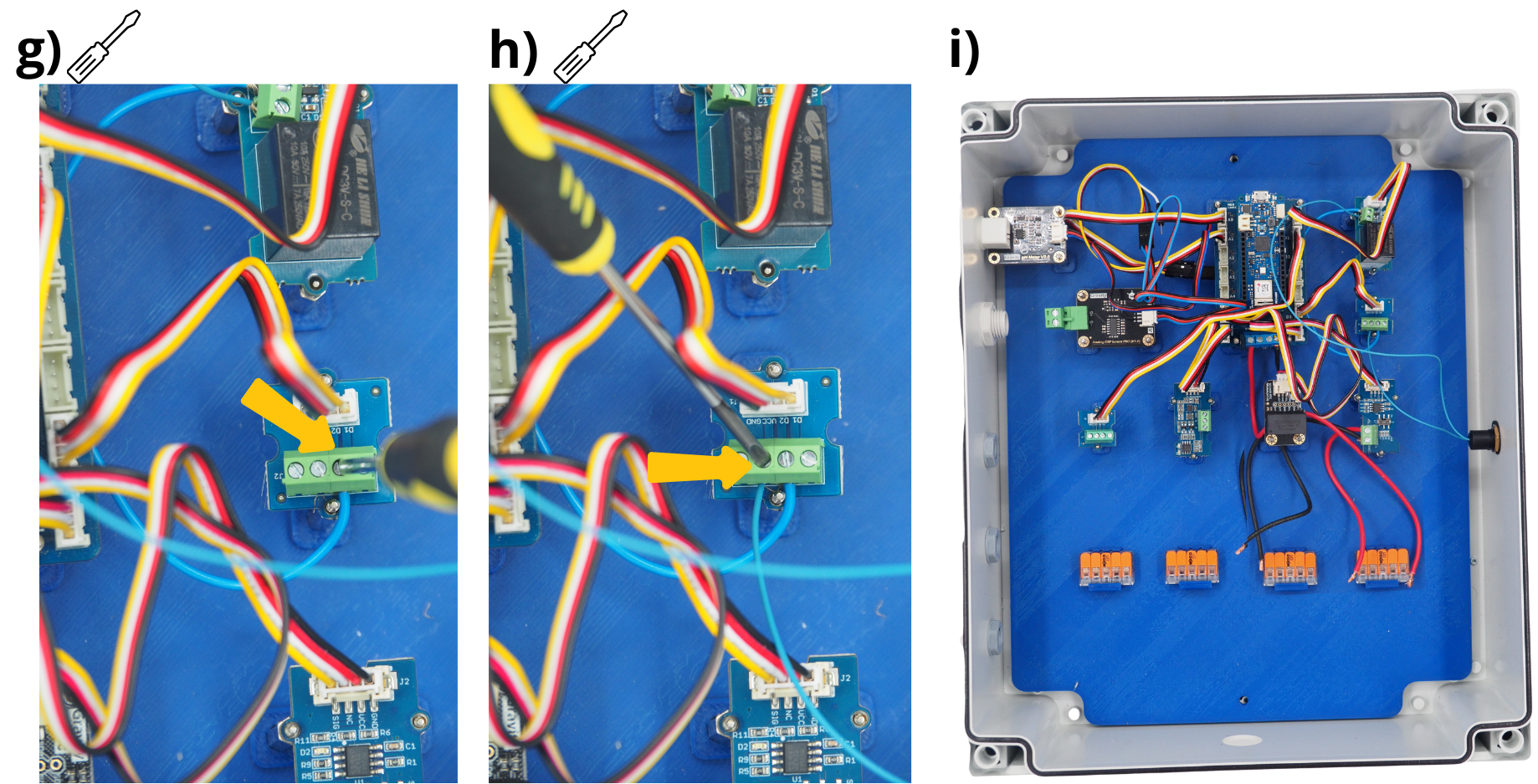
6. Connecting the Grove RS485 Module#
Cut two wires of different colours (usually blue and white) to a length of 15 centimetres, then strip the ends using wire strippers.
Insert one end of the blue cable into the screw terminal ‘B’ on the Grove RS485 Module. Tighten the screw.
Insert one end of the white cable into the screw terminal ‘A’ on the Grove RS485 Module. Tighten the screw.
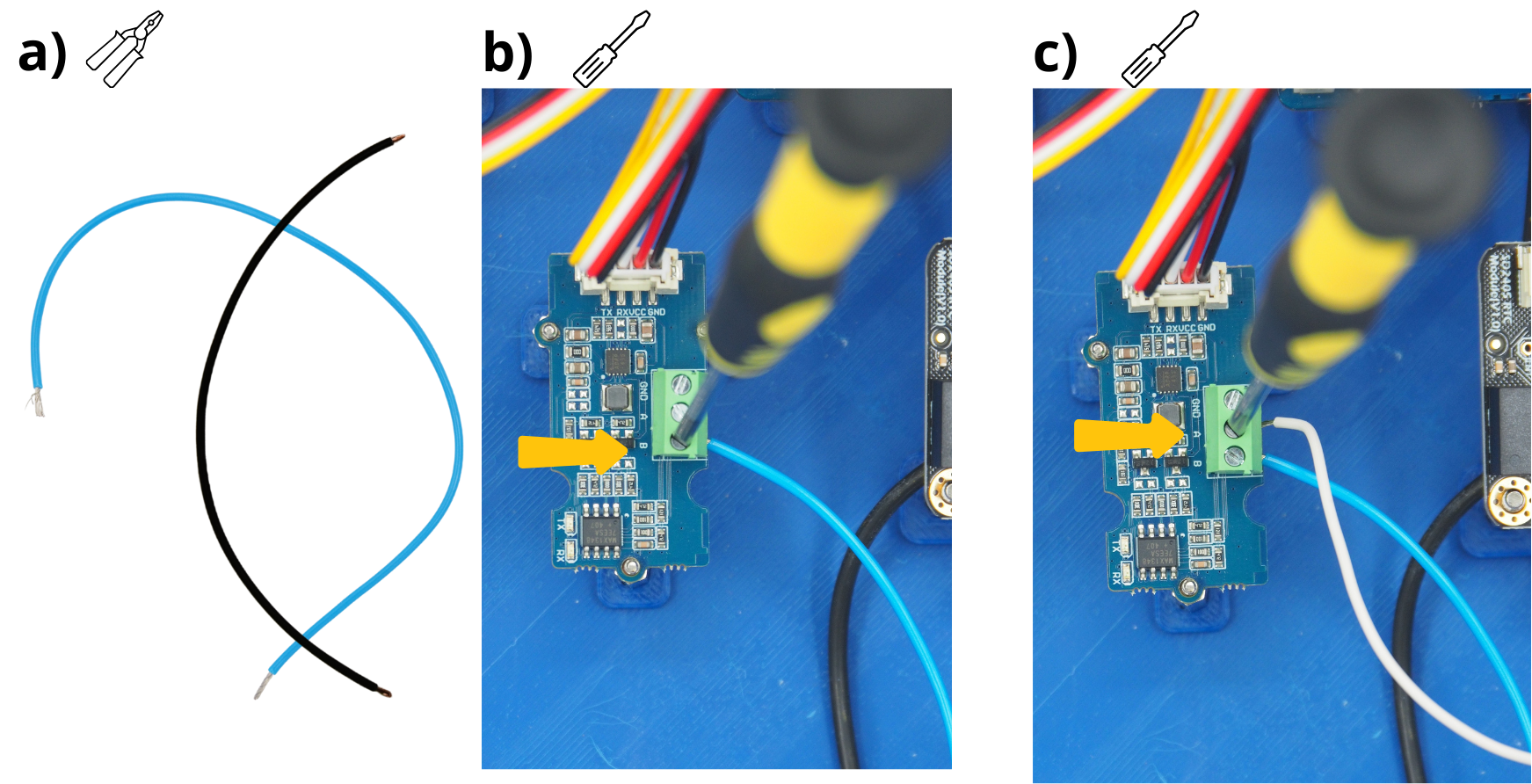
7. Power supply to the Setier Central Physico-Chemical**#
The next step involves wiring the power supply unit for the Setier Control Unit. This unit must be plugged into a 220 V socket when using the Setier Control Unit.
Cut and strip a 20 cm red cable and a 20 cm black cable.
Take the panel power connector (through-type).
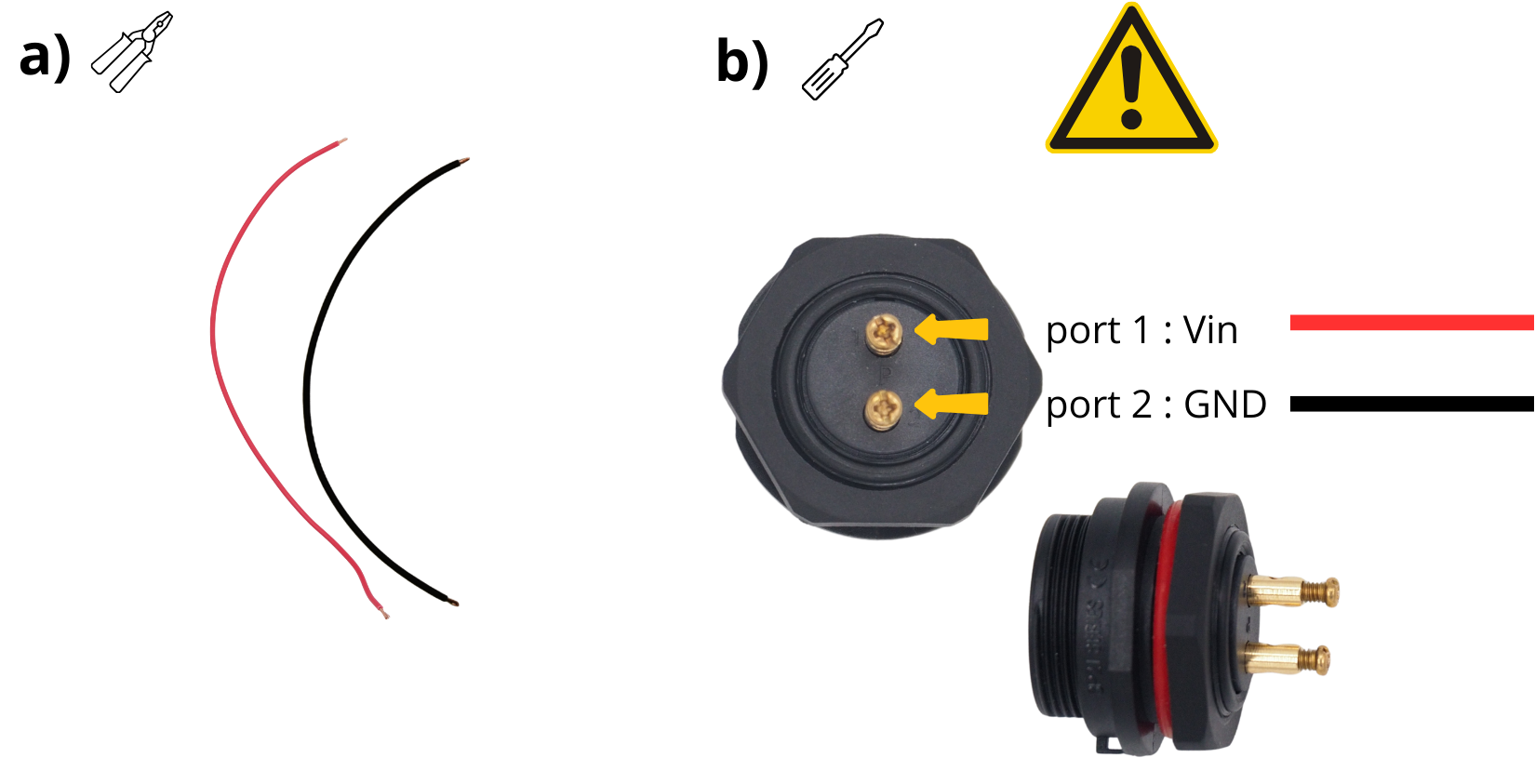
Insert one end of the red cable into the screw terminal ‘1’ on the through-panel power connector, then tighten the screw.
Insert one end of the black cable into the screw terminal ‘2’ on the panel power connector, then tighten the screw.
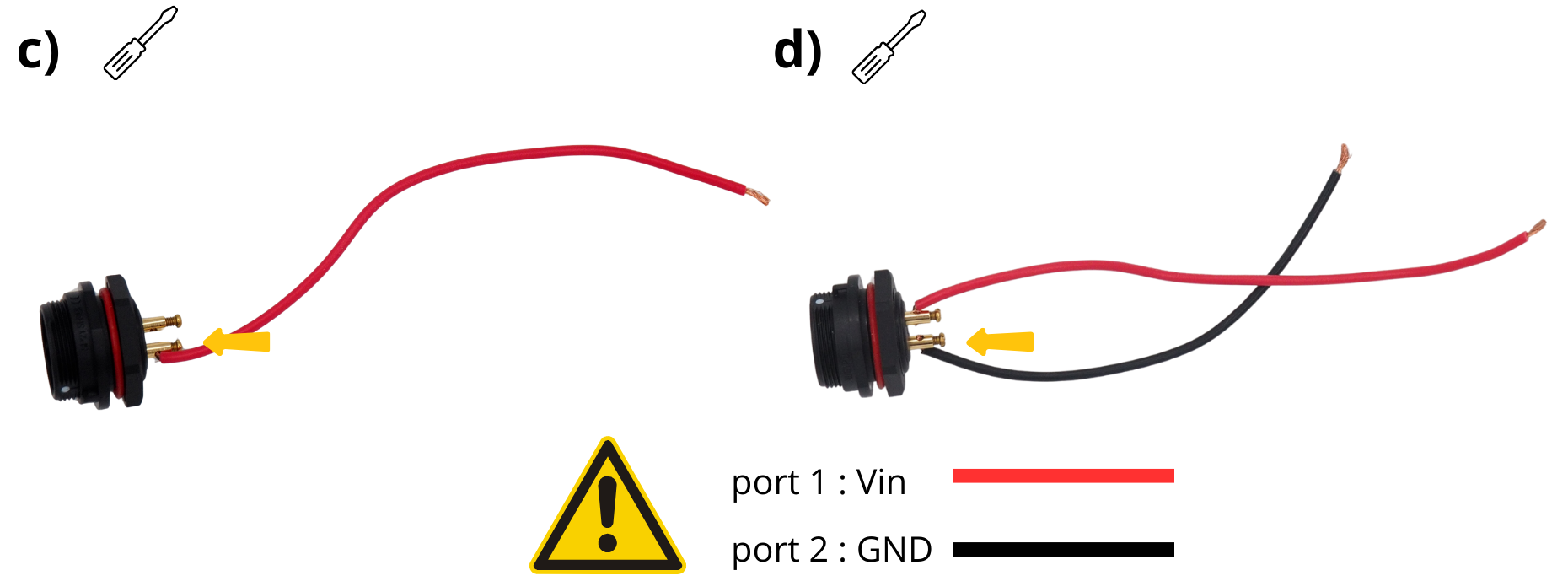
Attention
To prevent a short circuit between the GND cable (black) and the VIN cable (red), fit a heat-shrink sleeve.
Take the panel‑mount power connector.
Unscrew it to access the connection screws.
Observe the markings around it (port 1 and port 2).
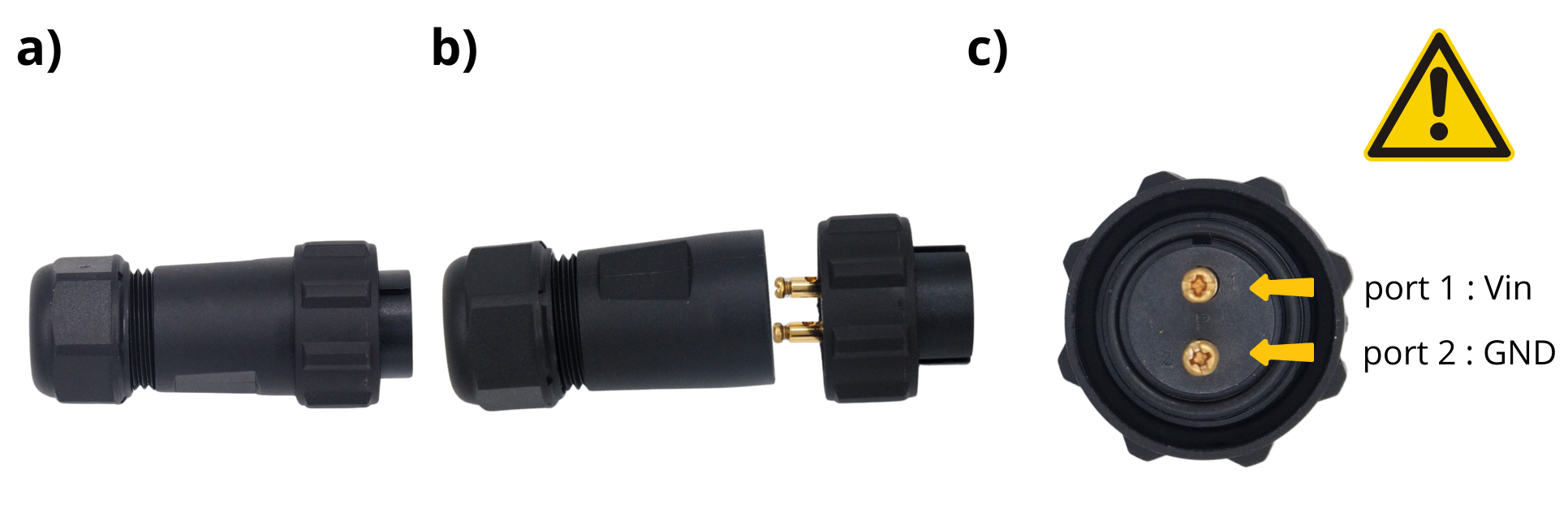
Take the 220 V → 12 V power supply, invert it, and use a screwdriver to set its output to 12 V.
Trim the end of this power plug.
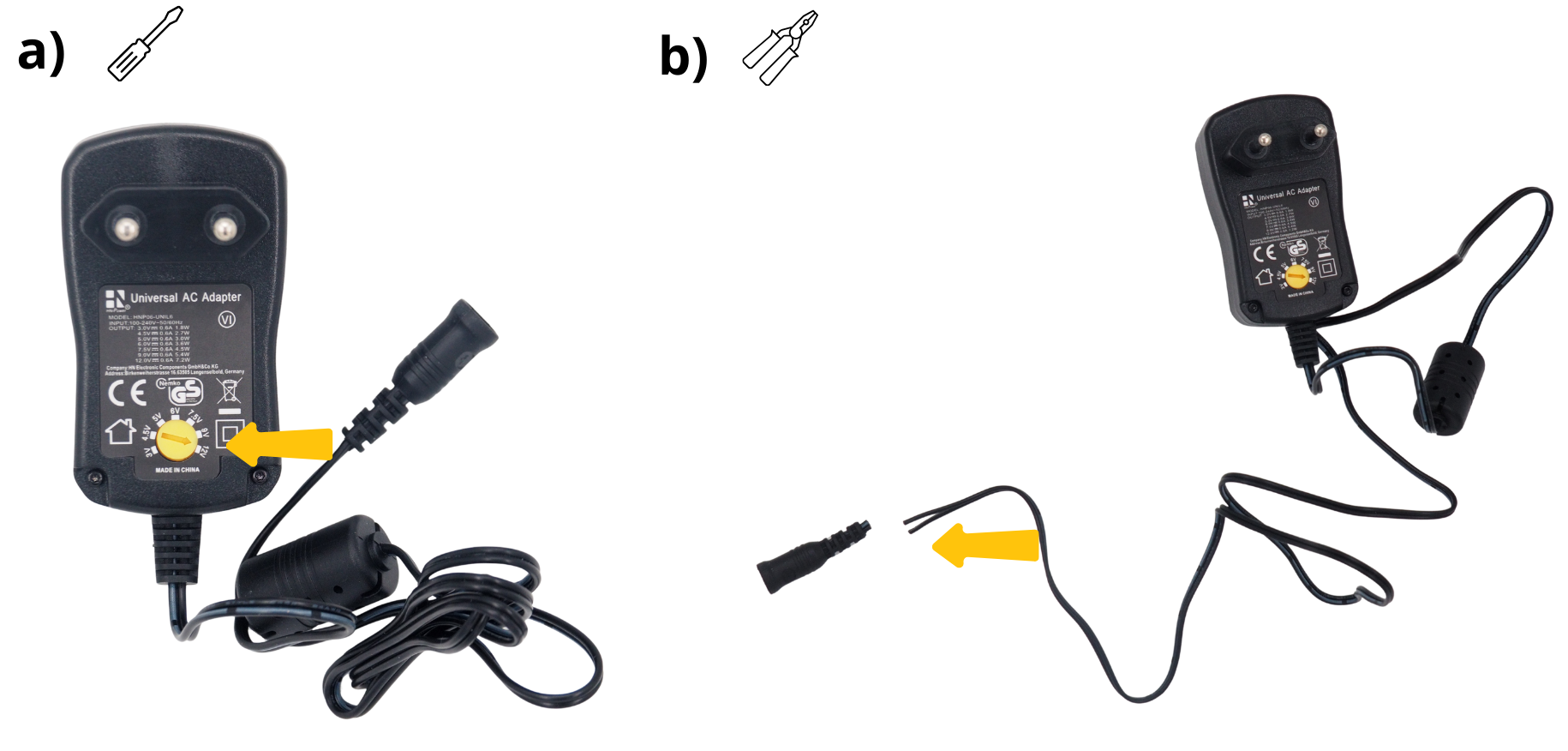
Strip the two wires at this same end.
Skip the section: cable gland of the external power connector.
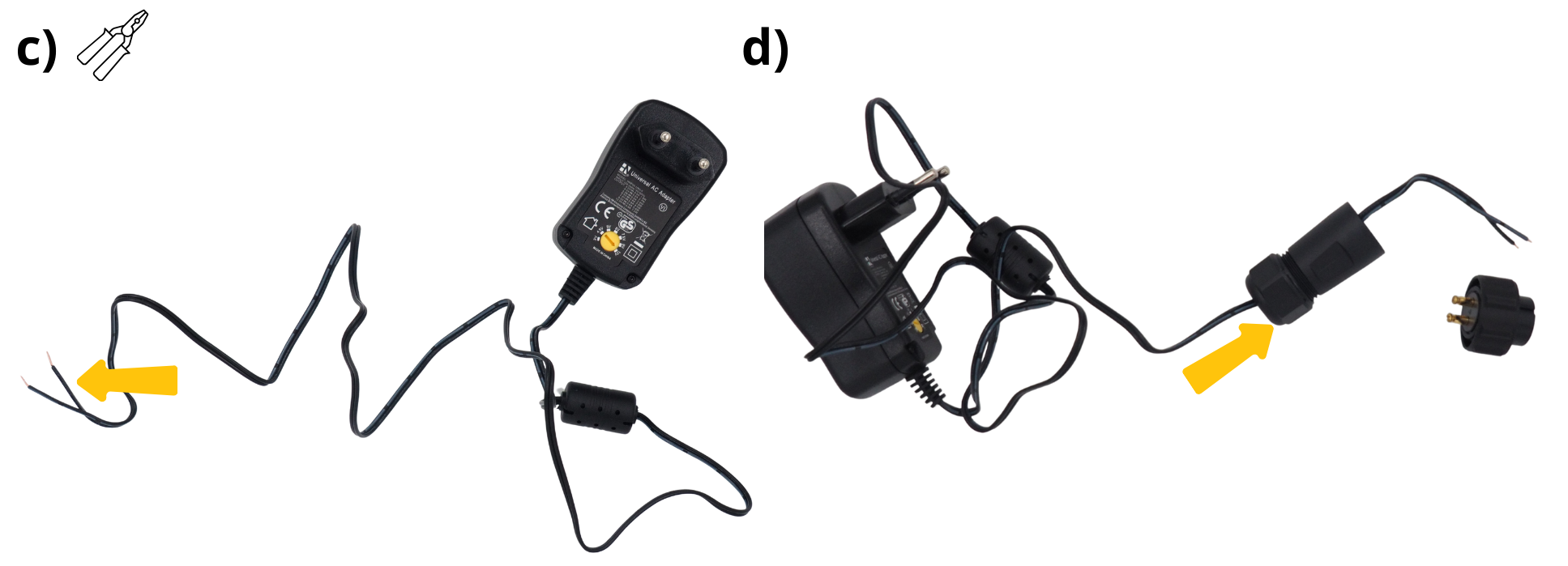
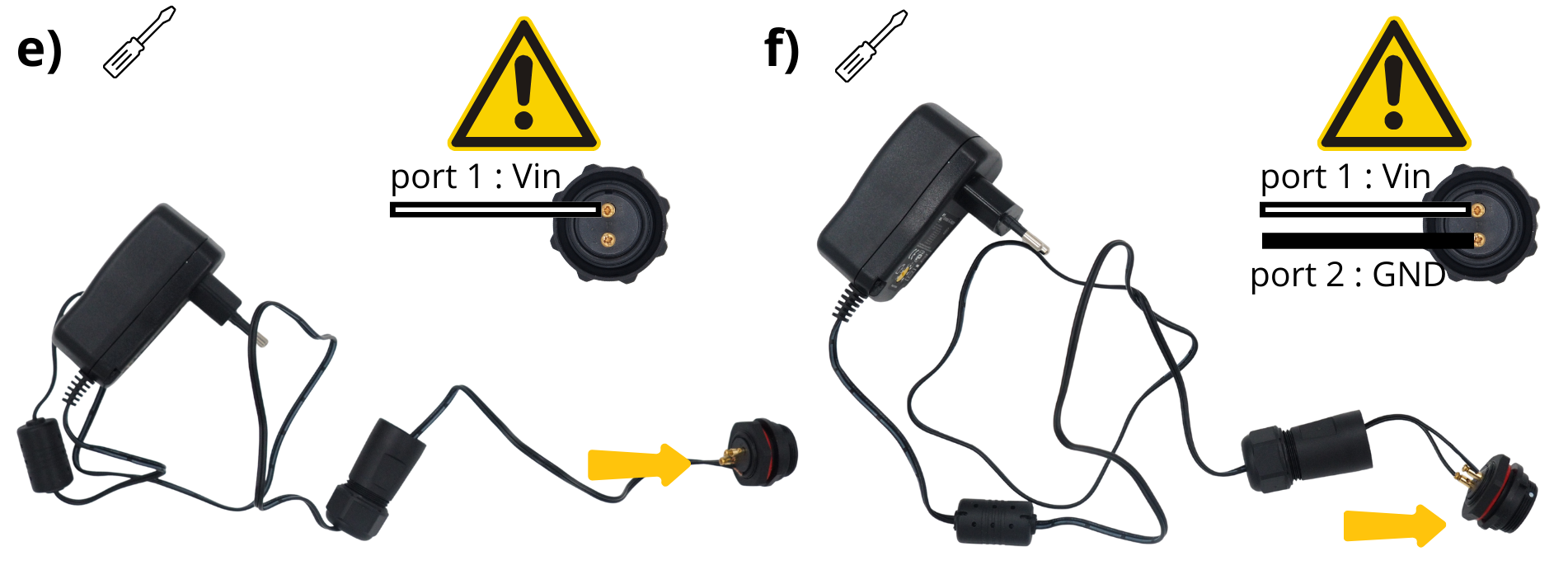
Insert the white cable into the screw terminal ‘1’ on the panel power connector. Make sure you connect the correct cable to the correct terminal.
Insert the black cable into the screw terminal ‘2’ on the panel power connector. Make sure you connect the correct cable to the correct terminal.
Screw the cable gland onto the connector you connected earlier.
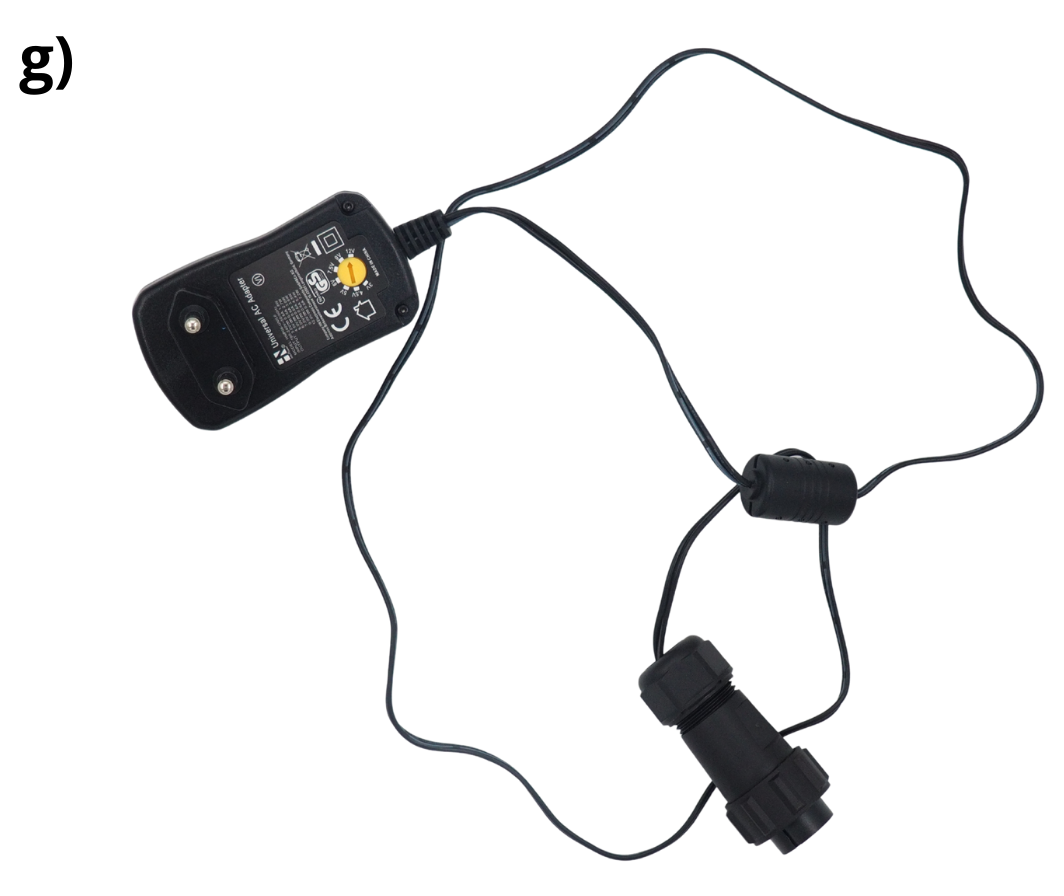
The power block is now ready.
Insert the station power block into the designated cavity.
Secure it with the supplied nut.
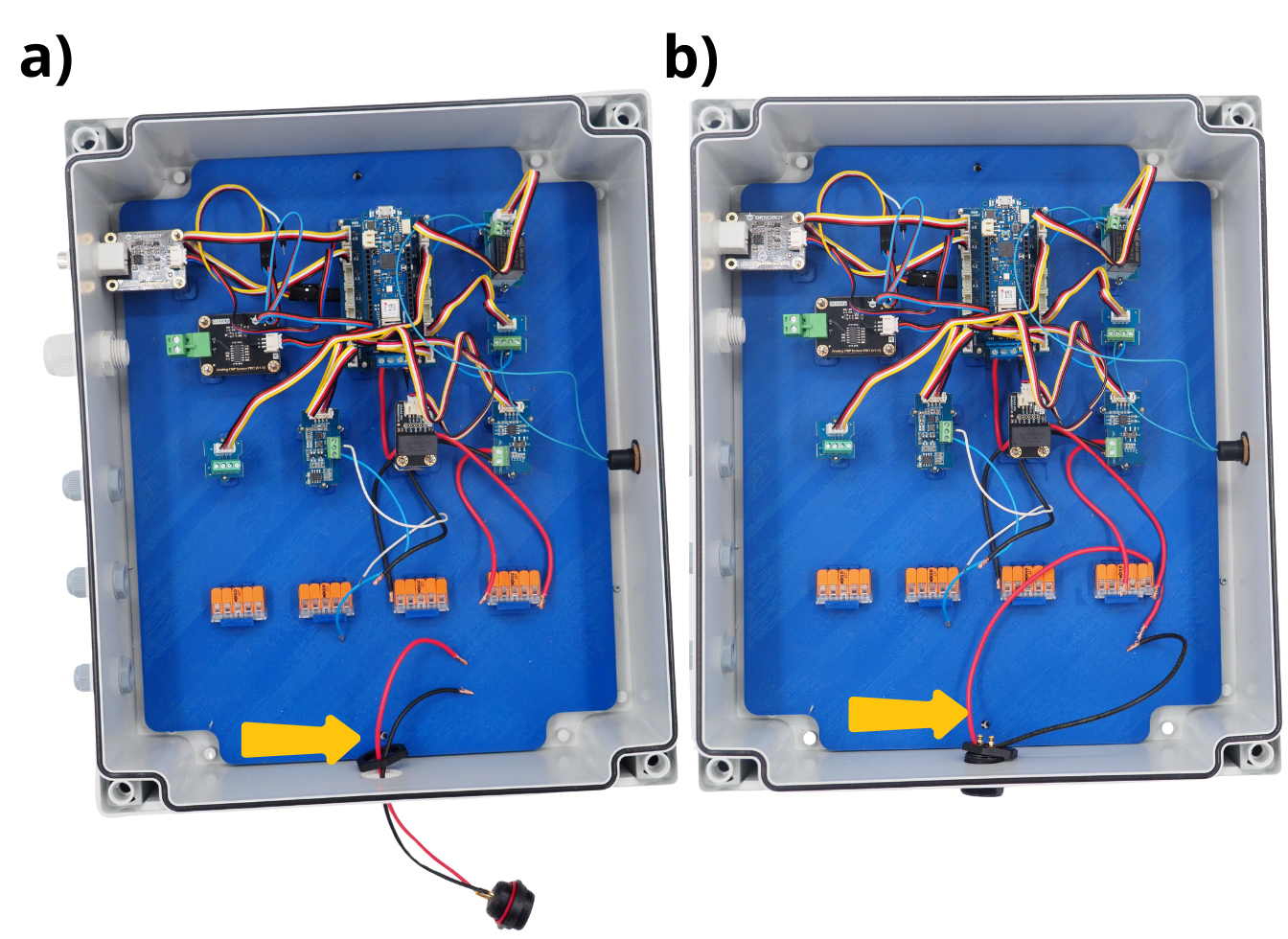
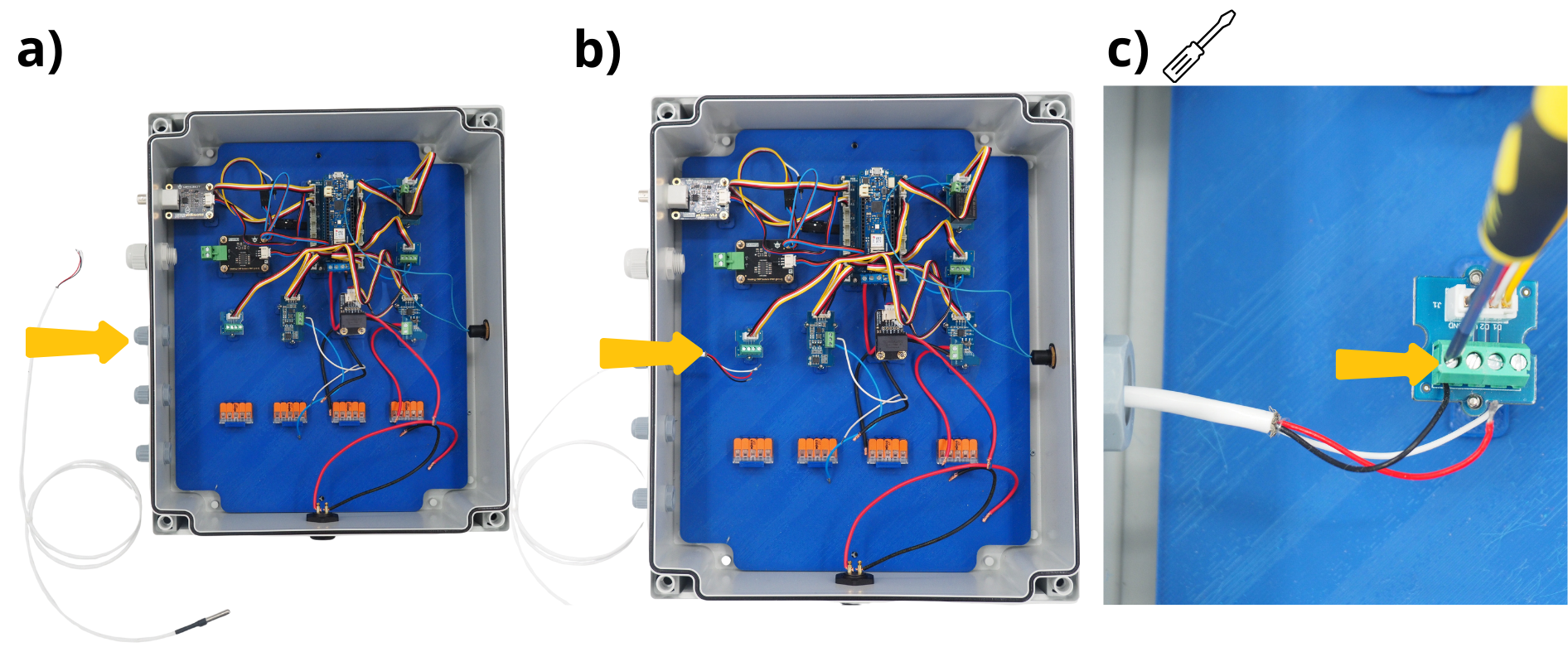
8. Wiring the temperature sensor#
Take the DS18B20 temperature sensor.
Feed the cables through the cable gland provided for this purpose (see image).
Insert the black cable from the temperature sensor into the ‘GND’ screw terminal on the second Grove Screw Terminal Module, then tighten the screw.
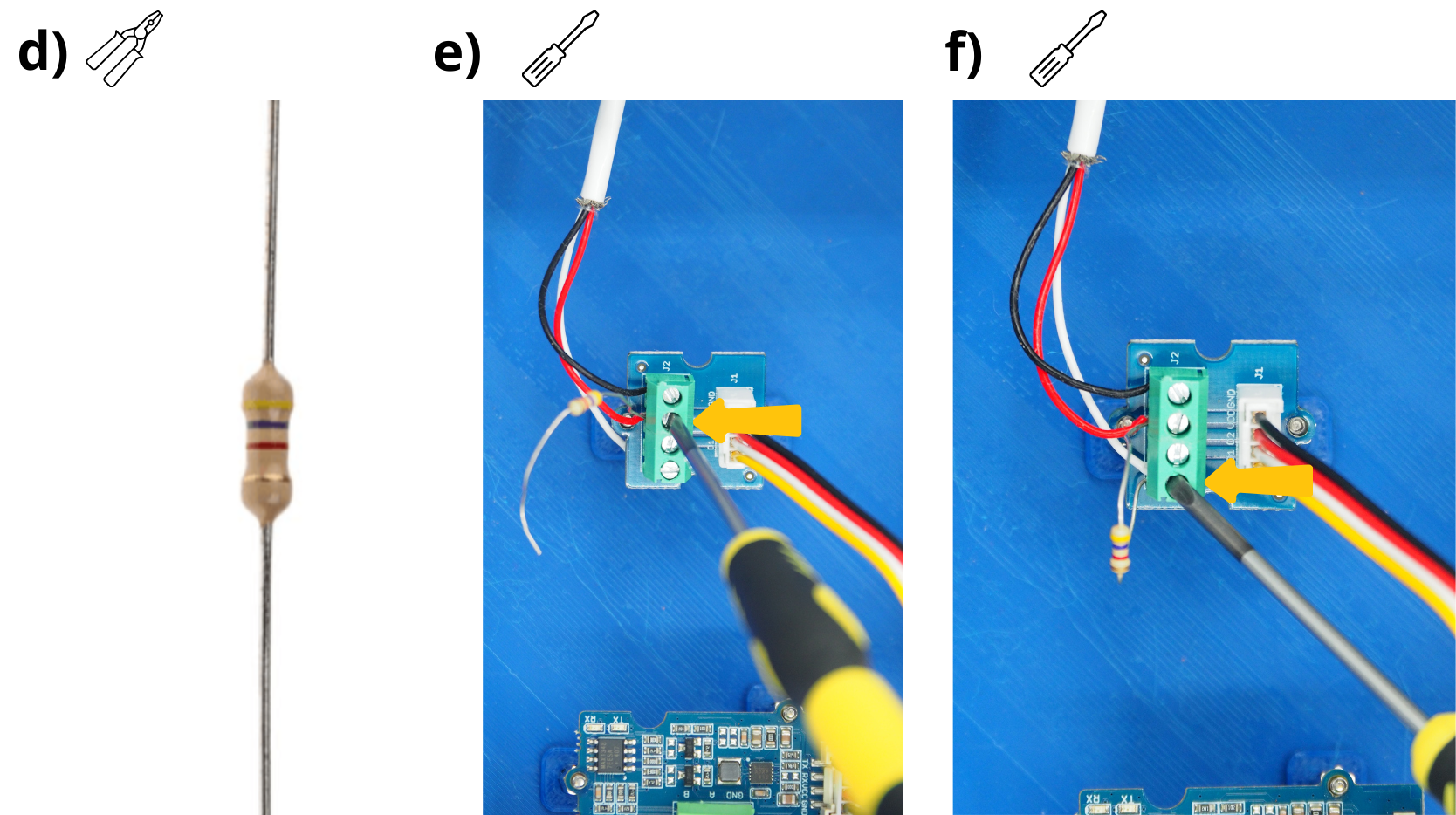
Take the 4.7 kΩ resistor.
Insert the red wire from the temperature sensor and one end of the 4.7 kOhm resistor into the ‘VCC’ screw terminal on the second Grove Screw Terminal Module, then tighten the screw.
Insert the white wire from the temperature sensor and the other end of the 4.7 kOhm resistor into the screw terminal block ‘D1’ on the second Grove Screw Terminal Module, then tighten the screw.
8. Wiring the Redox sensor#
Attention
It is important to note that the Redox sensor cables must never come into contact with each other, even when the sensor is not powered.
Take the Redox sensor.
Feed the cables through the cable gland provided for this purpose (see image).
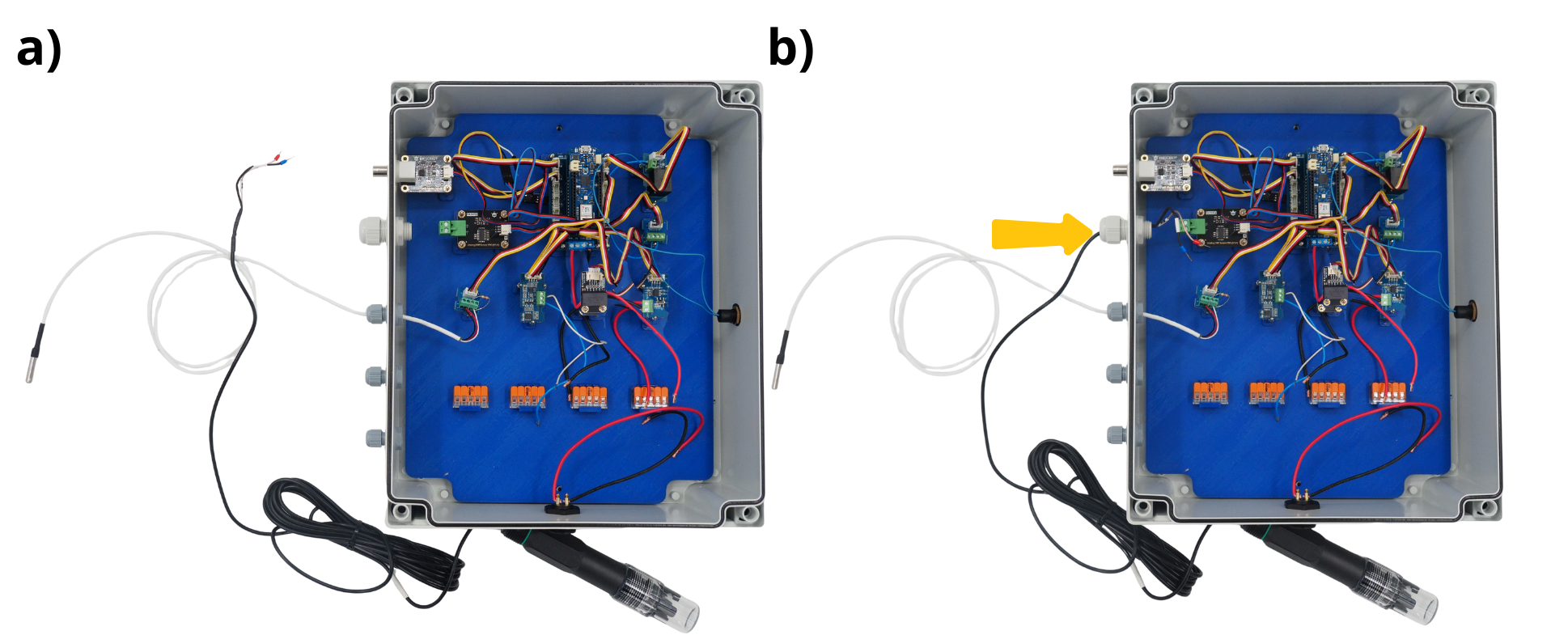
Connect the blue cable from the Redox sensor to the ‘S-’ screw terminal on the associated data acquisition board.
Connect the red cable from the Redox sensor to the ‘S+’ screw terminal on the associated data acquisition board.
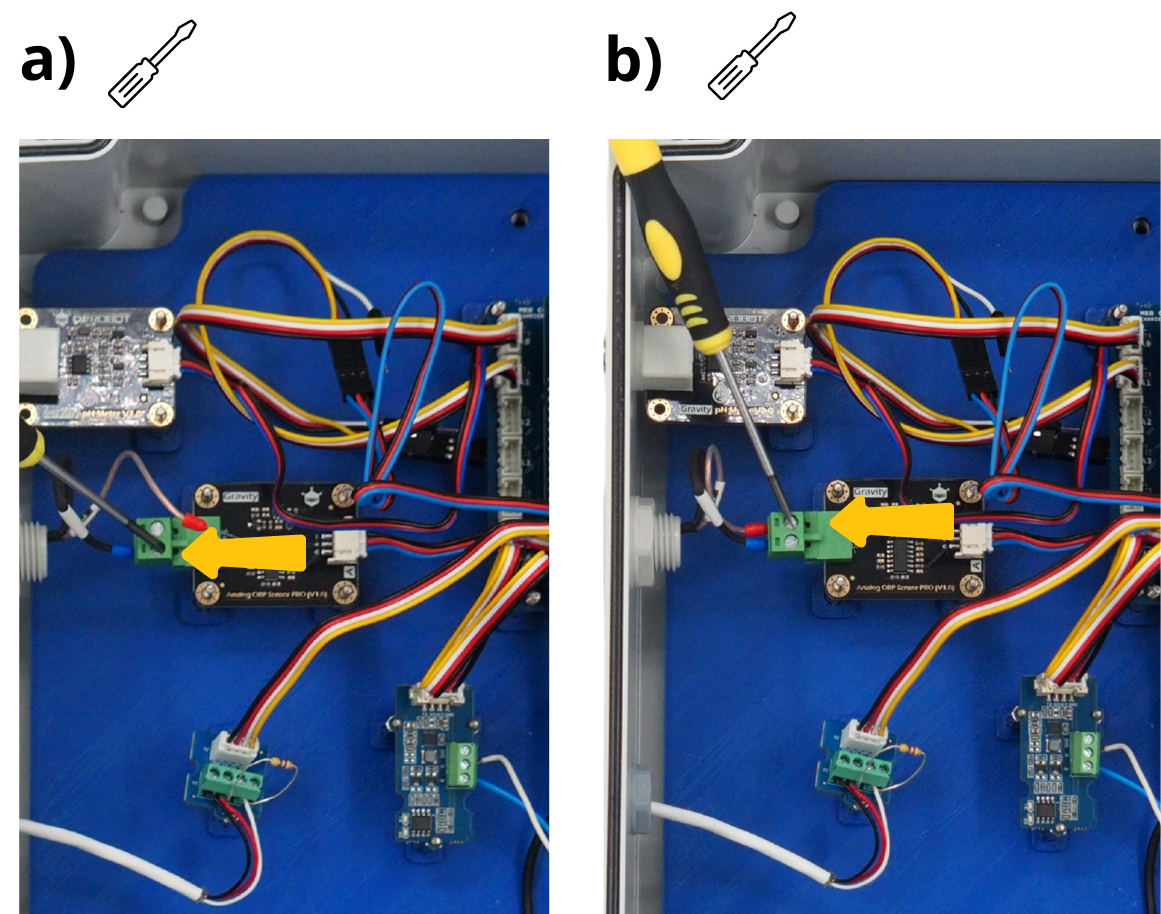
9. Connecting the pH sensor#
Take the pH sensor.
Connect the sensor’s BNC cable to the dedicated socket (see image).
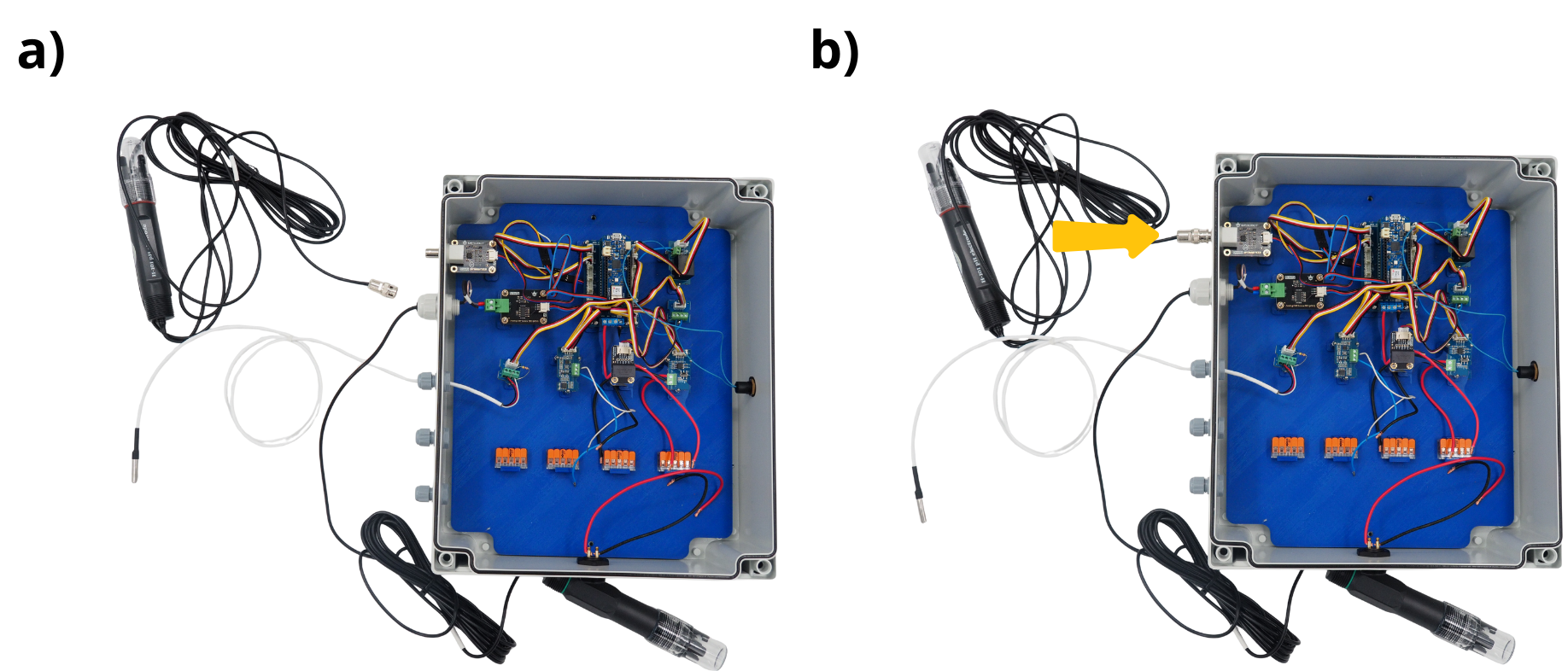
10. Installation of the conductivity and dissolved‑oxygen sensors#
Ces deux capteurs utilisent le Protocole de communication RS485. Aussi ils seront tous deux connectés au module associé. Il existe deux capteurs de conductivité qu’il est possible d’interfacer sur le datalogger comme suit. Le capteur ECK1.0 a une plage de mesure comprise entre 0 et 2000 µS/cm. Le capteur ECK10 a une plage de mesure comprise entre 0 et 20000 µS/cm.
Take the conductivity sensor and the dissolved‑oxygen sensor.
Insert them into the two remaining cable glands. The order in which you insert them does not matter.
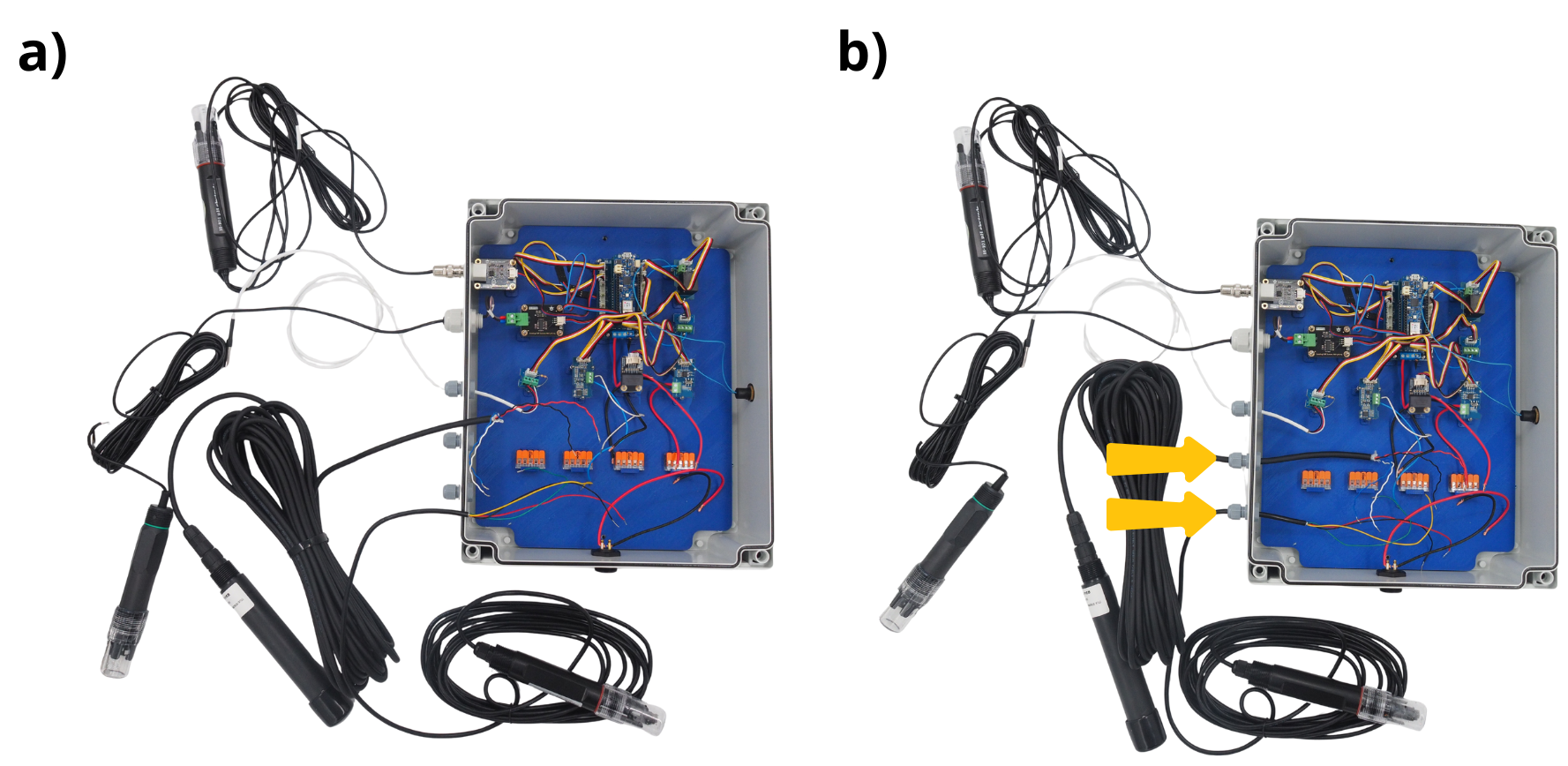
11. Connecting cable A from the various RS485 components to a WAGO terminal block#
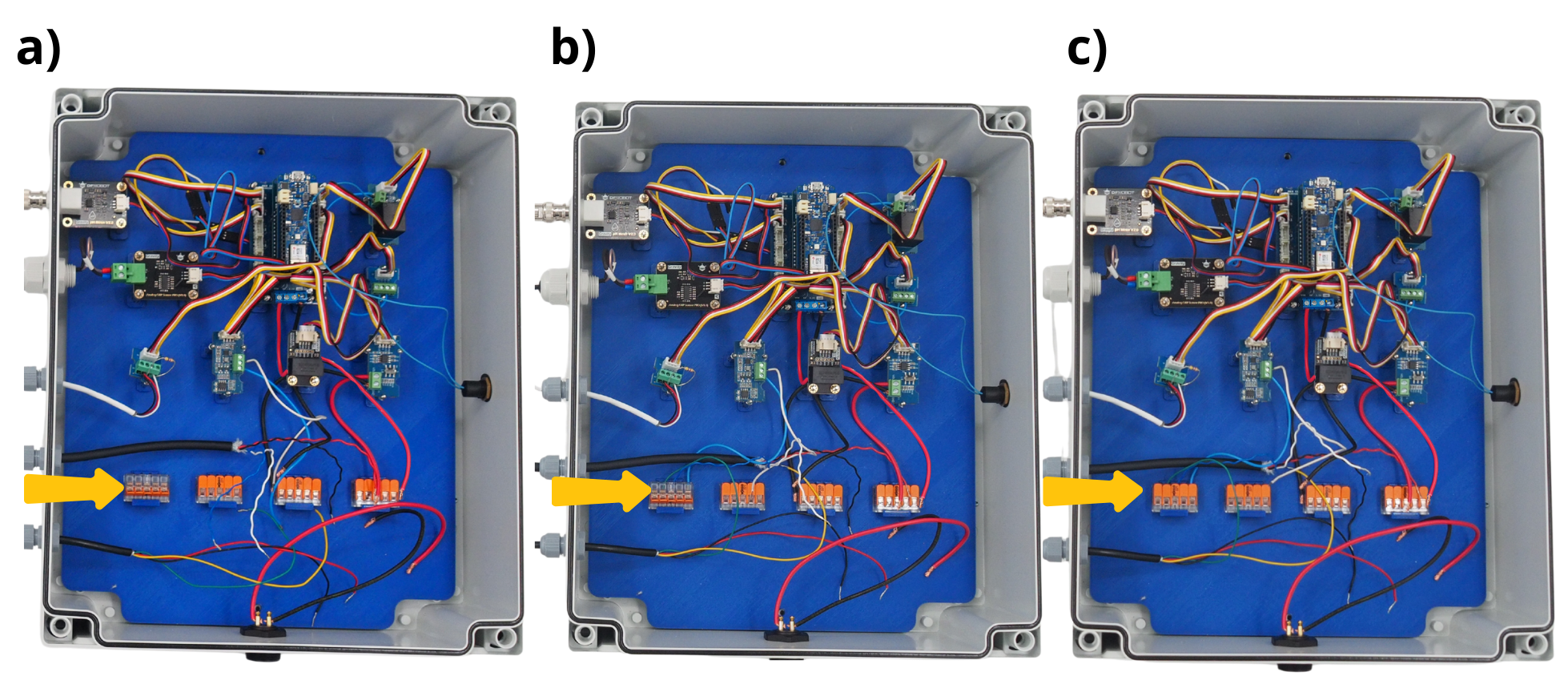
Open the three levers on the first WAGO terminal block.
Insérer dans chacun de ces leviers les câbles suivants : câble bleu en provenance du Bornier à vis “A” du Module Grove RS485, câble bleu en provenance du capteur Oxygène Dissous et câble blanc en provenance du capteur Conductivité.
Close the three connected levers on the WAGO terminal block.
12. Connecting cable B from the various RS485 components to a WAGO terminal block#
Open the three levers on the second WAGO terminal block.
Insérer dans chacun de ces leviers les câbles suivants : câble blanc en provenance du Bornier à vis “B” du Module Grove RS485, câble blanc en provenance du capteur Oxygène Dissous et câble vert en provenance du capteur Conductivité.
Close the three connected levers on the WAGO terminal block.
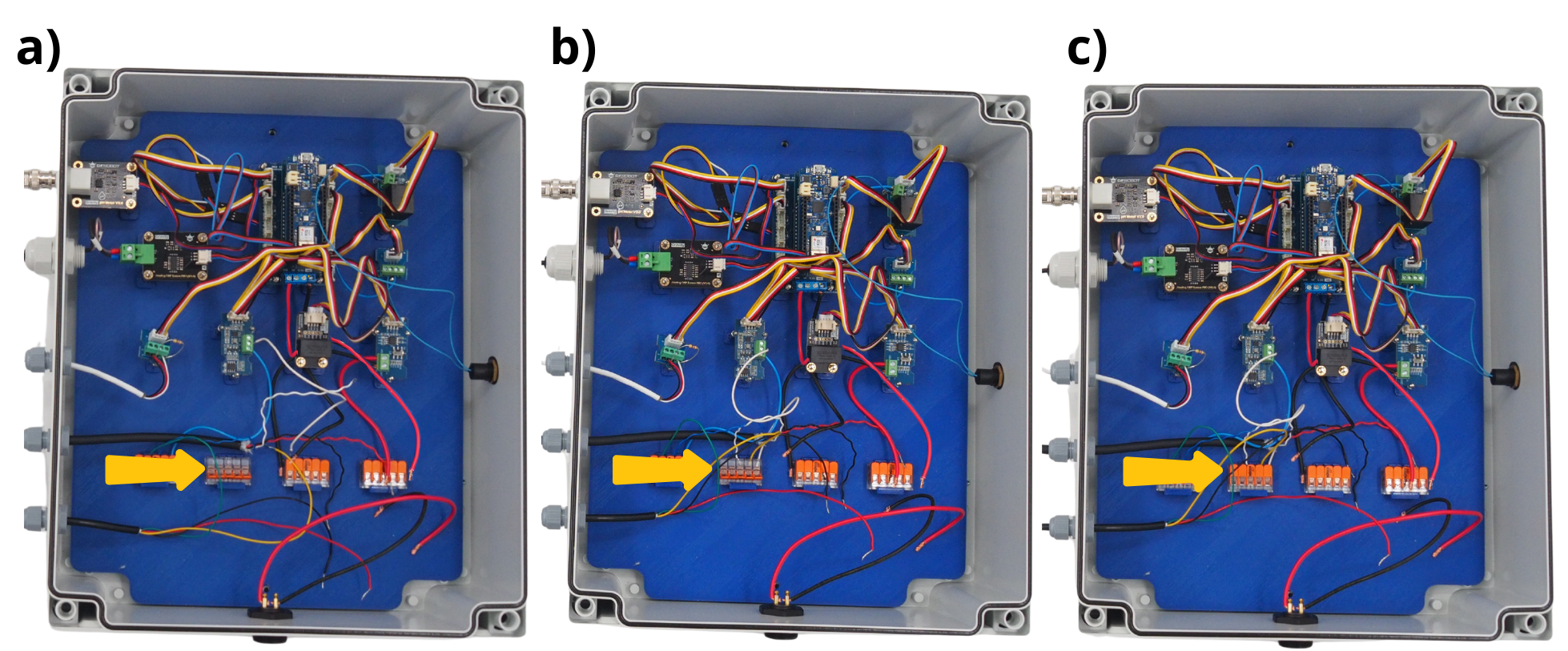
13. Connecting the GND ground of the various components to a WAGO terminal block#
Open the five levers on the third WAGO terminal block.
Insert the remaining ends of the following black cables into each of these terminals: From the Grove Voltage Divider Module, from the power supply, from the Arduino MKR Connector Carrier board, from the Dissolved Oxygen sensor and from the Conductivity sensor.
Close the 5 connected levers on the WAGO terminal block.
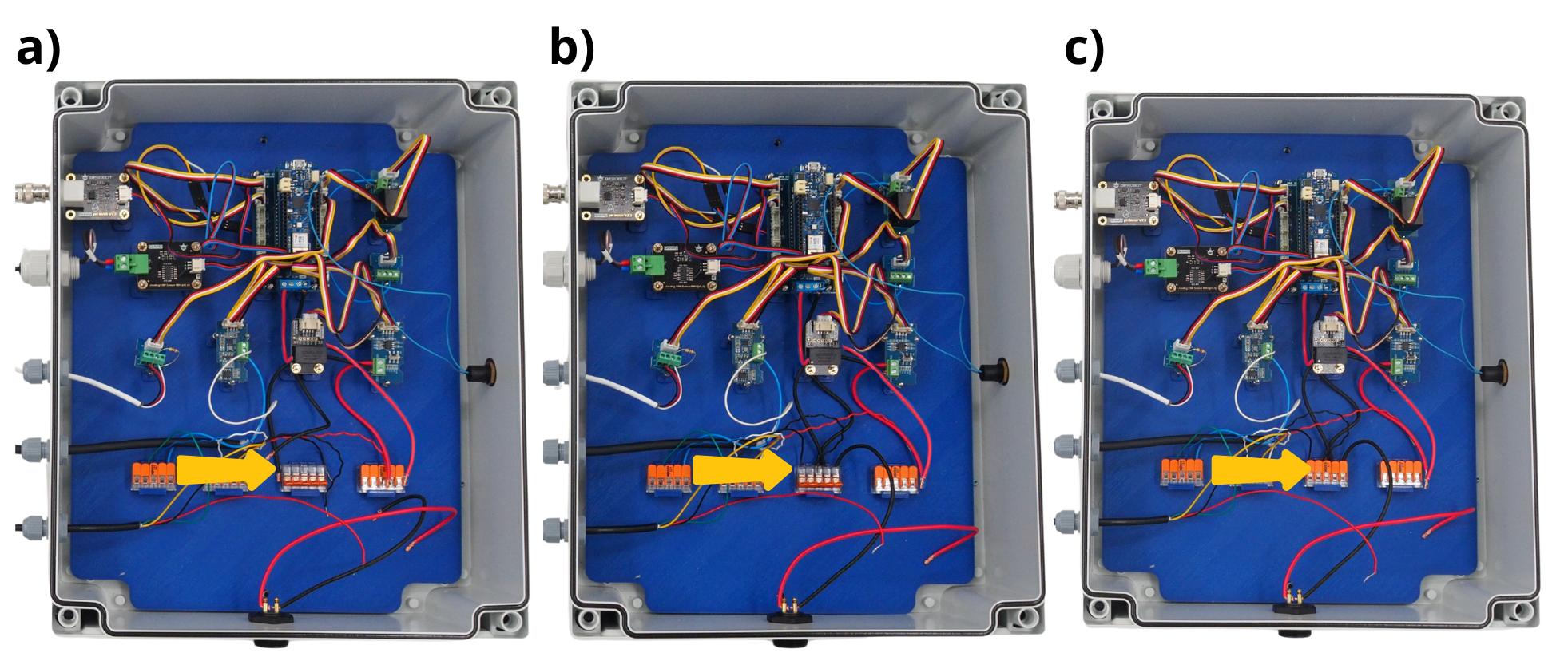
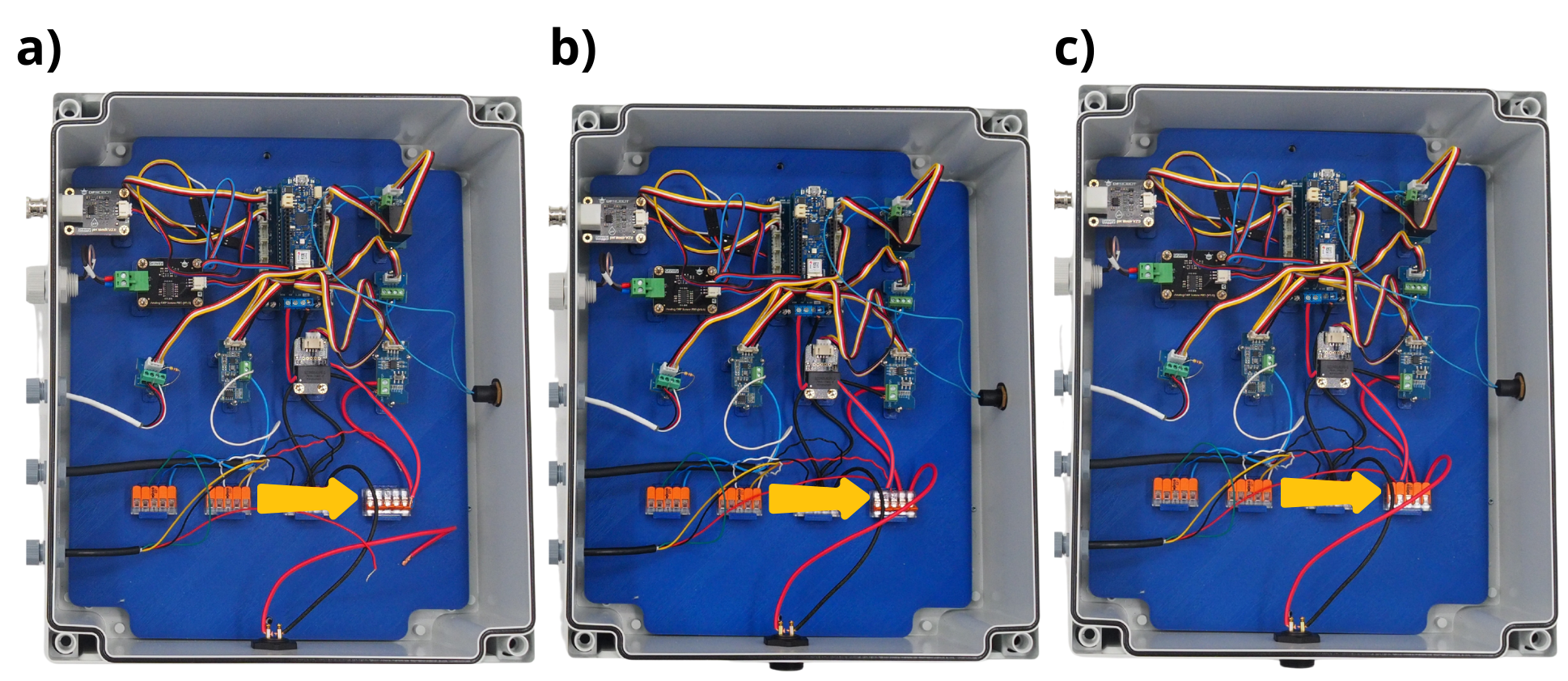
14. Connecting the 12 V power supply for the various components to a WAGO terminal block#
Open the 5 levers on the last WAGO terminal block.
Insert the remaining ends of the following red cables into each of these terminals: From the Grove Voltage Divider Module, from the power supply, from the Arduino MKR Connector Carrier board, from the Dissolved Oxygen sensor and from the Conductivity sensor.
Close the 5 connected levers on the WAGO terminal block.
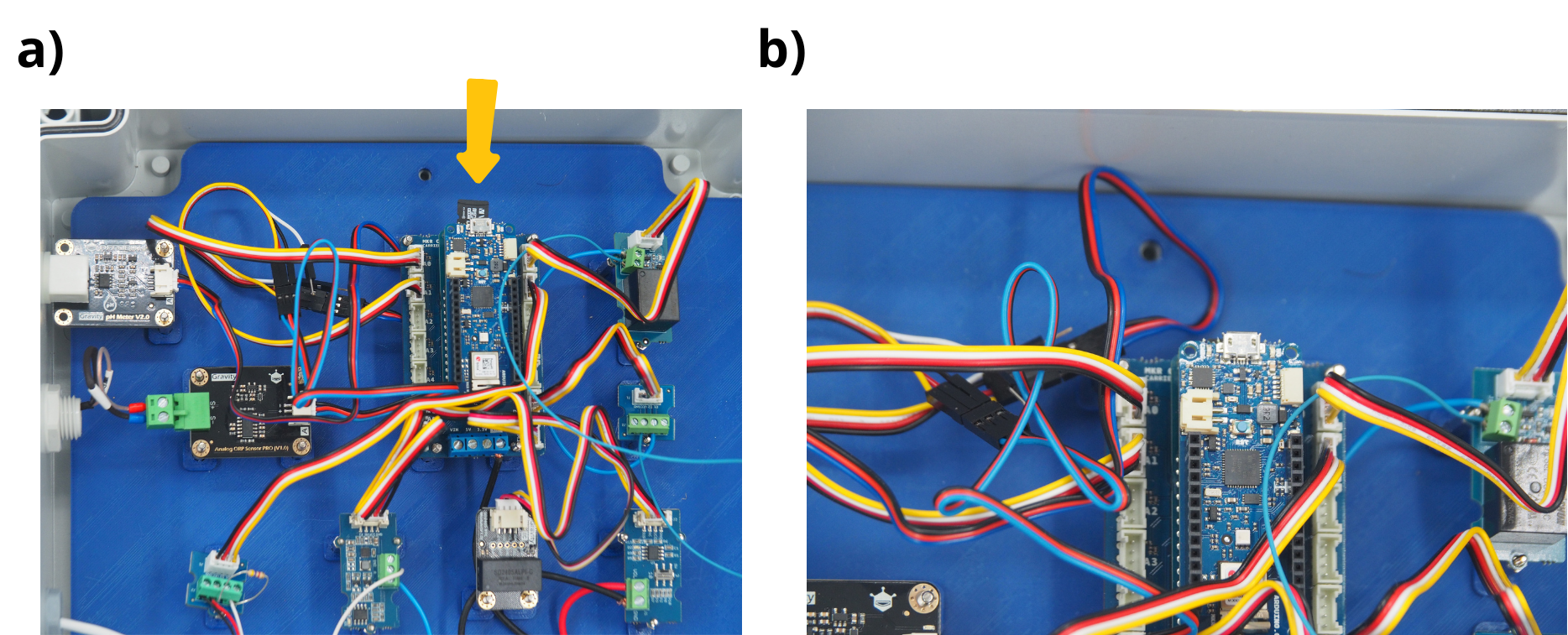
15. Connection of the µSD card#
Take the µSD card.
Insert it into the microSD slot on the Arduino MKR MEM Shield.
16. Shutdown and connection of the Physical-Chemical Control Centre#
Remove the 4 screws from the box and close it with its lid.
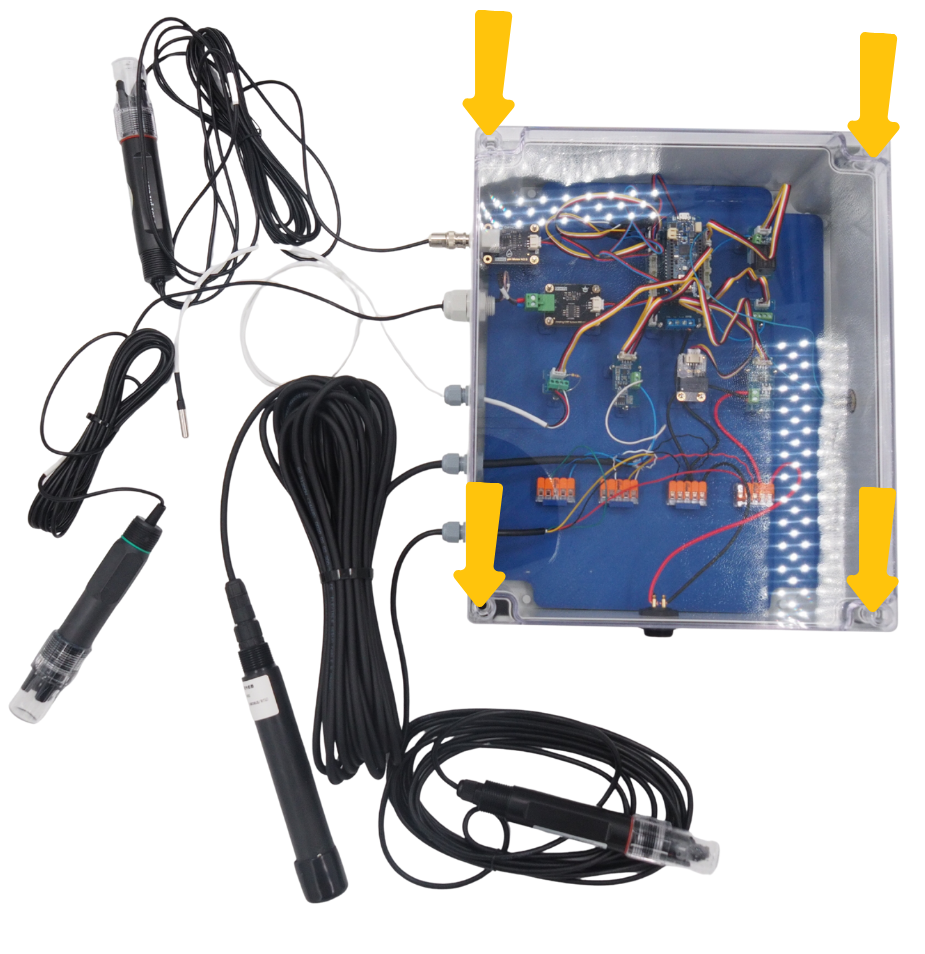
Connect the panel power connector to the control unit. It is now ready to be configured and used.